Professional Countdown Timer
for Live Events

macOS & Windows · OSC · Bitfocus Companion · LTC · NDI · Web Mirror & Controller

Download for macOS Download for Windows  Microsoft Store  SOON  App Store  SOON Documentation →
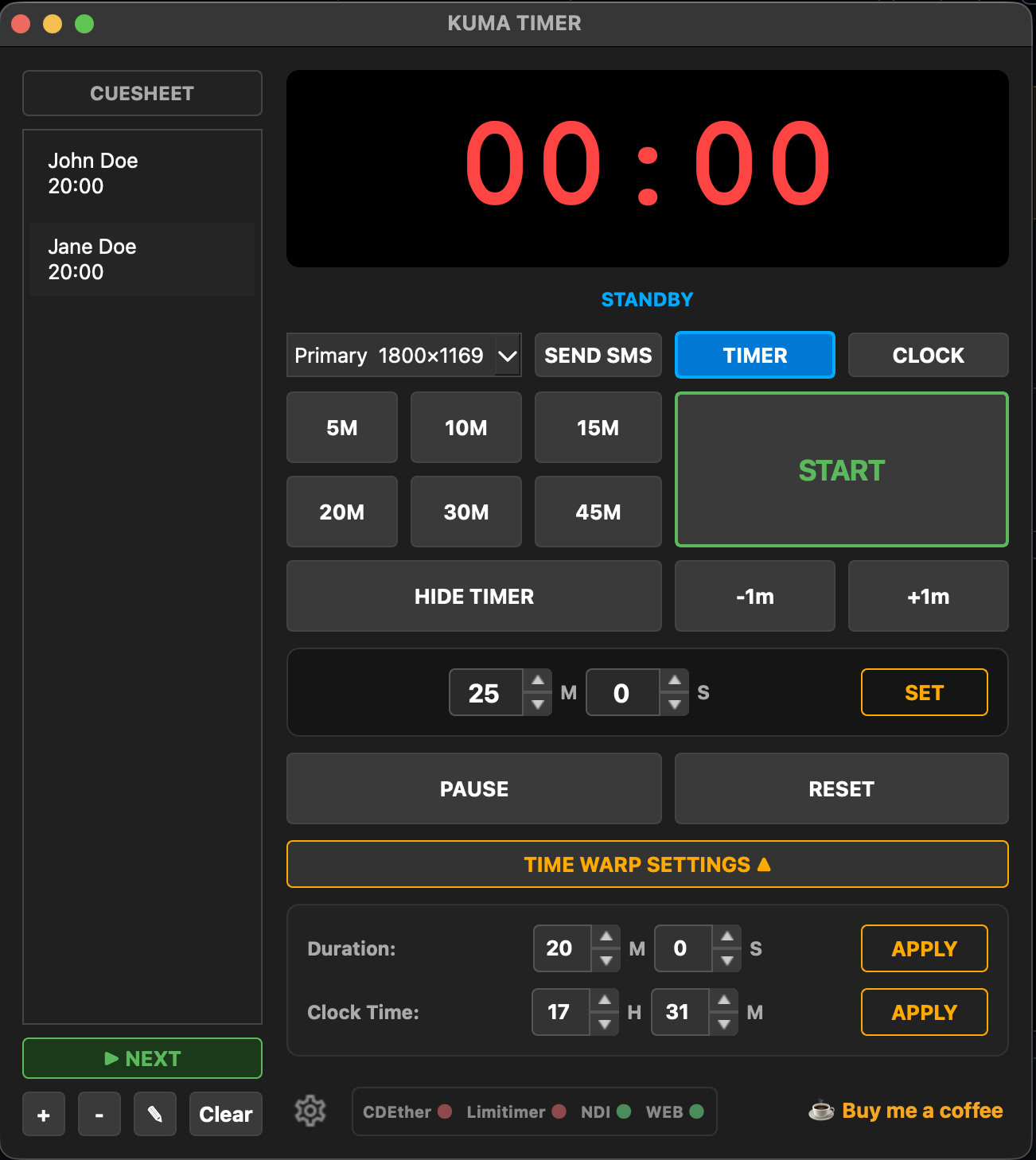
KUMA Timer screenshot

Everything you need on stage

Countdown & Count-up
MM:SS or HH:MM:SS display. Count-up overtime mode with progressive colour warnings. Clock mode shows live time of day. Send to any screen in fullscreen.
Runsheet / Cuesheet
Named cues with individual times. Double-click to load instantly. Next/Prev navigation. Drag & drop to reorder. Auto-saved.
Quick Presets
Six one-click preset buttons (1–60 min). Fully customisable labels and durations. Load any time in seconds without touching a keyboard.
Time Glide
Silently adjust tick speed so the timer hits zero at exactly the right moment — invisible to the audience. Configurable glide range.
Presenter View Mode
Always-on-top floating window. Works over PowerPoint & Keynote fullscreen. Drag, resize, font auto-scales to fill any size.
Web Mirror & Controller
Built-in HTTP server — open the timer in any browser on your network. Password-protected /control panel lets you run the timer from any phone or tablet. Scan QR to connect instantly.
Bitfocus Companion
Official module — start, pause, reset, load cues & presets, send messages, set mode. Boolean feedbacks for button LEDs. 17 actions, 9 feedbacks, 8 variables.
OSC Control
Bidirectional OSC — receive commands from any automation system and broadcast live status back. Custom paths, configurable ports.
LTC Receiver
Read SMPTE timecode from any sound card input. Displays HH:MM:SS:FF in cyan — no extra hardware needed.
NDI Output
Broadcast a full 1920×1080 NDI video stream — timer, cues, message bar — to vMix, OBS, Resolume and more. Runtime bundled, nothing to install.
Send Message to Screen
Scrolling text marquee sent live to the display. Timed auto-dismiss. Saved templates for quick reuse. Customisable colours, size, position and scroll direction.
KUMA Monitor SOON
Native app for iPhone, iPad & Android. Monitor mode: full-screen timer display. Controller mode: Start, Pause, Reset, ±1 min, Load Time, Count Up, Clock/Timer. Connects over local WiFi.
Complete Feature List
Timer & Display
  • Countdown, count-up & time-of-day clock
  • MM:SS or HH:MM:SS format
  • Text mode or Round analog ring
  • Background — solid colour or custom image
  • Custom text colour & font
  • Colour warnings: green → orange → red
  • Progress bar (text mode)
  • Ring: fill-up or countdown direction
  • Ring: filled / solid / outline style
  • Show cue name on display
Overtime
  • Stay at 00:00 / count-up / stop
  • Background colour change on overtime
  • Blink effect in overtime
  • OSC message on overtime trigger
Cuesheet & Presets
  • Named cues with individual durations
  • Double-click to load any cue
  • Next / Previous cue navigation
  • Drag & drop reorder
  • 6 quick-load presets (customisable)
  • Manual HH:MM:SS input
Message to Screen
  • Live text overlay on display
  • Scrolling marquee or static
  • Scroll direction (invert for RTL text)
  • Position: top or bottom
  • Size: small / medium / large
  • Custom text & border colours
  • Flash effect
  • Fullscreen mode
  • Timed auto-dismiss
  • Saved templates
  • Message history
Remote Control & Web
  • Web mirror — timer in any browser
  • Web controller — full control from phone/tablet
  • Password protection
  • QR code for instant connection
  • Configurable port
  • KUMA Monitor for iPhone & iOS SOON
  • KUMA Monitor for iPad & iPadOS SOON
  • KUMA Monitor for Android SOON
Integrations
  • Bitfocus Companion — 17 actions, 9 feedbacks
  • OSC input & output (bidirectional)
  • NDI output — 1080p stream (bundled runtime)
  • LTC / SMPTE timecode receiver
  • CdEther — Interspace hardware display sync
  • LimiTimer — Dsan PCT-2 serial hardware
Controls & Shortcuts
  • Space — start / pause / resume
  • R — reset timer
  • H — hide / show display
  • ±1 minute buttons
  • Time Glide — silent speed adjustment
  • Presenter View — always-on-top overlay
  • Multi-monitor — send to any screen
  • macOS & Windows · free download

Latest Release

Bitfocus Companion Module

Control KUMA Timer from your Elgato Stream Deck or any Companion-compatible controller. Download the module package and install it manually until it appears in the official Companion module library.

companion-module-kumatimer
For Bitfocus Companion 3.x · OSC · Feedbacks · Variables · Presets
 Download Module (.zip)

How to install (Dev Module)

  1. Download the .zip above, extract it, and move the kuma-companion/ folder somewhere permanent (e.g. ~/companion-modules/kuma-companion/)
  2. Open the Companion launcher, click the ⚙ cog icon (top-right) → Advanced Settings
  3. In the Developer section click Select and choose the folder containing kuma-companion/ (e.g. ~/companion-modules/), then toggle Enable Developer Modules on
  4. Close settings, click Launch GUI, add a new connection and search for KUMA Timer

Companion watches the dev folder live — you can update module files without restarting.

First Launch

KUMA Timer is available as a Microsoft Store app (Windows), Apple App Store (macOS, coming soon) and as a direct download for both platforms. Store versions install without any security warnings and update automatically.

macOS — Apple App Store COMING SOON

The easiest way to install KUMA Timer on macOS — no Gatekeeper warnings, no right-click tricks, automatic updates.
 Get it on App Store  SOON
Why £5.99?
KUMA Timer is an indie project. The App Store price covers Apple's developer programme fee ($99/year) and helps keep development going. If you can, installing through the App Store is the best way to support the project — it means a lot. ☕
macOS — Direct Download
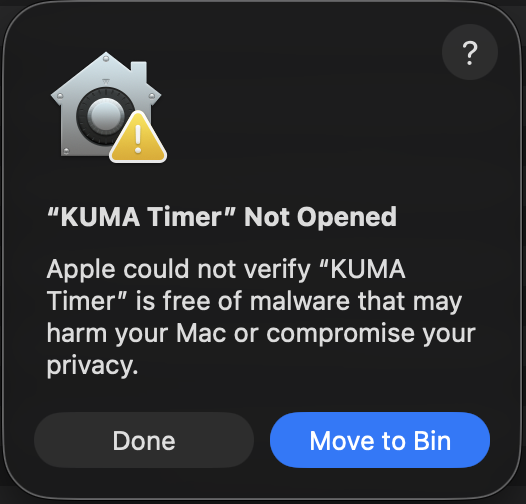
macOS Gatekeeper dialog
  1. When the "KUMA Timer Not Opened" dialog appears — click Done
  2. Open System Settings → Privacy & Security
  3. Scroll down — you'll see "KUMA Timer was blocked"
  4. Click Open Anyway and confirm with your password

Alternative: right-click the app → OpenOpen in the dialog that appears.

Why does this warning appear?
Removing it requires an Apple Developer certificate ($99/year) + a notarisation fee. KUMA Timer is free — every coffee goes directly towards covering these costs so future versions can open without any warnings.

☕  Buy me a coffee
Windows — Microsoft Store RECOMMENDED

Install directly from the Microsoft Store — no security dialogs, no warnings, automatic updates.
 Get it on Microsoft Store  SOON
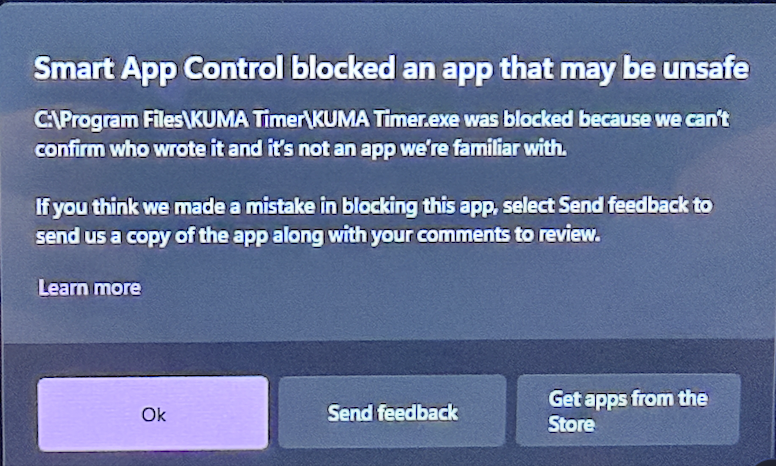
Manual installer (.exe) — if you prefer the direct download, Windows Smart App Control or SmartScreen may block the unsigned installer:
Windows Smart App Control dialog
  1. Click OK to dismiss the dialog
  2. Open Windows Security → App & browser control
  3. Click Smart App Control settings → set to Off
  4. Run the installer again — it will launch normally

If you see "Windows protected your PC" (SmartScreen) instead — click More info → Run anyway.

You can re-enable Smart App Control after installation.

Network Access — Firewall Dialog

On first launch KUMA Timer will ask for permission to accept incoming network connections — this is required for OSC, Web Mirror, Web Controller and NDI.

🍎 macOS
A dialog will appear: "Do you want the application 'KUMA Timer' to accept incoming network connections?"
Click Allow.
🪟 Windows
Windows Defender Firewall will ask to allow KUMA Timer on private/public networks.
Check Private networks and click Allow access.
Minimum screen resolution — 1280 × 768. On very small screens the control panel may extend beyond the visible area. If the title bar is hidden: right-click the taskbar icon → Move, then use the arrow keys.
Anonymous usage statistics — on first launch KUMA Timer will ask whether you'd like to share anonymous usage data. If you agree, the app sends: Hardware ID (anonymised identifier derived from your network card), OS name & version, and app version. Nothing else — no names, no files, no location, no IP address stored.

Participation is entirely optional. You can opt in or opt out at any time in Settings → Misc → Privacy.
Why no code signing? Apple charges $99/year for a developer certificate that removes the Gatekeeper warning on macOS. Microsoft's EV certificate for SmartScreen costs even more. KUMA Timer is a free, independent tool — if you find it useful and want to help cover these costs (or just say thanks), buying me a coffee goes a long way. ☕

OSC Reference

Control KUMA Timer from Bitfocus Companion or any OSC-capable device. Default listen port: 9000

AddressArgumentAction
/kuma/startStart timer
/kuma/pausePause / resume toggle
/kuma/resetReset to zero
/kuma/hideToggle display visibility
/kuma/time/add+1 minute
/kuma/time/sub−1 minute
/kuma/warpint secondsLoad duration (e.g. 300 = 5:00)
/kuma/presetint 0–5Load preset by index
/kuma/cueint indexLoad cue from runsheet
/kuma/settimestring HH:MM:SSLoad exact time (e.g. "01:30:00")

Feedback from KUMA → Companion (default 127.0.0.1:12321):

AddressValueSent when
/kuma/timerstring e.g. "04:32"Every 500 ms
/kuma/status"LIVE" · "PAUSED" · "STANDBY" · "HIDDEN"On state change
/kuma/overtime1On overtime start