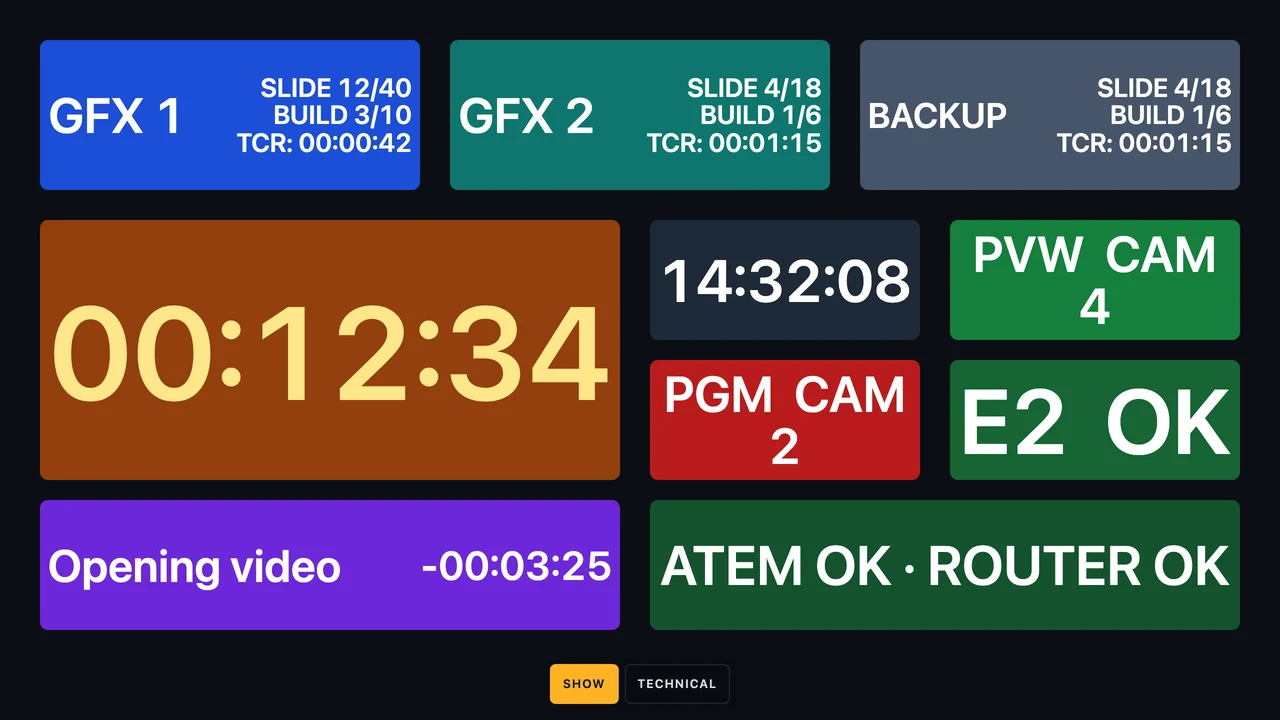
A touch-first control and status screen for live events. It runs next to KUMA on a wide bar display, on the second screen of a dual-screen laptop, or in any browser on a tablet or phone. No experience with this kind of software needed: this guide starts from zero.
Built for touch screens. Dashboard is designed first of all for a touch screen: big boxes, big buttons, nothing that needs a mouse or a keyboard once the layout is locked. A touch panel running Dashboard can stand in for a Stream Deck, for example when you forgot yours, or when you simply prefer a screen you can read and tap over a grid of keys. Every button, label and colour is yours to arrange, and the boxes show live values from Companion as well as pressing its buttons. And like a slide show, the app keeps the screen awake while it is open.
Free for KUMA Timer licence holders. Dashboard is included with your KUMA licence: it uses the same 16-character licence code as KUMA Timer and takes its own seat: one Dashboard seat for every KUMA seat. Download it from the KUMA Dashboard section. Dashboard is currently a release candidate (0.1.0 RC6), so this guide may grow as it is finalised.
What KUMA Dashboard is
Think of Dashboard as a programmable control panel made of tiles. Each tile (we call it a box) can show a live value, change colour when something happens, and press a button when you tap it. You decide what the boxes show and where they sit, and you save the result as your own screen layout.
Dashboard gets its information from Bitfocus Companion. Companion is a free program from Bitfocus that connects to everything that talks to show equipment: video switchers, media servers, lighting desks, audio mixers, and anything else that connects to Companion. With the KUMA Timer module, to KUMA. Companion knows hundreds of live values called variables (for example the timer, the name of the running cue, which camera is on air). Dashboard reads those variables and draws them the way you want.
When you tap a box, Dashboard can press a button in Companion, which can then do anything Companion can do: start the timer, cut to a camera, fire a lighting cue. Companion does the work; Dashboard is the face.
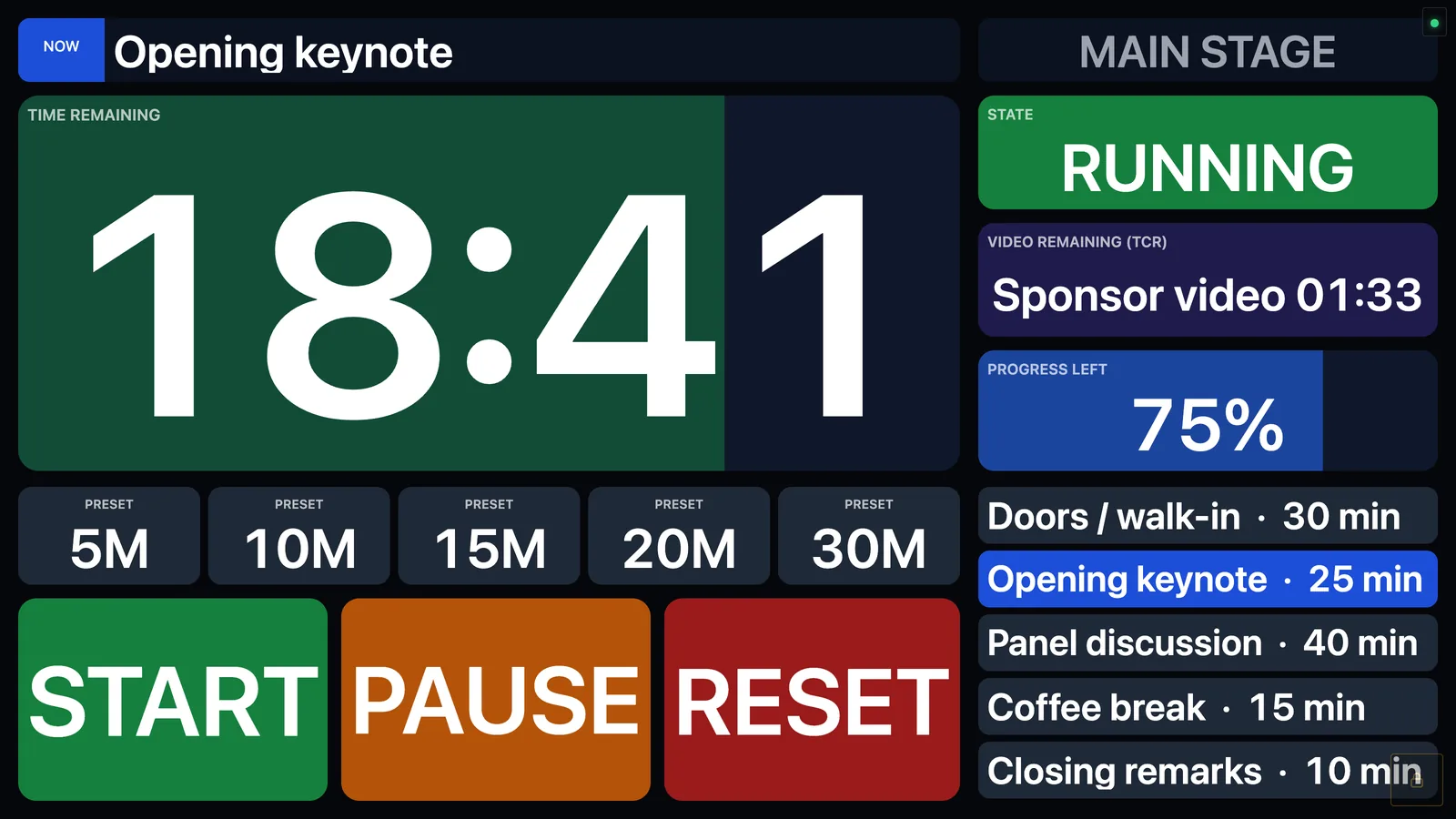
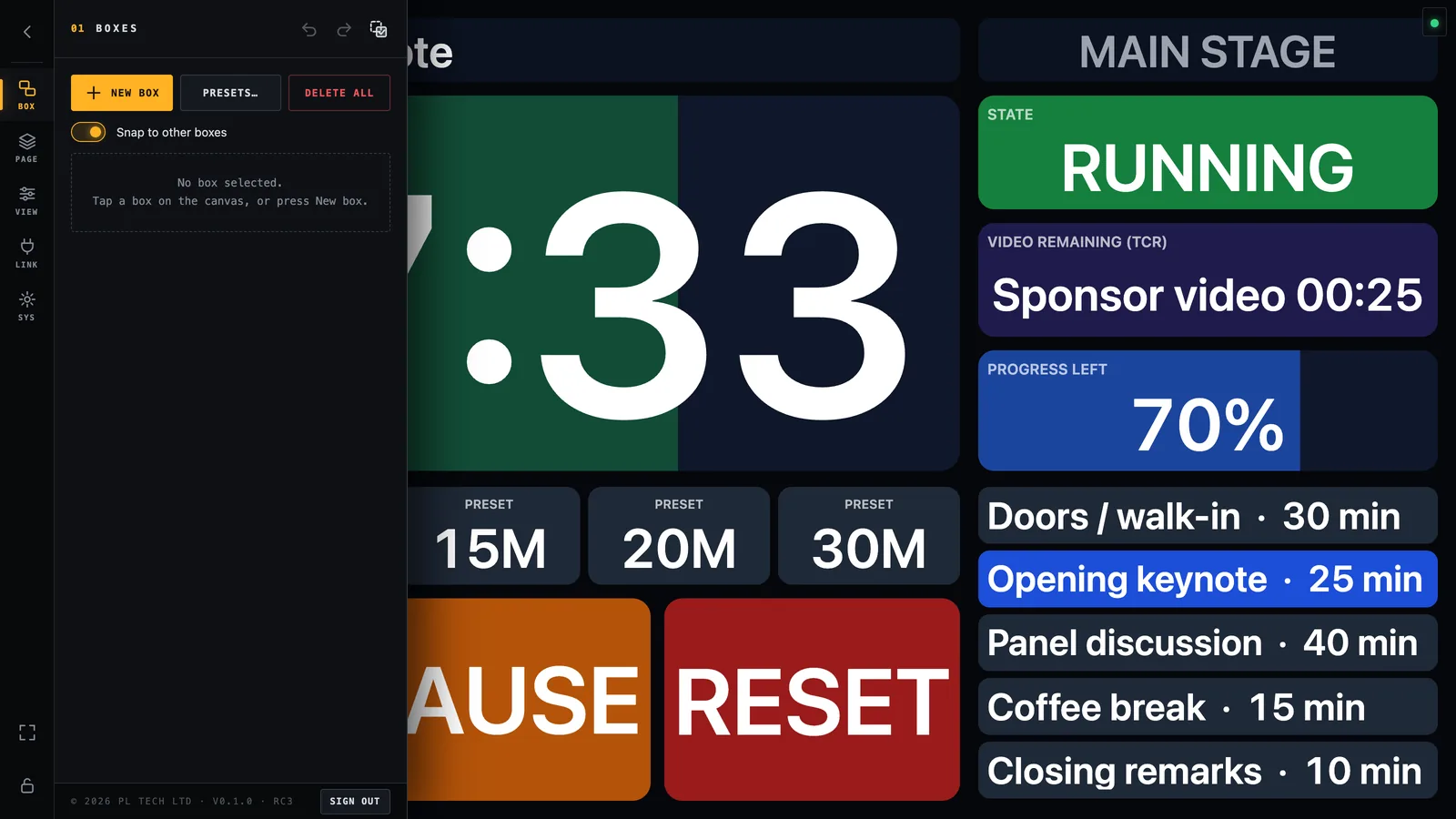
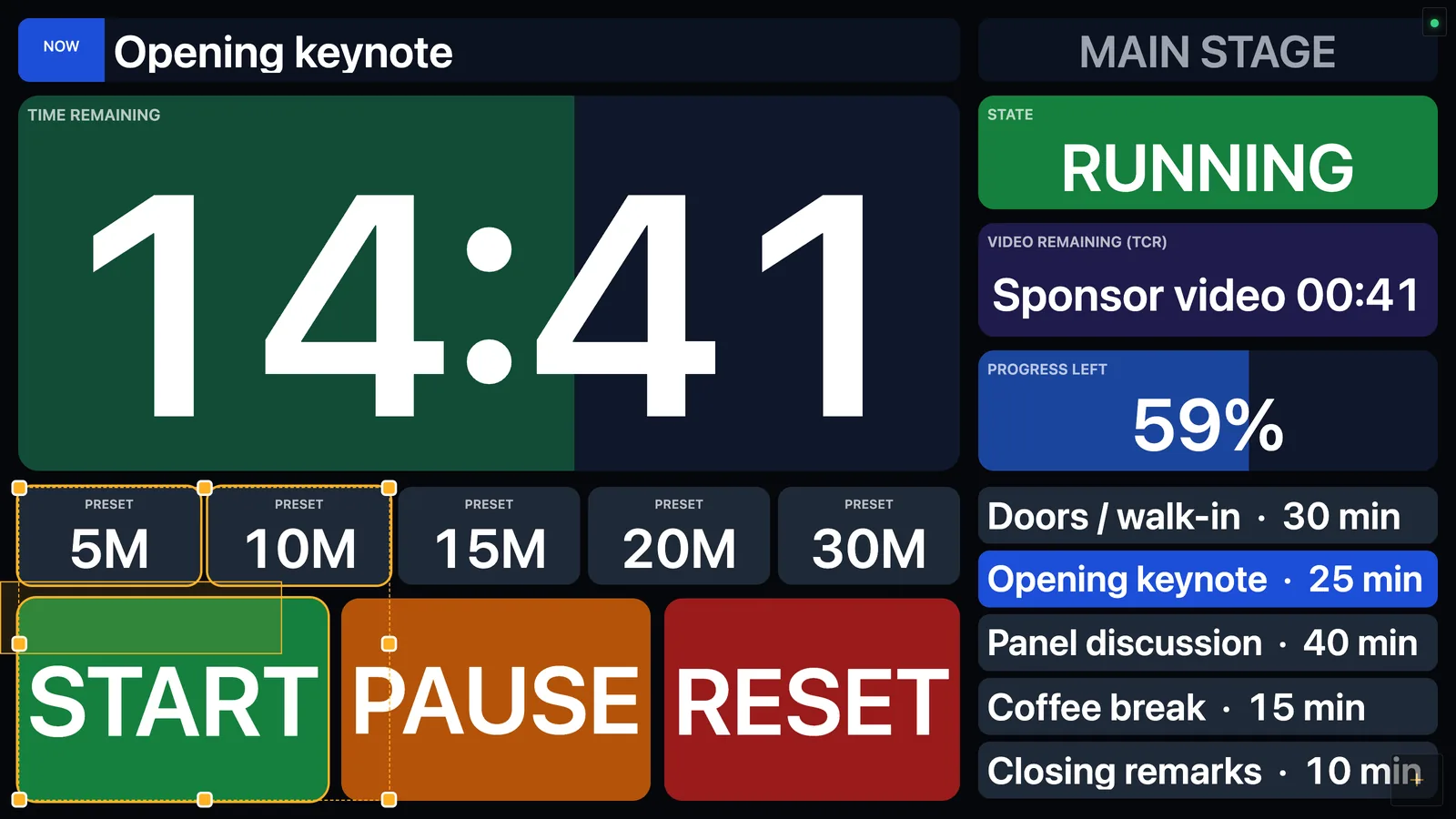
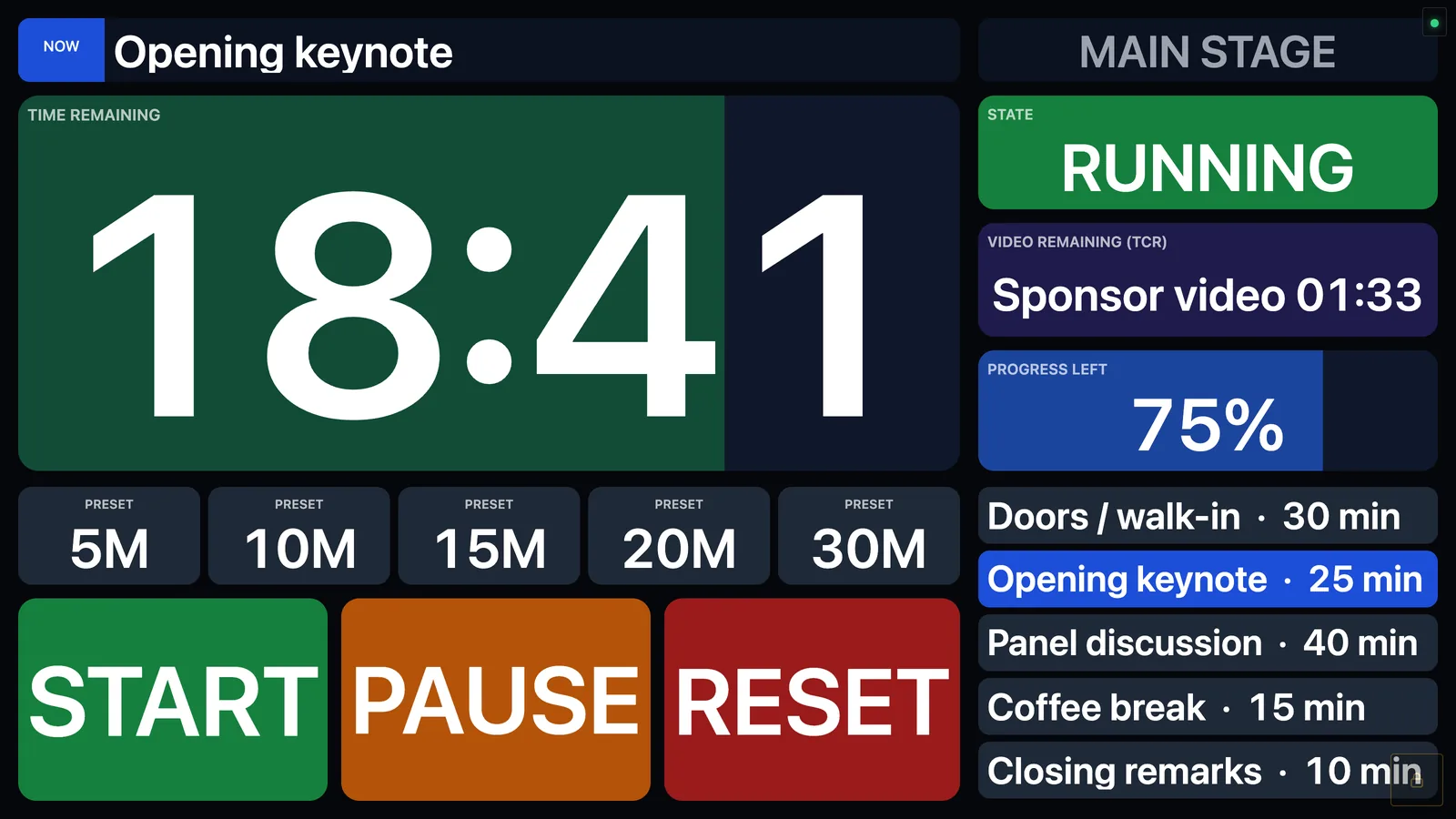
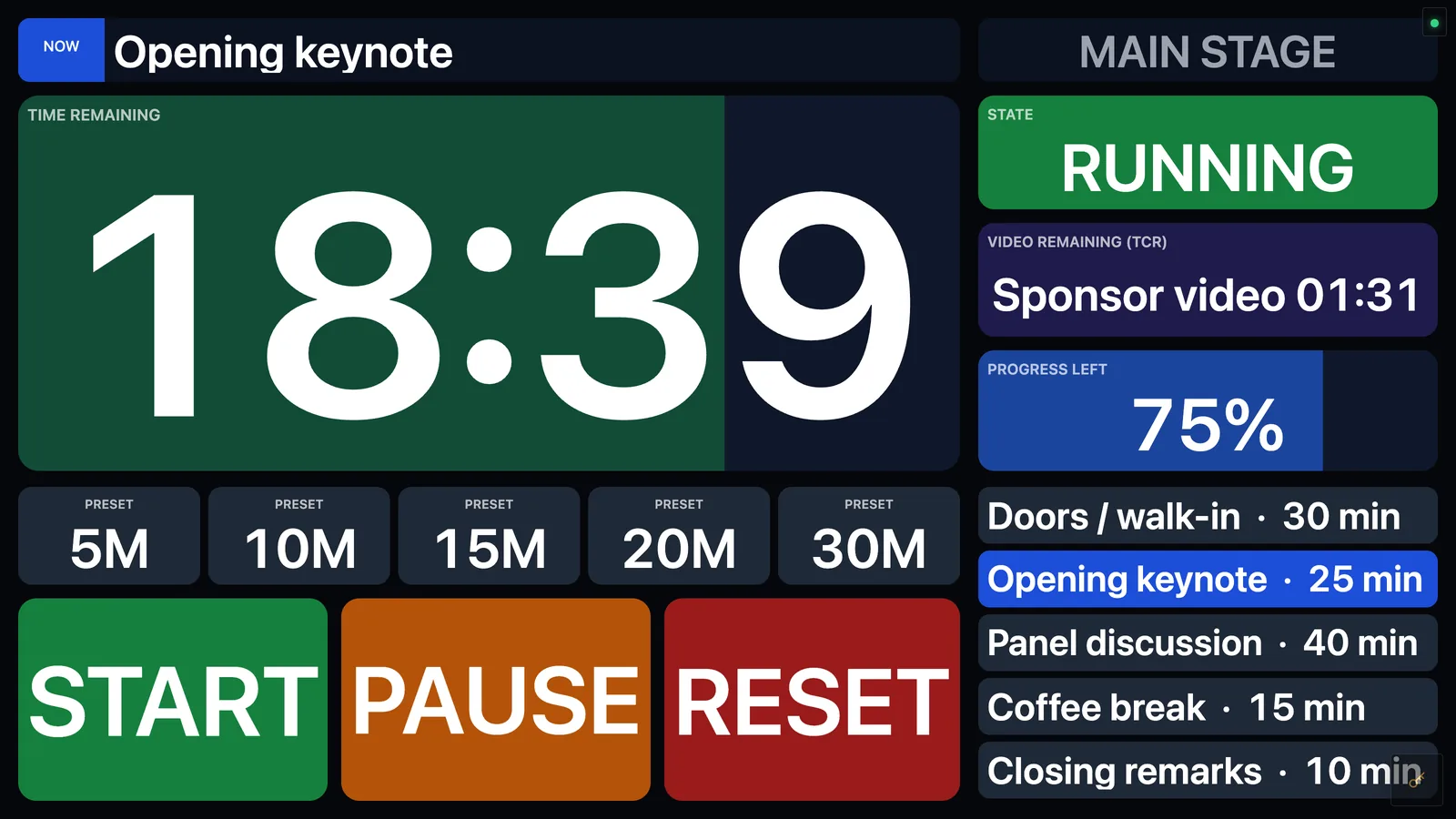
The finished example from this guide: one screen for a stage manager. Timer with progress bar, state, video time remaining, presets, big START / PAUSE / RESET buttons and the cue list.
What it is good for
Who
What they put on their Dashboard
Stage manager / show caller
The KUMA countdown, its state (RUNNING / PAUSED / OVERTIME), the running cue and the next ones, TCR (time left of the playing video), and big START / PAUSE / RESET and preset buttons. Everything on one screen, readable from an arm's length.
Video / graphics operator
Program and preview sources of the switcher, CUT / AUTO / FTB, the remaining time of the playing clip, and the KUMA timer as a thin bar.
Audio, lighting, AV tech
A status wall: one green OK tile per device that turns red when Companion reports a problem. Ready-made with one tap from the presets.
Producer, backstage, FOH
A view-only copy of the same screen on a tablet or phone through the built-in web server. No app to install on the device.
Multi-room events
Several Companion computers on one screen, each box reading from the room it belongs to.
Where to run it
Dashboard is designed for screens where you can touch things, but a mouse works the same way. Four common set-ups:
1. Beside KUMA on a wide bar screen
Wide bar displays (for example the 2560×720 Corsair Xeneon Edge) are made for this. KUMA runs as a slim full-height strip on one side, and Dashboard fills the rest of the screen, so the timer and your controls sit together on one display. Dashboard's wide-screen mode lines the two up for you, and it can even follow KUMA automatically (Beside KUMA).
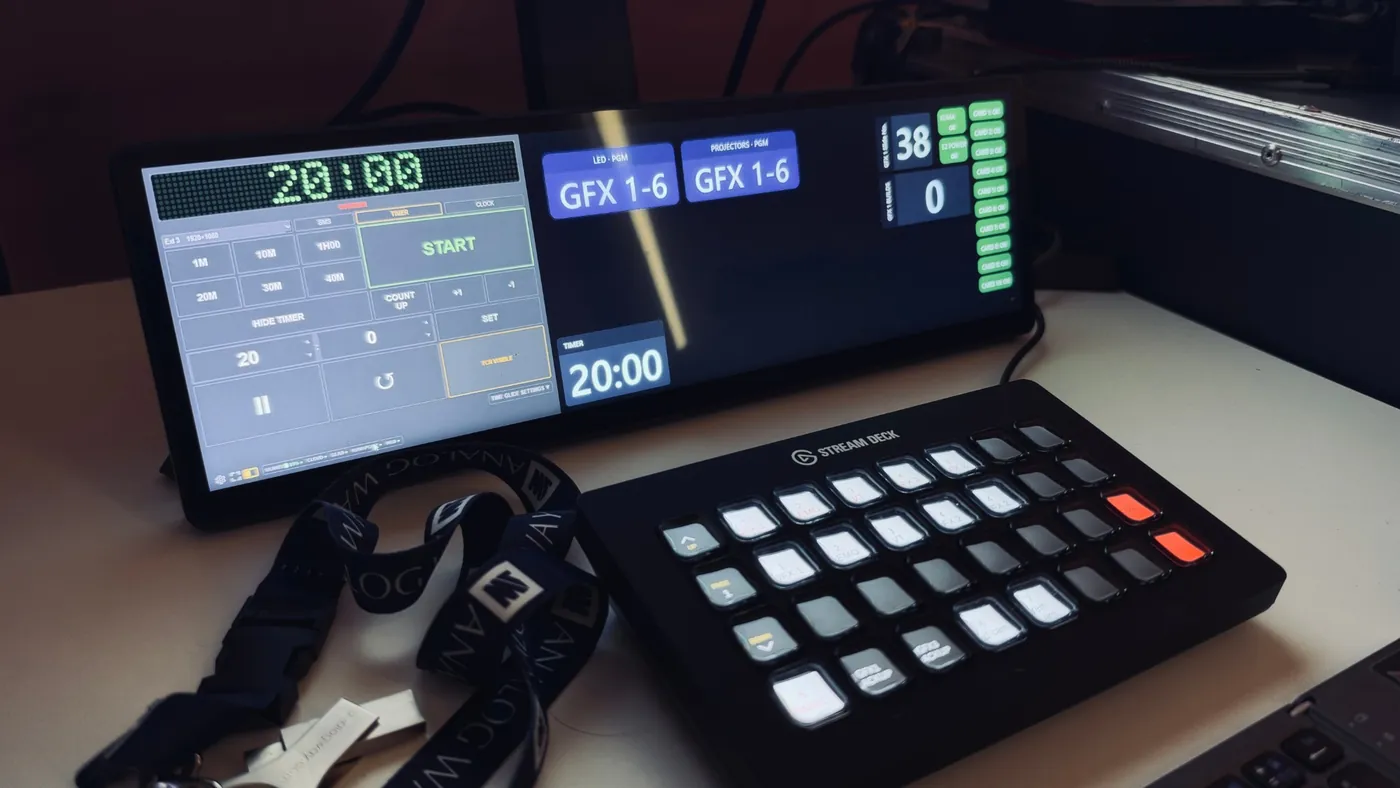
A real set-up: KUMA on the left, Dashboard on the rest of a 2560×720 bar screen, a Stream Deck in front.
2. On the second (touch) screen of a laptop
Dual-screen laptops such as the ASUS Zenbook Duo have a second, touch-sensitive screen below the main one. Put KUMA or your show software on the top screen and Dashboard on the bottom one: instant touch buttons for START, PAUSE, presets and cues, with the timer always in view. Any laptop with an extra touch monitor (a portable USB-C touch display works well) does the same job.
3. On a tablet or phone, in the browser
Dashboard has a built-in web server. Turn it on and the same screen opens in any browser on your network: an iPad on the production desk, a phone in the wings, a TV in the green room. Without a password the browser is view-only; with a password you can sign in and edit or press buttons from the tablet. See Web server.
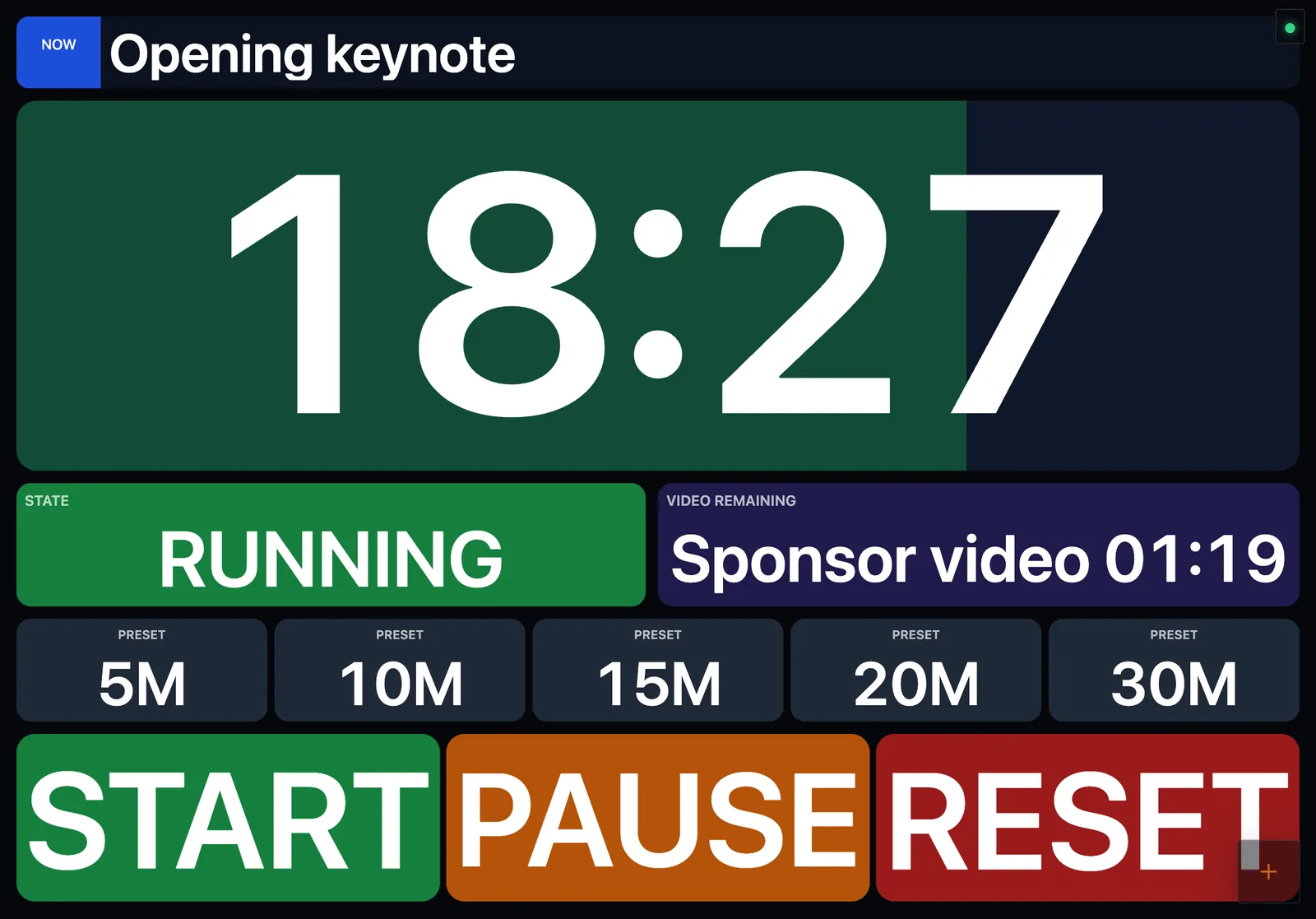
The same dashboard in a tablet browser (4:3 layout, designed for that screen's shape).
4. On any computer with a mouse
Mac or Windows, in a normal window, or in full screen. Nothing needs to be installed on the show computer itself: Dashboard can run on a different computer, even on a different network from KUMA, as long as it can reach Companion.
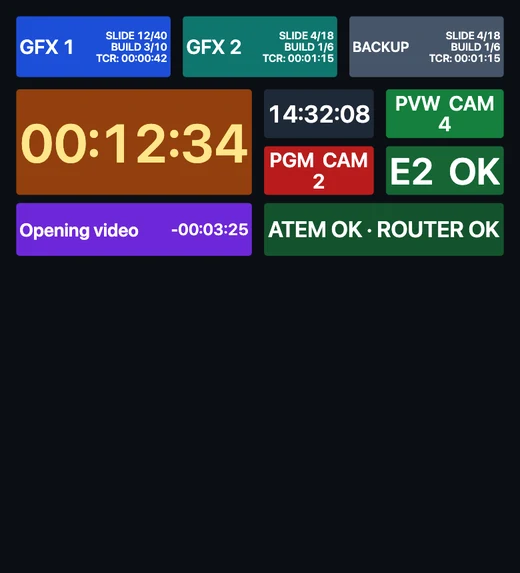
Design for the screen you will use. A dashboard is drawn on a canvas that is scaled to the width of the window, so its shape follows the screen. A layout drawn for a 16:9 screen is cut off at the bottom on a very wide bar screen. Make one page per screen shape (see Design width). The example dashboard in this guide has a 16:9 page, a wide-bar page and a tablet page.
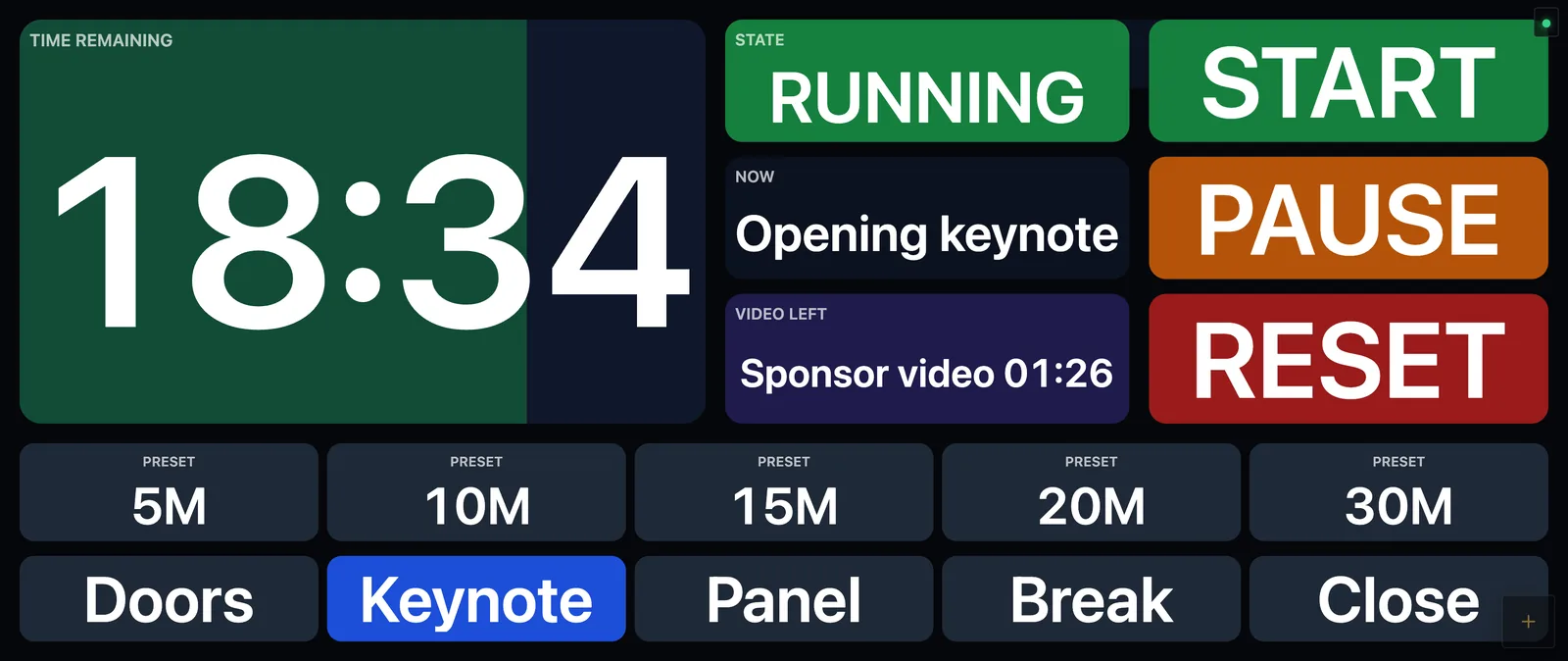
The wide-bar page: the same information redrawn for the 2.37:1 part of a bar screen that is left next to KUMA.
Quick start (10 minutes)
Install Dashboard (macOS or Windows) and start it. Details.
Activate it with the same licence code you use for KUMA.
Connect to Companion: menu → LINK. If Companion runs on the same computer the default (127.0.0.1:8000) is already right. Details.
Build the screen: menu → SET → Build my dashboard. One press lays out every preset your Companion modules offer, in tidy columns (KUMA, ATEM, E2, routers…). Drag boxes where you want them. Details.
Add a button: New box, type START in the value, then ACTION → Press a Companion button and enter the page / row / column of the Companion button. Details.
Lock the layout with the padlock at the bottom of the menu. Boxes now react to taps. Details.
That is a working control panel. The rest of this guide explains each part and then shows how to make it look the way you want.
Installing and activating
Dashboard is a normal desktop application for macOS (Apple silicon) and Windows (10 / 11). Download the installer from the Dashboard section of the download page, install it like any other program and start it.
Activating
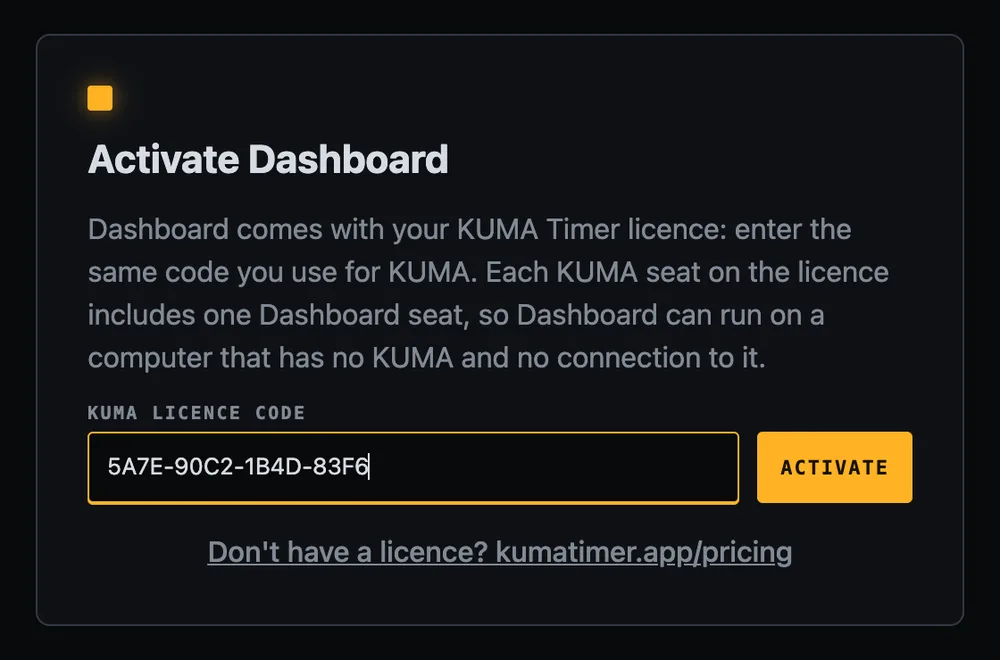
The first screen asks for your licence code. Enter the same 16-character code you use for KUMA Timer (for example AAAA-BBBB-CCCC-DDDD) and press Activate. The computer takes one Dashboard seat on your licence, and Dashboard opens. There is no separate trial: Dashboard needs a paid KUMA licence code (the free Lite version has no code).
The activation screen. Enter your KUMA licence code (the one shown here is a placeholder).
One seat per computer. A single licence has one Dashboard seat; a 20-seat site licence has 20. They are counted separately from your KUMA seats, so Dashboard never uses up a KUMA seat.
Offline is fine. Dashboard checks the licence in the background and keeps working without internet for at least two weeks, so a venue with no connection is not a problem.
Moving to another computer. Open menu → SYS → Licence → Give this seat back, then activate on the other computer. You can also release a seat in the licence portal under KUMA Dashboard seats. If every seat is in use, Dashboard tells you which computers hold them.
A first look
After activation you see a black canvas: this is your dashboard. Everything you build lives on it. All the settings are in one menu that slides in from the left.
The round + button at the bottom right opens the menu (or press and hold on any box or empty space for about half a second).
A small green dot at the top right shows that Companion is reachable (red when it is not).
The menu has a slim rail of sections on its left edge, then the settings for the selected section.
The menu open on a finished dashboard. Rail on the left: BOX, PAGE, VIEW, LINK, (WEB) and SYS; padlock and full-screen at the bottom.
Rail button
What it is for
BOX
Create, select, style and arrange the boxes. The most used section.
Locks editing and turns the dashboard into a control panel. See Locking.
At the top of the menu panel are Undo and Redo. Almost every change can be undone, so you can experiment freely.
Connecting to Companion
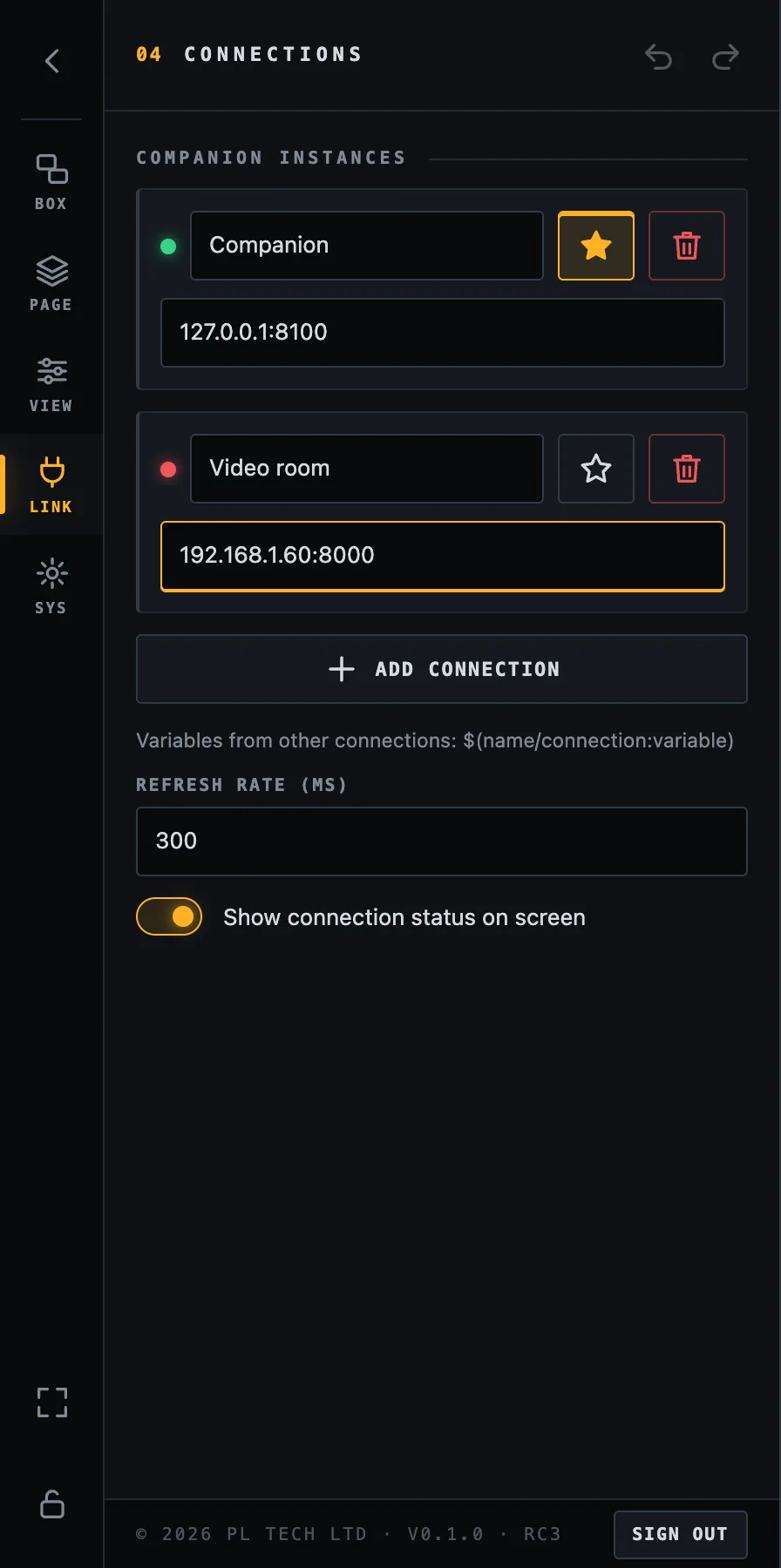
Open LINK. A new Dashboard already has one connection called Companion at 127.0.0.1:8000, which is right when Companion runs on the same computer. If Companion is on another computer, type its IP address and port instead (for example 192.168.1.60:8000). The address is shown at the top of Companion's own window.
LINK: the default connection (star, green dot = reachable) and a second one added for another computer (red dot = not reachable).
Status dot: green when Companion answers, red when it does not.
Name: a short alias you can use in variables from several computers (see below).
Star: the default connection. Boxes use it unless you say otherwise.
Add connection for a second Companion (a second room, a second computer).
Refresh rate in milliseconds: how often Dashboard asks for new values (300–500 ms feels live; the minimum is 100).
Show connection status on screen: the little dots at the top right of the dashboard. Switch them off on a finished show screen if you prefer a clean look.
Boxes read from the default connection by default. A variable of another connection is written $(name/connection:variable), where name is the alias you gave it. You rarely type this by hand: the variable picker (below) fills it in.
Your first box
Everything on a dashboard is a box. Let us build the most useful one: a live timer.
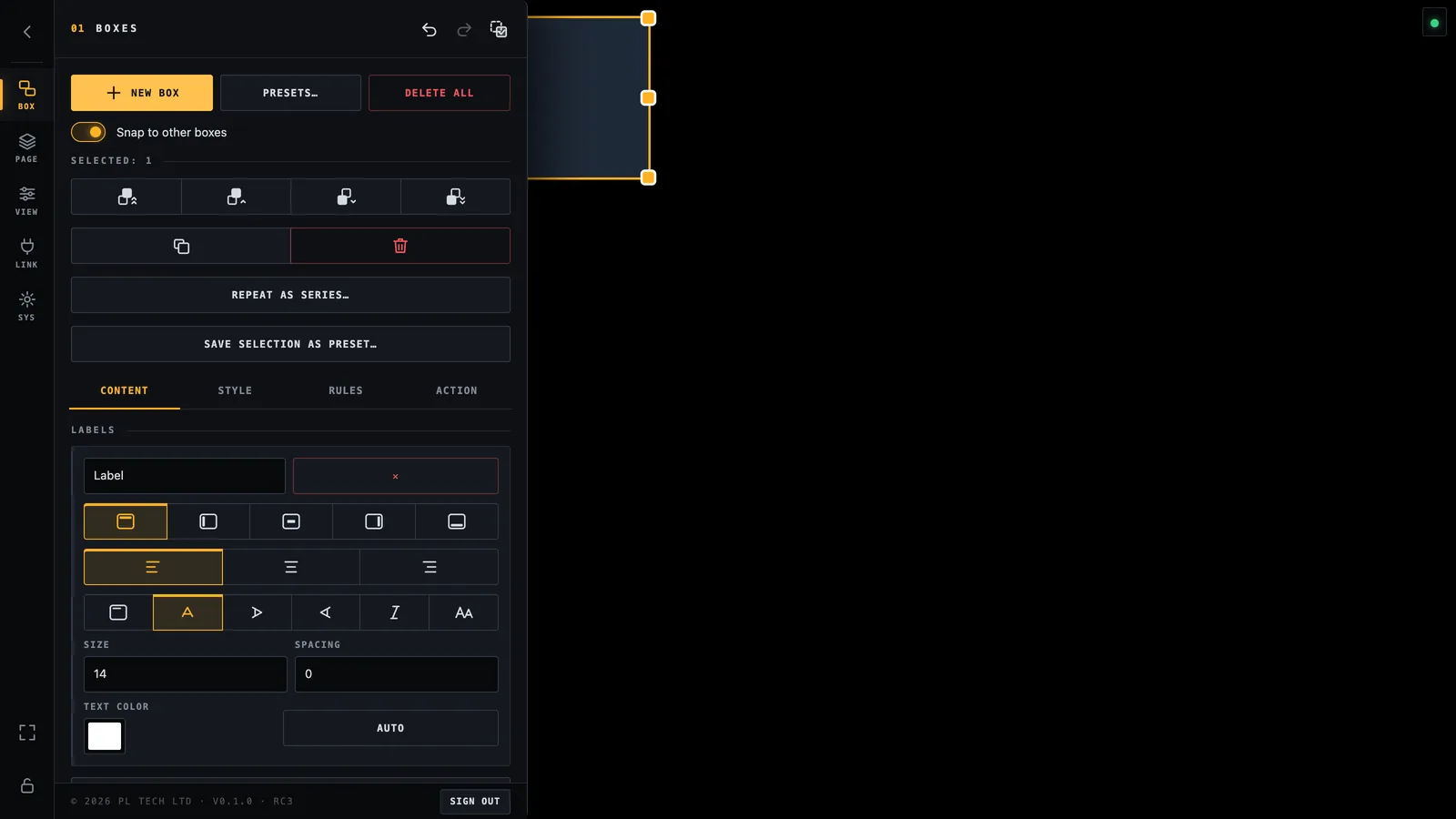
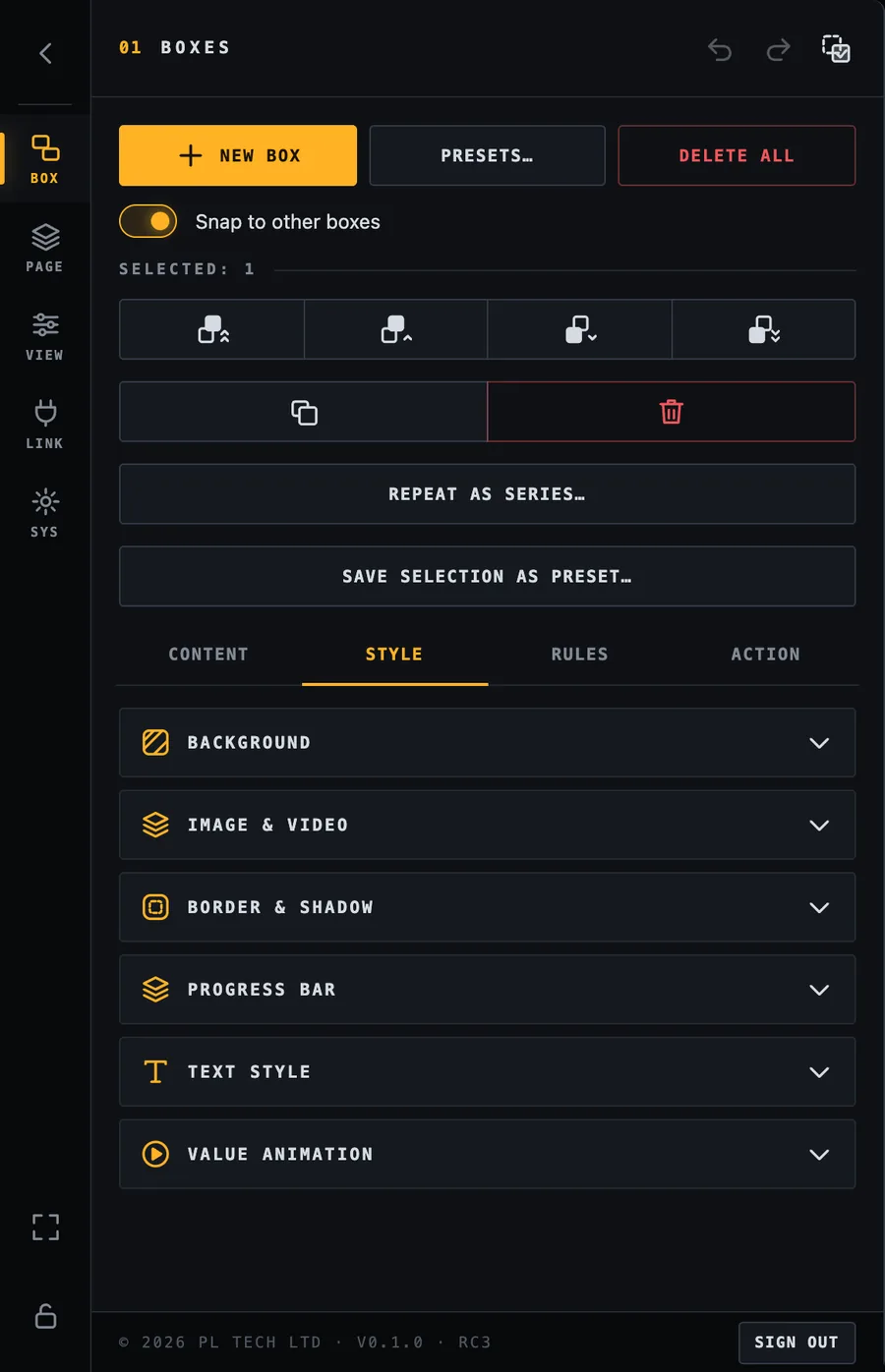
Open BOX and press New box. A box appears and is selected (a gold frame with handles). The settings for that box open below.A new box (top right) is selected. The settings are in four tabs: Content, Style, Rules, Action.
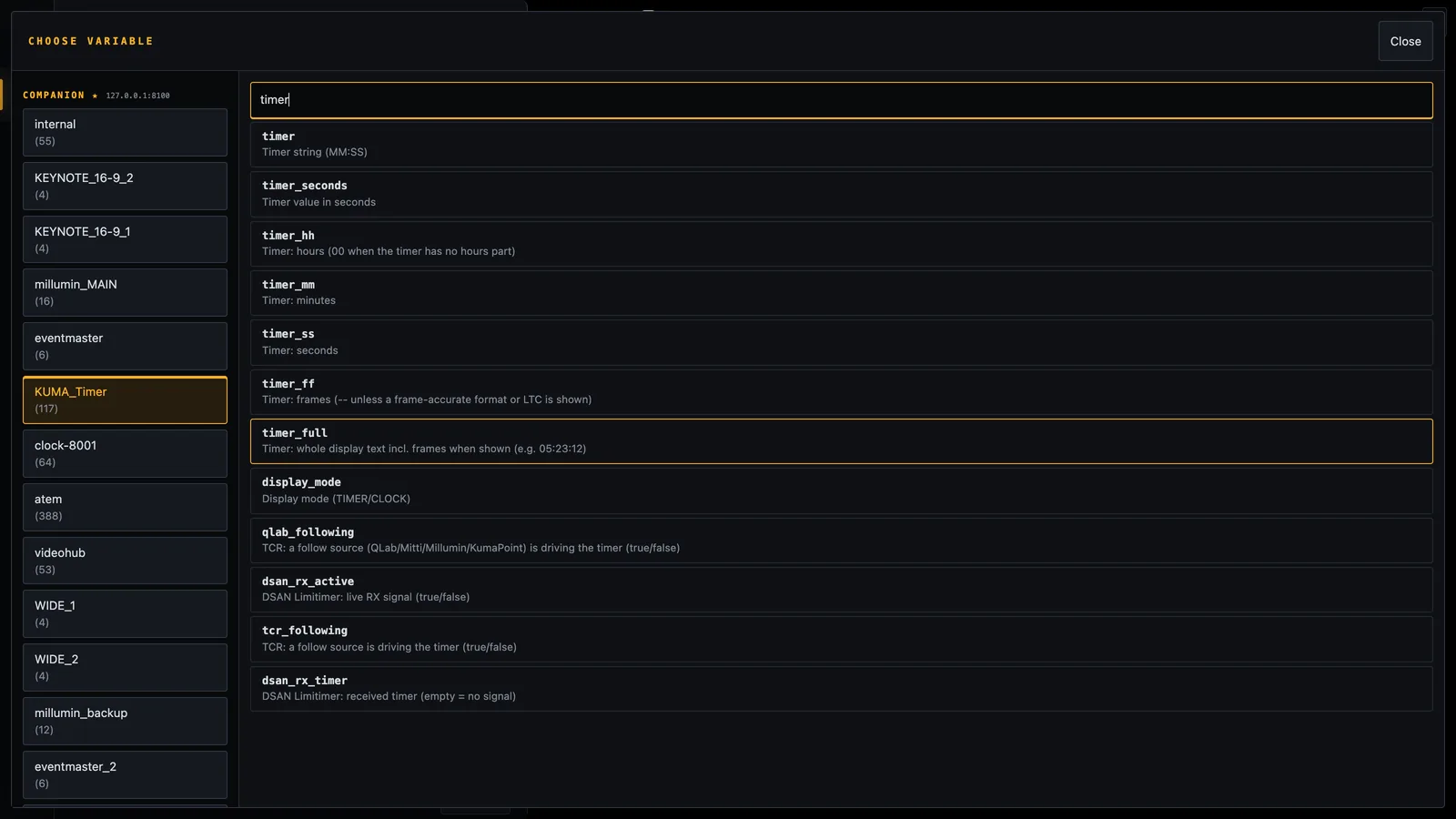
In Content → Value press + Insert variable…. The variable picker opens: on the left every module Companion knows (grouped by connection), on the right its variables with a plain description. Pick KUMA_Timer, type timer in the search box and tap timer.The variable picker. Left: modules. Right: searchable variables with descriptions. Tap one to insert it.
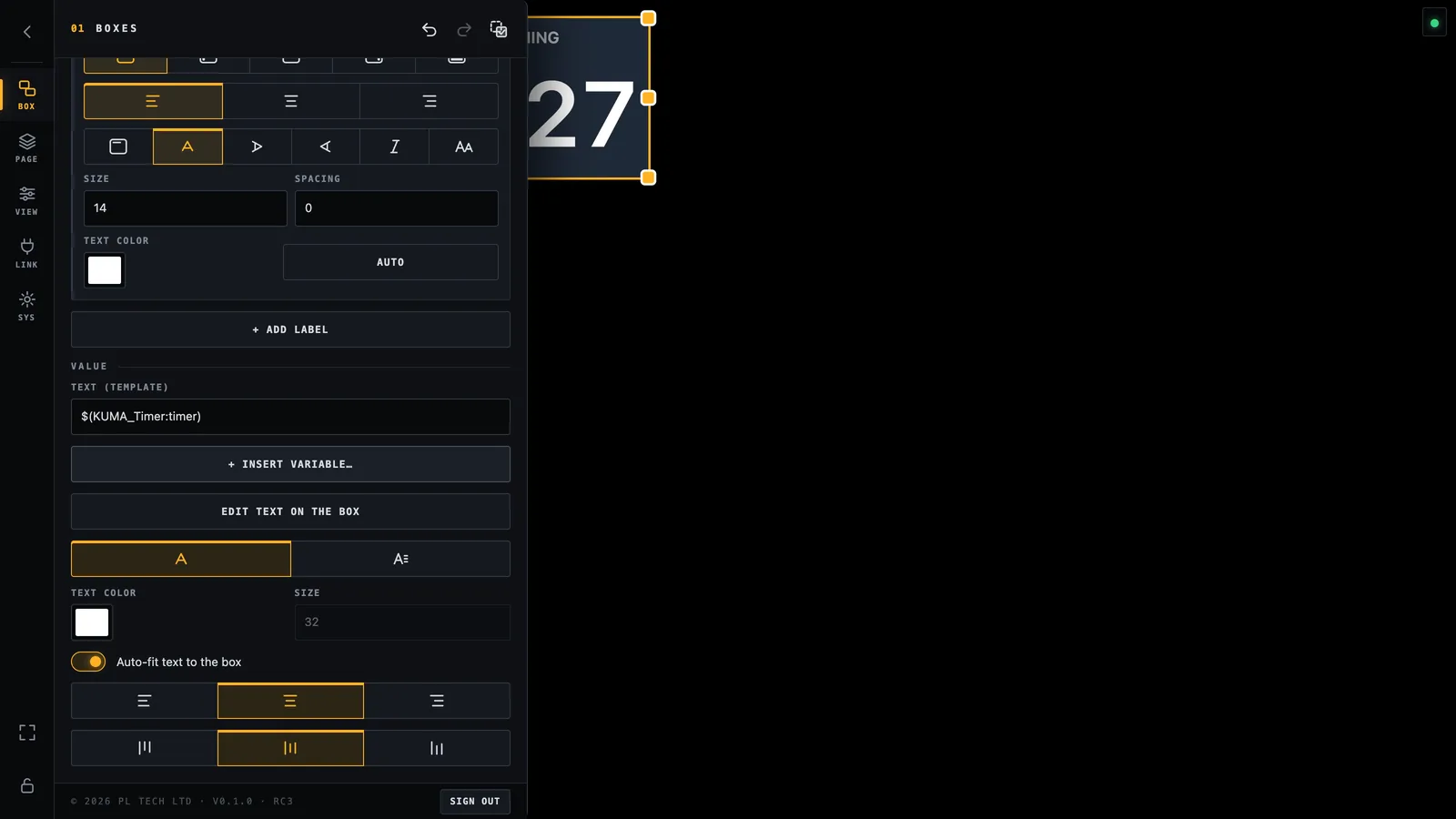
The box now shows the live time. What you inserted is written in the Text (template) field as $(KUMA_Timer:timer). That is all a variable is: a name in $( ) that Dashboard replaces with the current value, several times a second.The value is set. The box already shows the timer; the text field shows the template.
Drag the box where you want it, drag a handle to resize it, and turn on Auto-fit text to the box so the number grows with the box.
You can mix text and variables in one box, for example Cue: $(KUMA_Timer:cue_name). If a value is missing Dashboard shows …; if Companion cannot be reached it shows ⚠.
Working on the canvas
You want to…
Do this
Select a box
Tap or click it. Its settings appear in BOX.
Move a box
Drag it. It snaps to other boxes (switch off with Snap to other boxes).
Resize a box
Drag one of the eight handles on the selected box.
Select several boxes
Drag a rectangle on the empty canvas (it selects every box it touches), or Shift / Ctrl / Cmd + tap, or switch on Multi-select in the menu header and just tap boxes (made for touch screens).
Edit the text right on the box
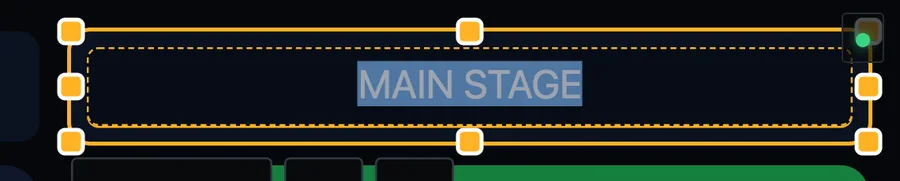
Double-tap it (or Content → Edit text on the box).
Open the settings of a box
Press and hold it for half a second. This also works while the menu is closed.
Hide, duplicate or delete
Right-click a box for the menu. Duplicate and delete are also in the selection tools at the top of BOX.
Dragging a rectangle over empty canvas selects every box it touches.
Keyboard shortcuts
Keys
Action
Ctrl/Cmd + Z
Undo
Shift + Ctrl/Cmd + Z or Ctrl/Cmd + Y
Redo
Ctrl/Cmd + C / V
Copy / paste boxes
Ctrl/Cmd + D
Duplicate the selection
Delete or Backspace
Delete the selection
Arrow keys
Nudge the selection by 1 pixel (Shift = 10 pixels)
Alt/Option + click a box
Duplicate it (Alt + drag still moves without snapping)
Ctrl/Cmd + Shift + F
Find and replace over the text, colours, labels and rules of all boxes (the selection, this page or all pages)
Ctrl/Cmd + N
New box
Ctrl/Cmd + ,
Open or close the menu
Ctrl/Cmd + A
Select all boxes on the page
Shortcuts work while the layout is unlocked and you are not typing in a text field.
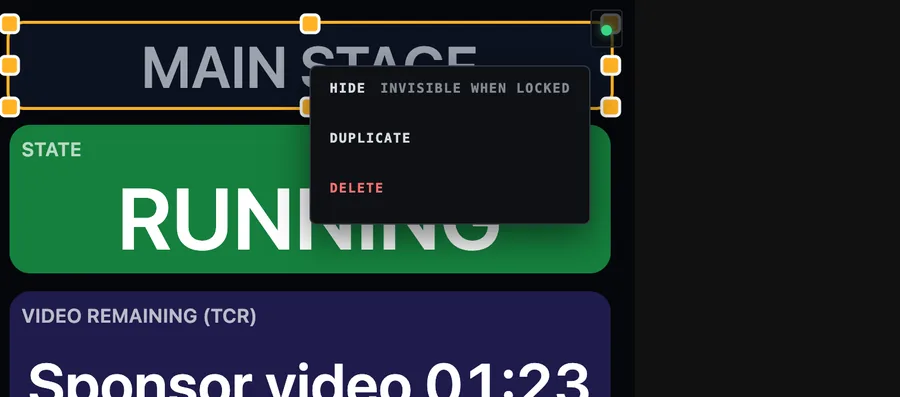
Right-click menu on a box: Hide (invisible when the layout is locked), Duplicate, Delete.
Hide is handy for boxes you only need sometimes: a hidden box is greyed out while you edit and completely invisible once the layout is locked.
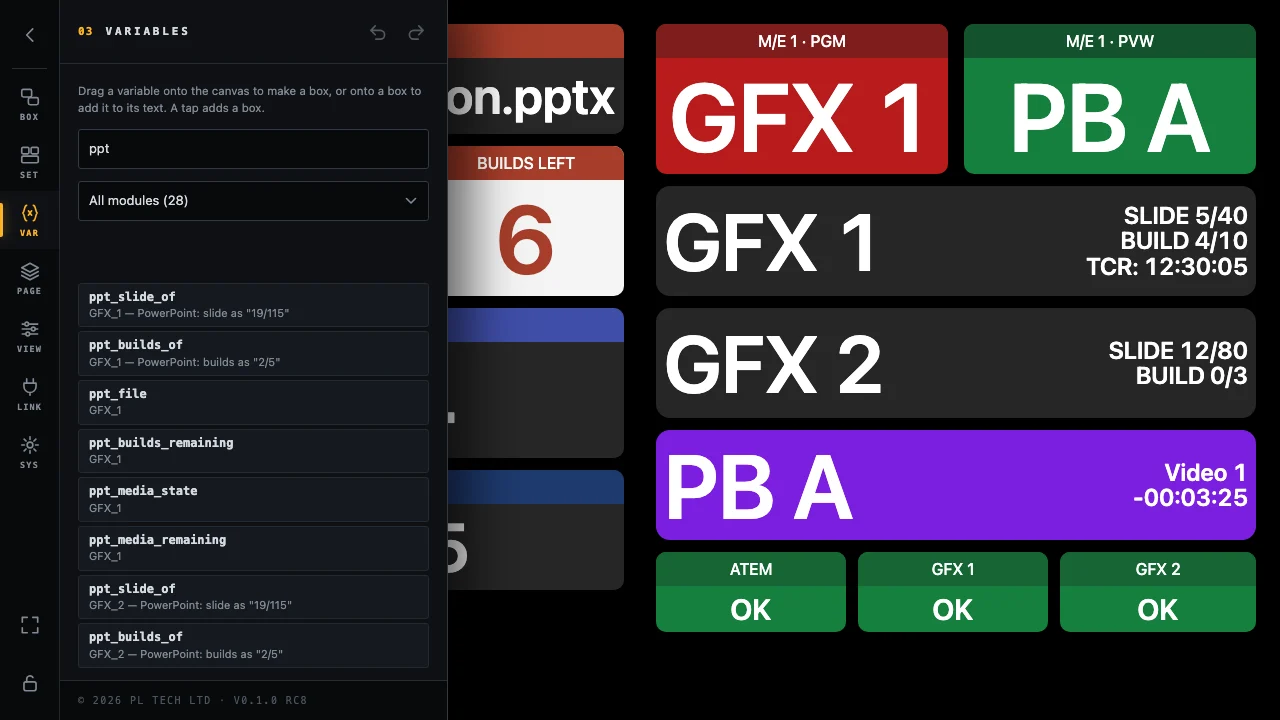
Variables: drag any variable onto the screen
The VAR tab lists every variable of every connection, with a search field and a filter for one module.
The VAR tab, searching for ppt.
Drag a variable onto an empty part of the canvas: a new box appears there, with the variable as its value and its name as the title.
Drag a variable onto a box: it is added to that box's text.
Tap a variable: a box is added at the next free spot.
The settings window
Tap a box and its settings open in a window beside the canvas (on a wide enough screen), on the side where it covers less of the box, so you see the changes live. Drag it by its title bar; the × closes it (and deselects the box). Tapping a box shows its settings also while the SET or VAR tab is open. On a narrow screen the settings stay in the menu as before.
The settings window: Content, Style, Looks, Rules, Action.
Box settings: Content
With a box selected the BOX section shows tools for the selection on top and four tabs below. Content is about what the box says.
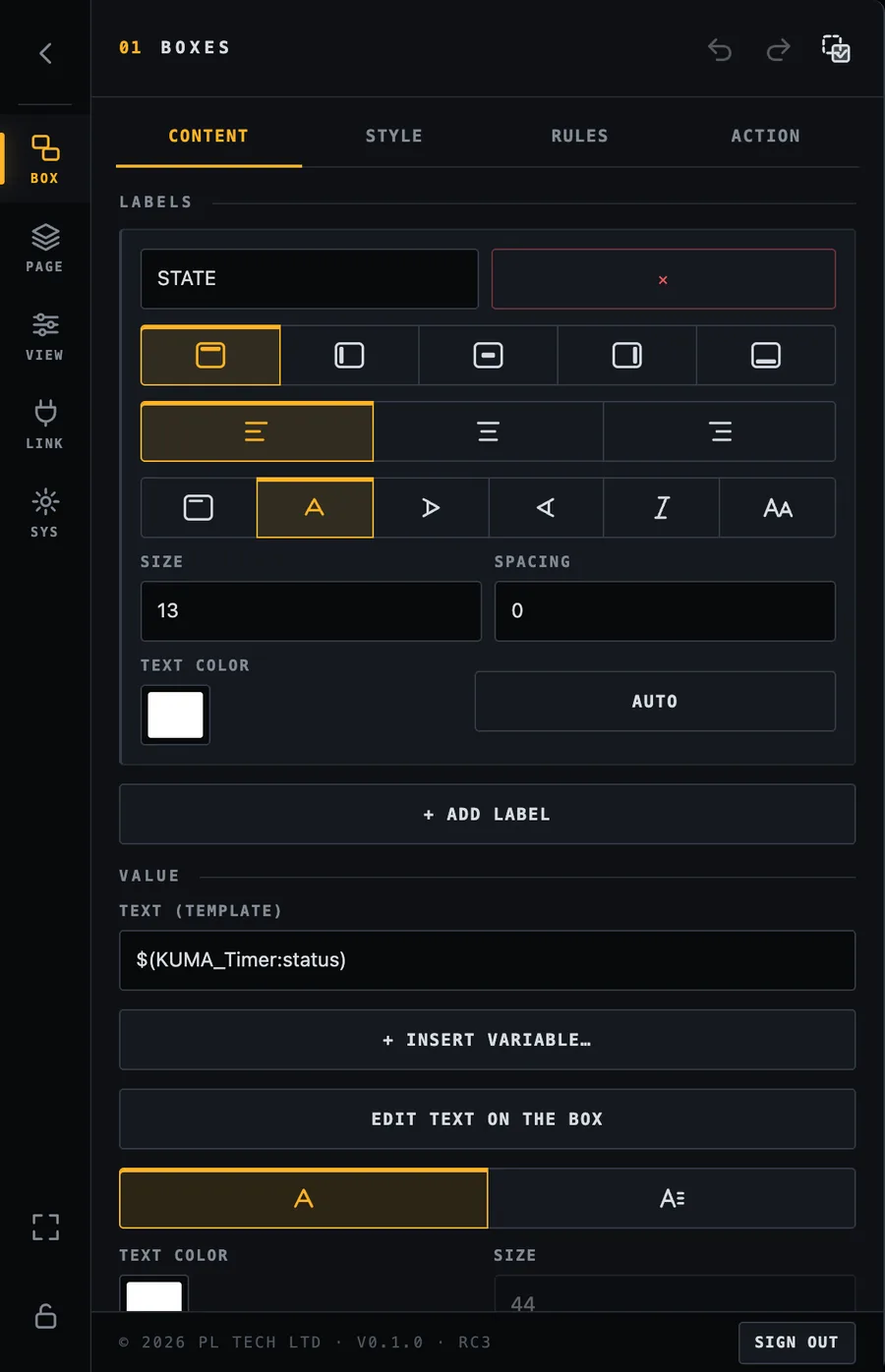
Content tab: labels first (here the label “STATE” on top of the box).
Labels
A label is a small caption on one edge of the box, such as STATE above a status or PROGRAM on a camera tile. A box can have several labels. For each label you choose:
the text (variables work here too, for example $(KUMA_Timer:cue_name)),
its position: top, left, centre, right or bottom, and where it sits along that edge,
Bar on or off: a bar draws the caption as a filled strip flush with the box edge (see the blue NOW strip in the screenshots), with its own colour (colour or variable) and thickness,
rotation for vertical text, italic, UPPERCASE, size, letter spacing and text colour (Auto uses the box's own colour, dimmed).
Value
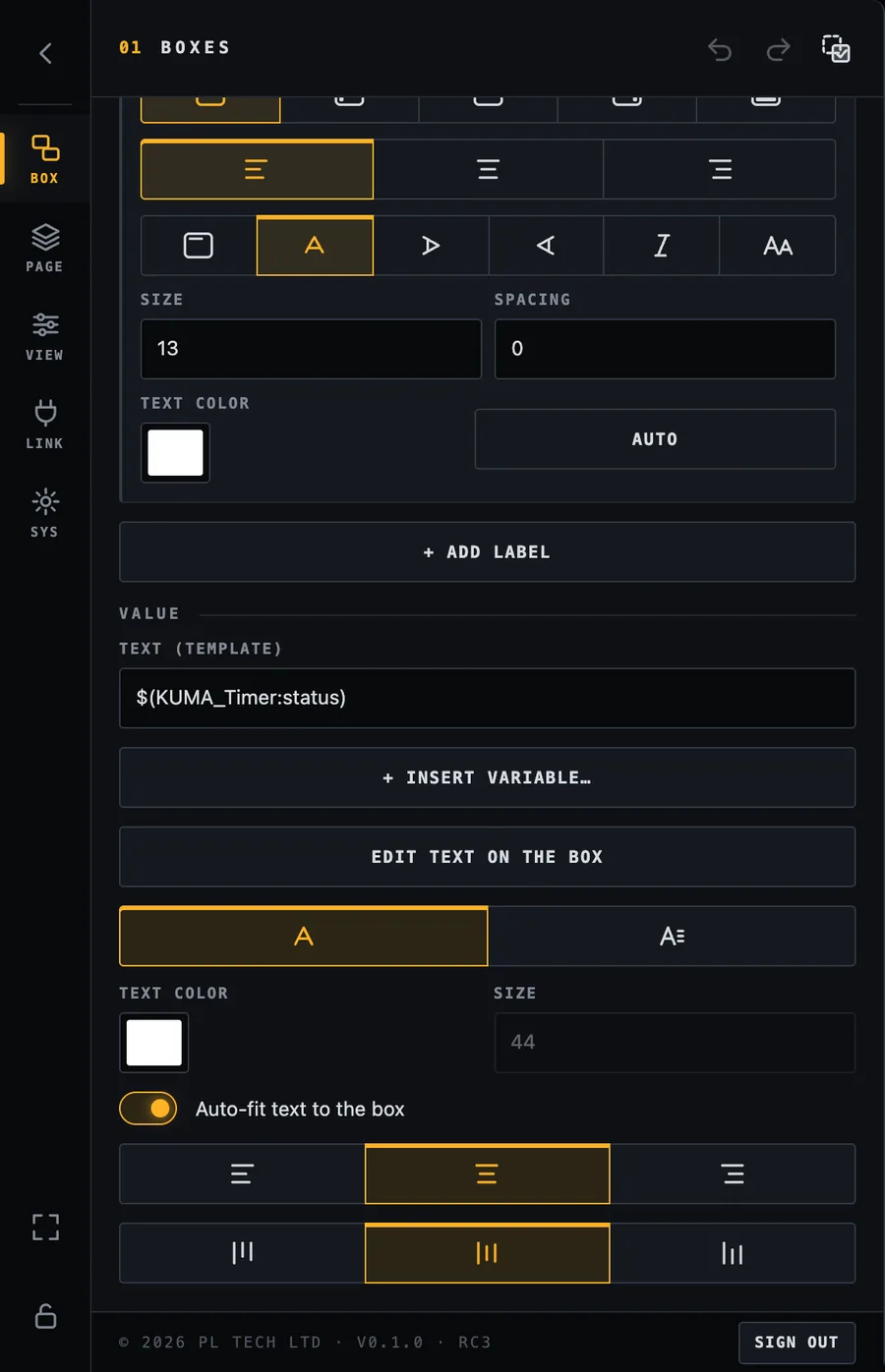
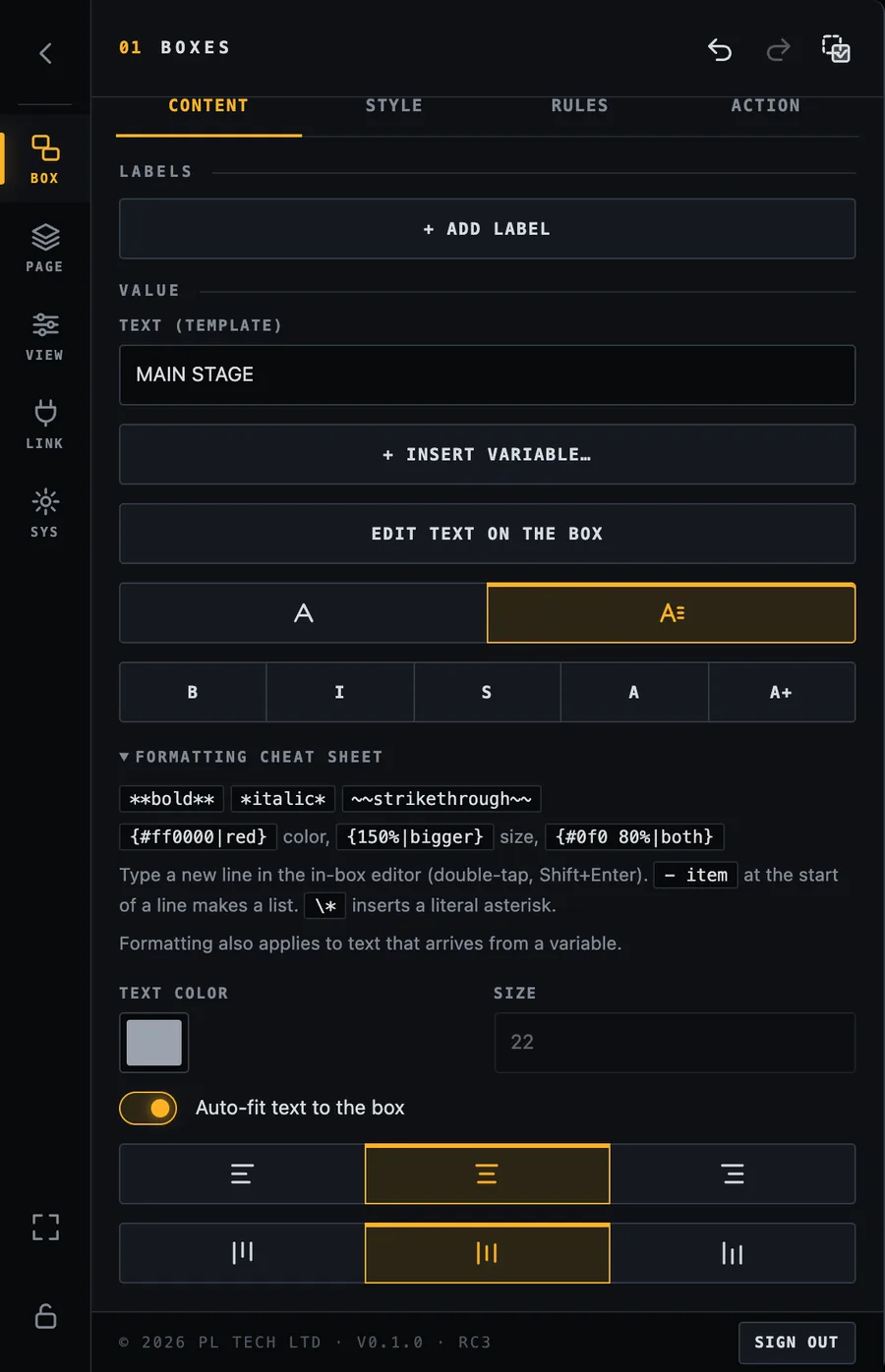
Value: the text template, the variable picker, in-box editing, plain or formatted text, colour, size, auto-fit and alignment.
Text (template): what the box shows. Type text and insert variables with + Insert variable….
Edit text on the box lets you type directly on the canvas.
Text colour and Size, or Auto-fit text to the box, which resizes the text to fill the box (recommended for timers).
Alignment left / centre / right and top / middle / bottom.
Formatted text
Switch the text mode from plain to formatted to use a little mark-up: **bold**, *italic*, ~~strikethrough~~, colour with {#ff0000|red}, size with {150%|bigger}, and - item at the start of a line for a bullet list. Formatting also works on text that arrives from a variable. The Formatting cheat sheet in the menu always shows the rules.
Formatted text mode with the cheat sheet and shortcut buttons (B, I, S, colour, size).Editing text directly on the box: the small bar offers + VARIABLE, accept and cancel.
Box settings: Style
Style is about how the box looks. It is divided into folding groups so the panel stays short.
Style: six groups. Tap a group to open it.
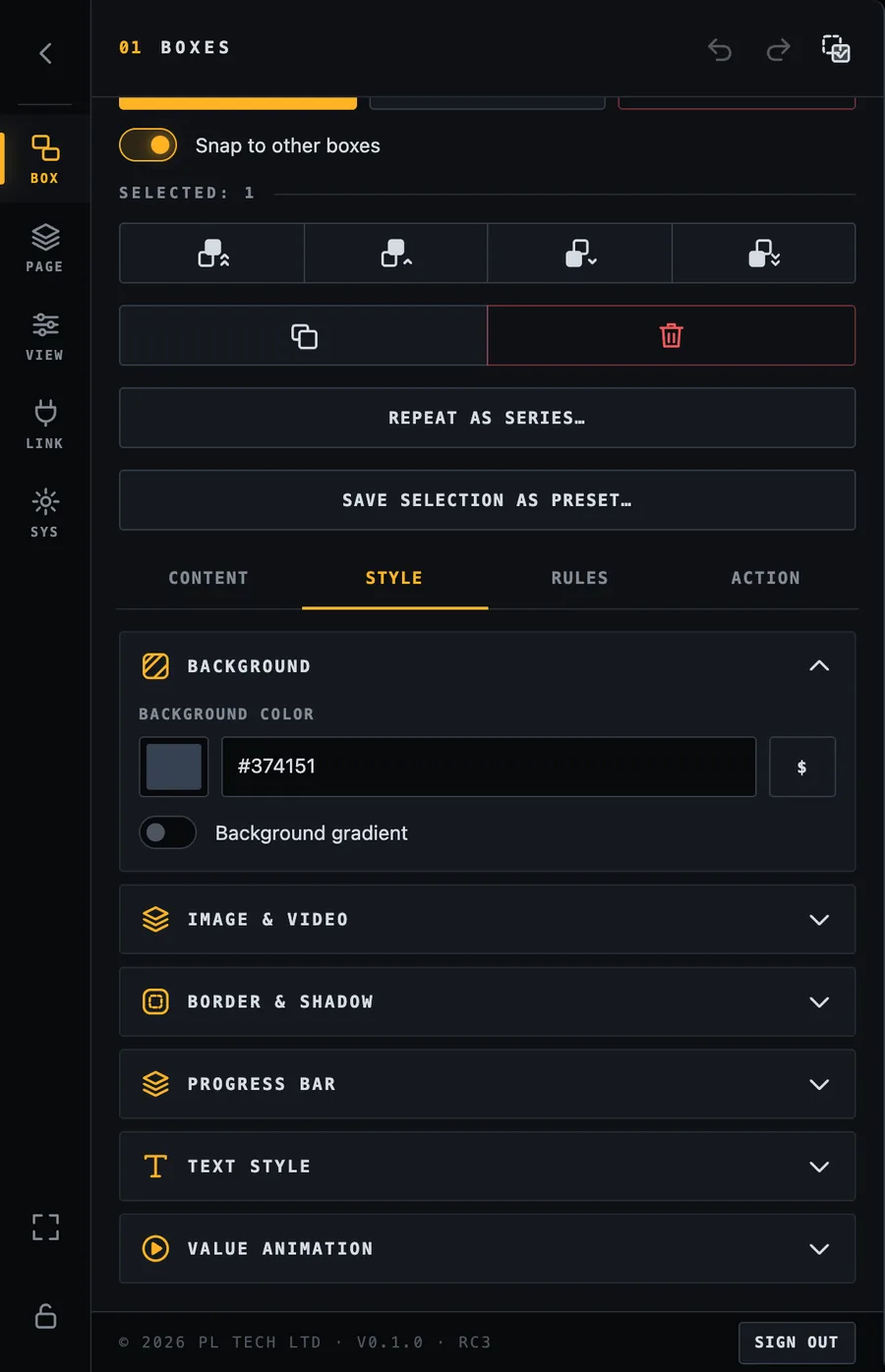
Background
A colour (pick it, type a hex code such as #1f2937, or use a variable that holds a colour) and an optional two-colour gradient with an angle. Rules can override the background (see Rules).
Background colour and gradient.
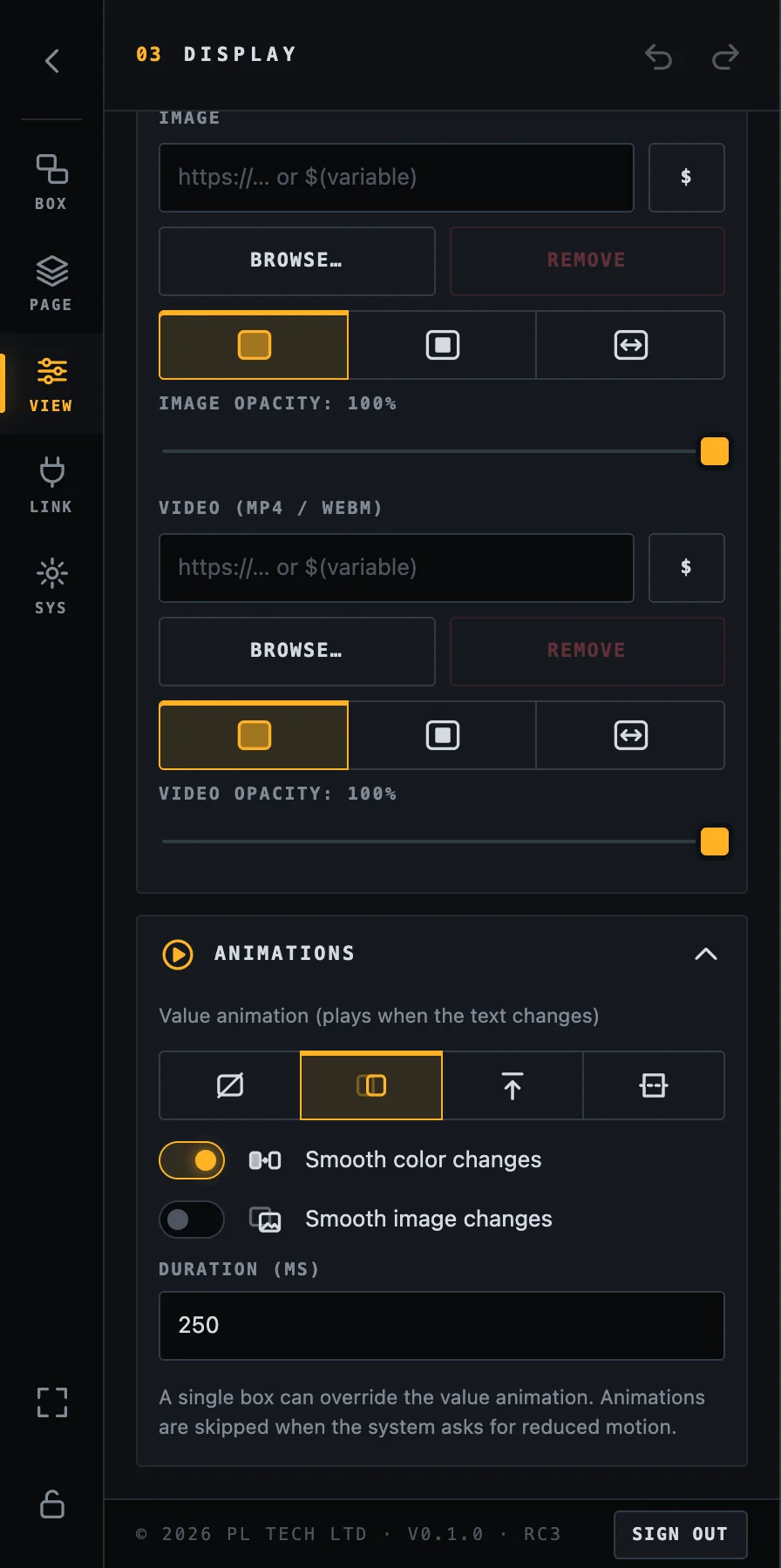
Image and video
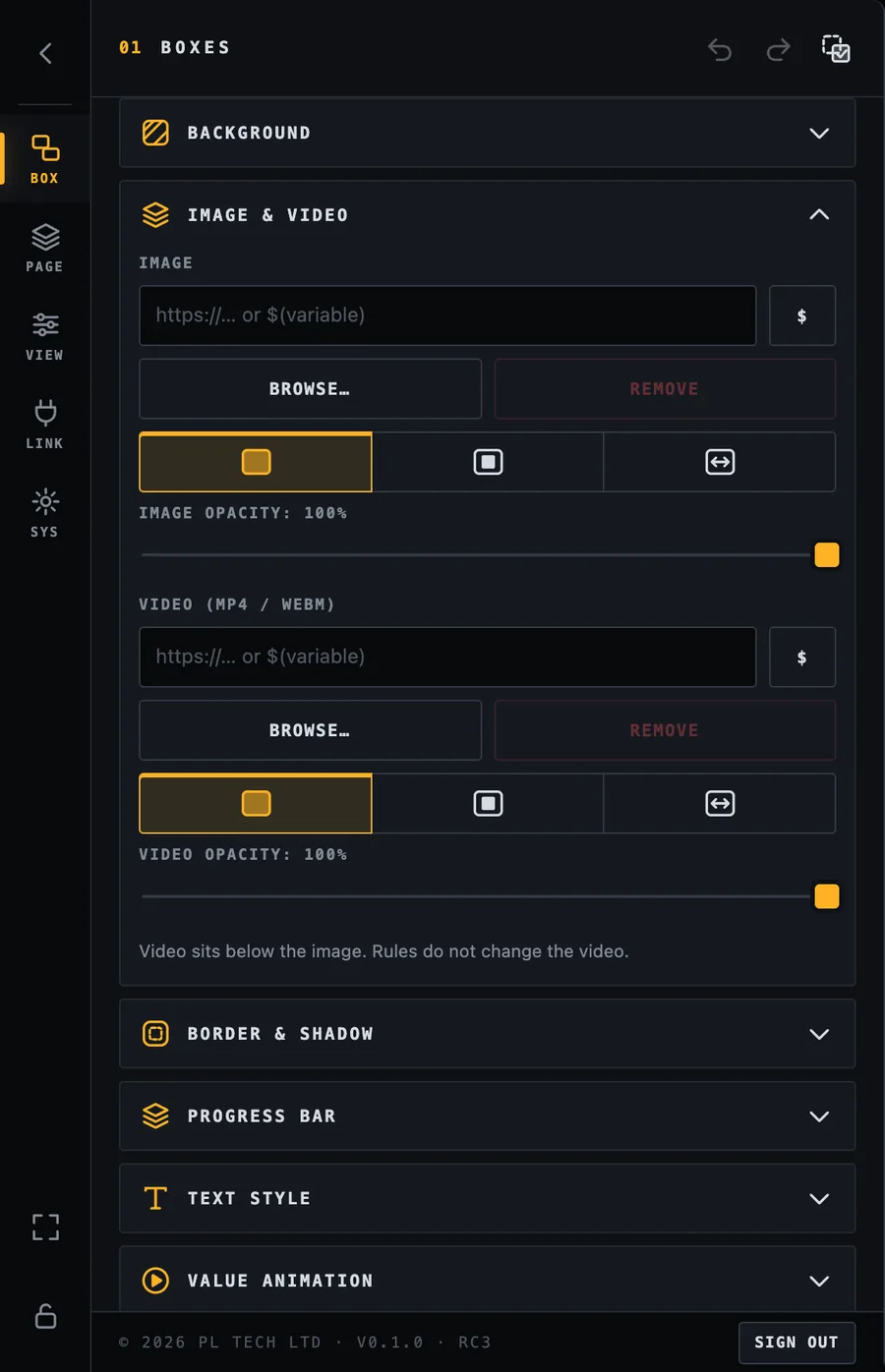
Put a picture or a looping video behind the text: pick a file from your computer (it is copied into Dashboard, so it keeps working even if you move the original), give a web address, or use a variable that holds an address. Choose cover (fill and crop), contain (show all) or stretch, and set the opacity. The video sits below the image. Images can be switched by rules (for example a different icon when something is on); videos cannot.
Image and video fields, with fit and opacity.
Border and shadow
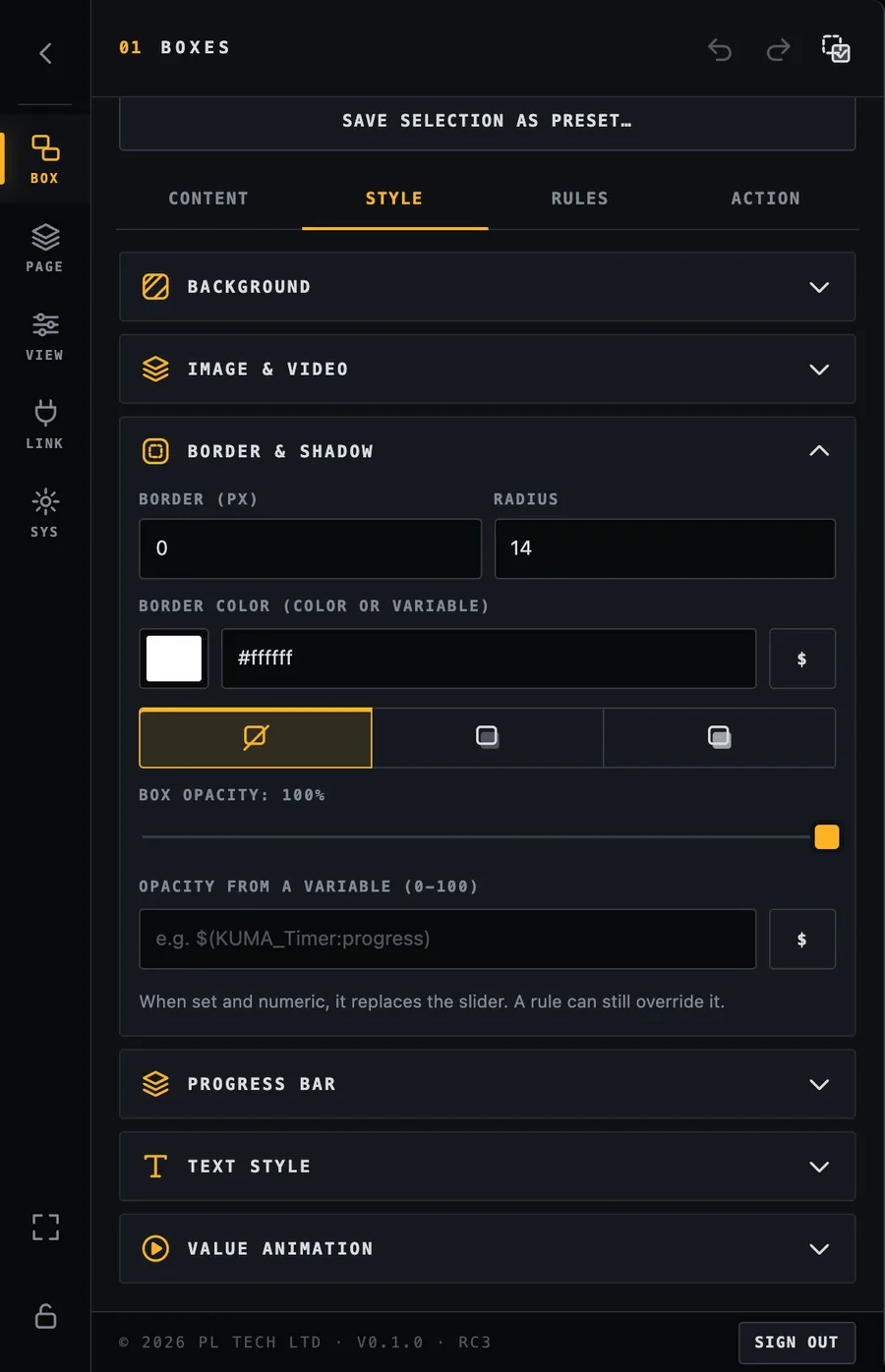
Border width and colour, corner radius, shadow (none / soft / strong) and the opacity of the whole box. The opacity can also come from a variable between 0 and 100, for example to fade a box out as something finishes.
Border, radius, shadow and opacity.
Progress bar
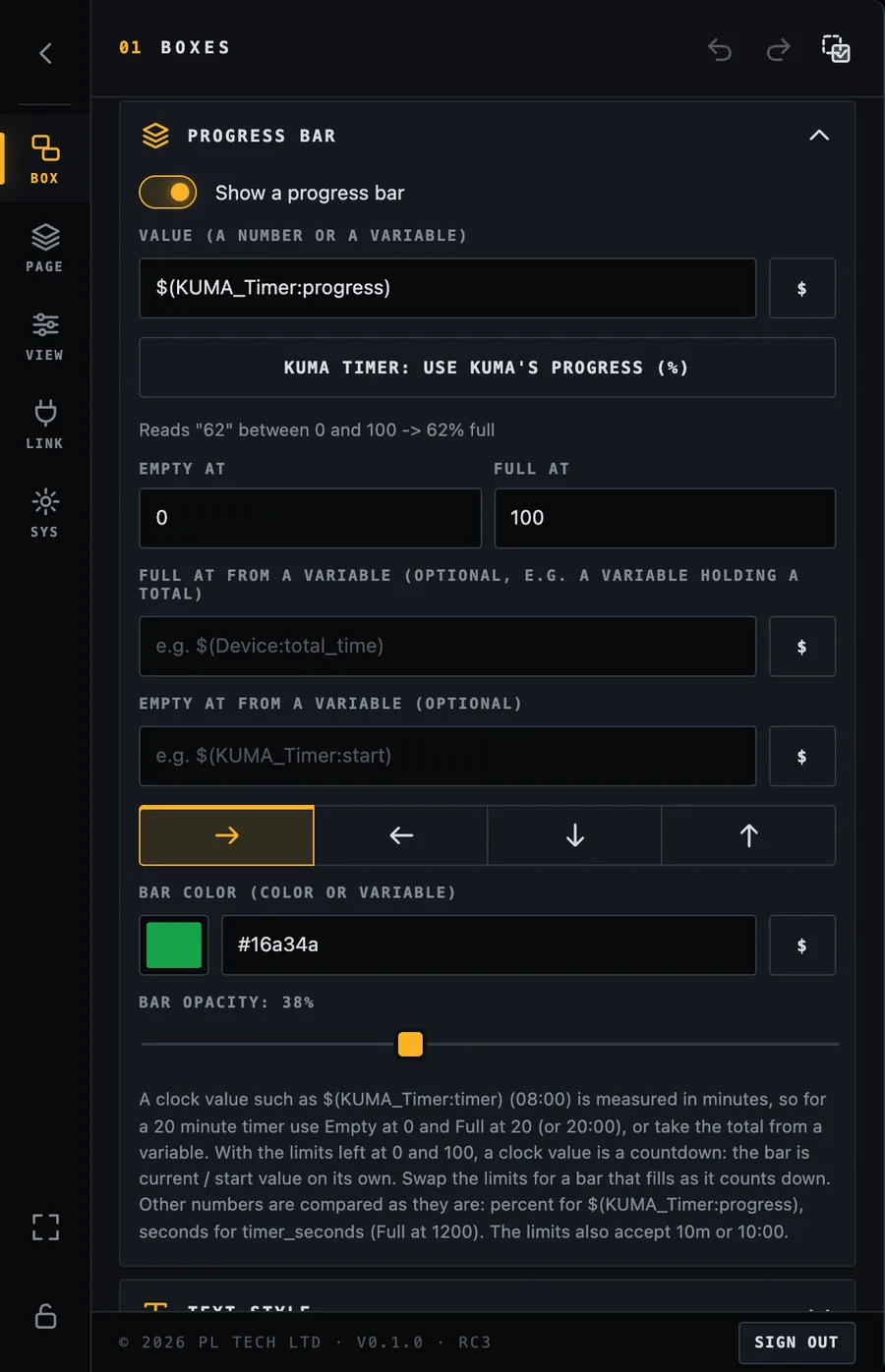
Turn a box into a bar that fills as a number changes: a countdown that empties, a media clip that plays, a fader level. Set the value (a number or a variable), what value means empty and what means full, the direction the bar grows, and its colour and opacity.
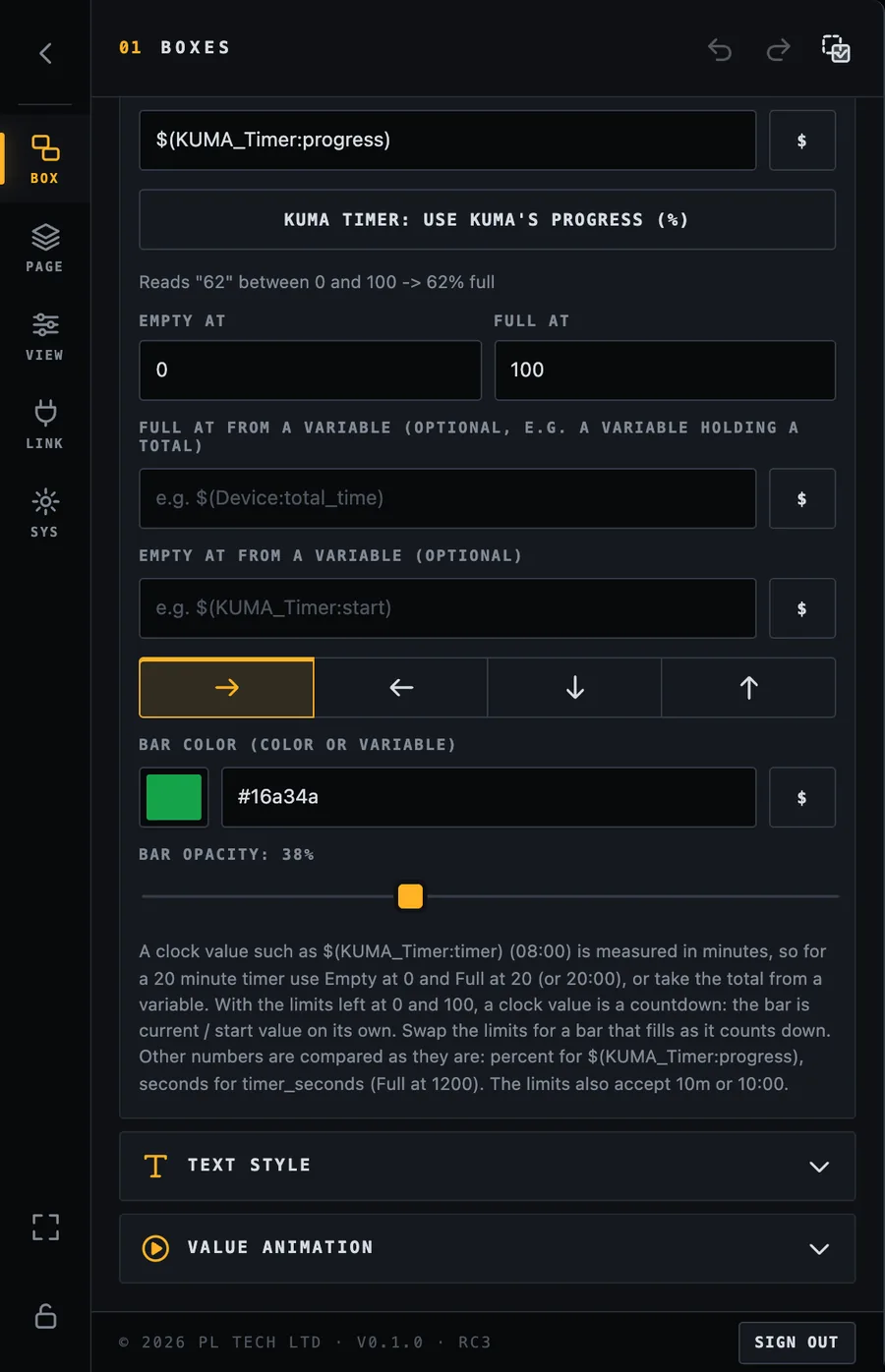
For a KUMA timer press KUMA timer: use KUMA's progress (%). It uses KUMA's own progress value (0–100) which is exact for any timer length and stays right even if Dashboard is started in the middle of a countdown. A line under the settings always shows what the bar is reading right now, so you can see at once if a variable or unit is wrong.
Progress bar: value, quick button for the KUMA timer, empty / full limits, direction and colour.The same group scrolled down: limits from variables, direction arrows, bar colour and opacity, and the notes for clock values.
Text style
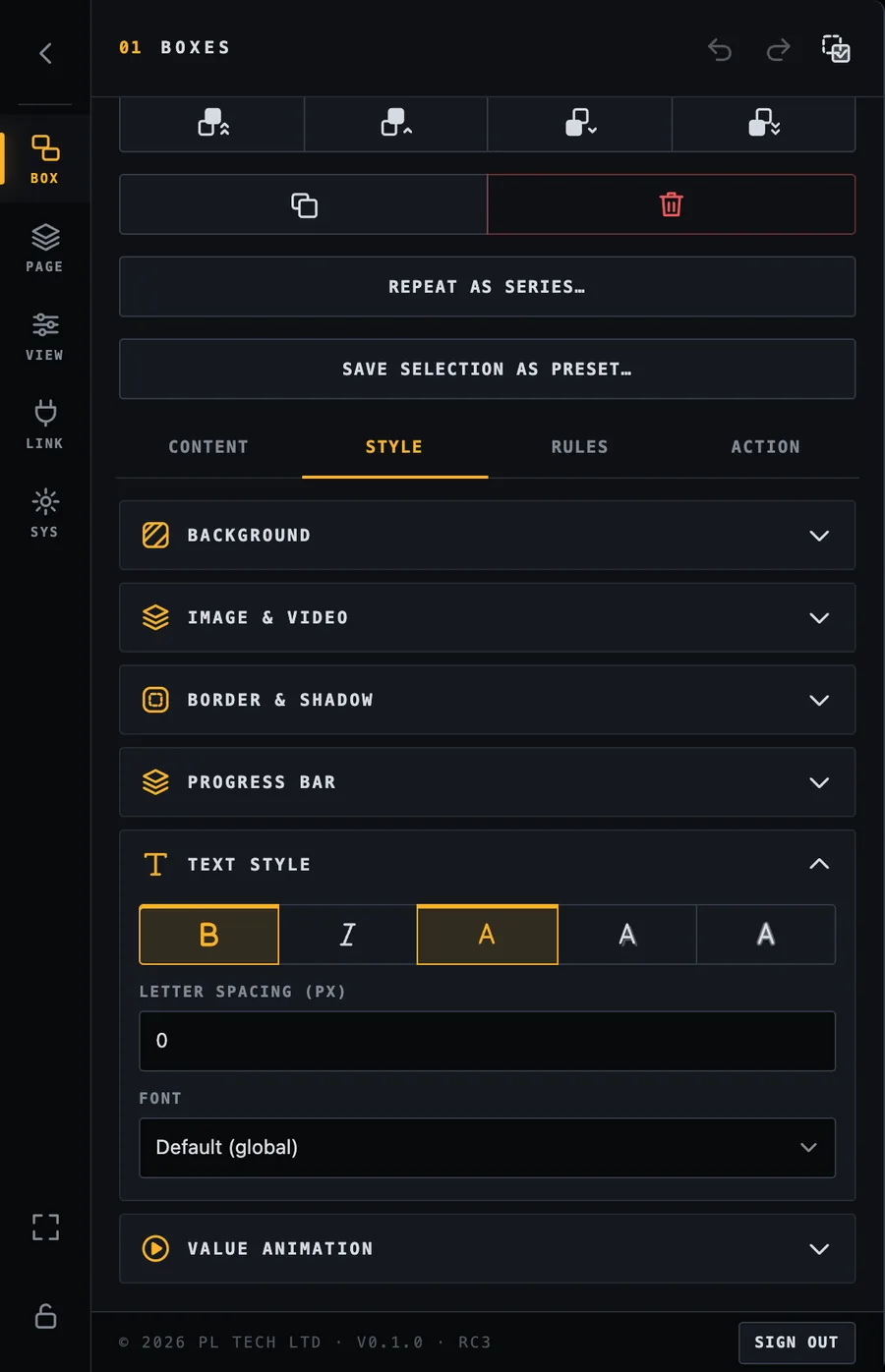
Bold, italic, a text effect (none / shadow / outline) for readability on pictures, letter spacing, and the font for this box (the default is the global font from VIEW).
Text style.
Value animation
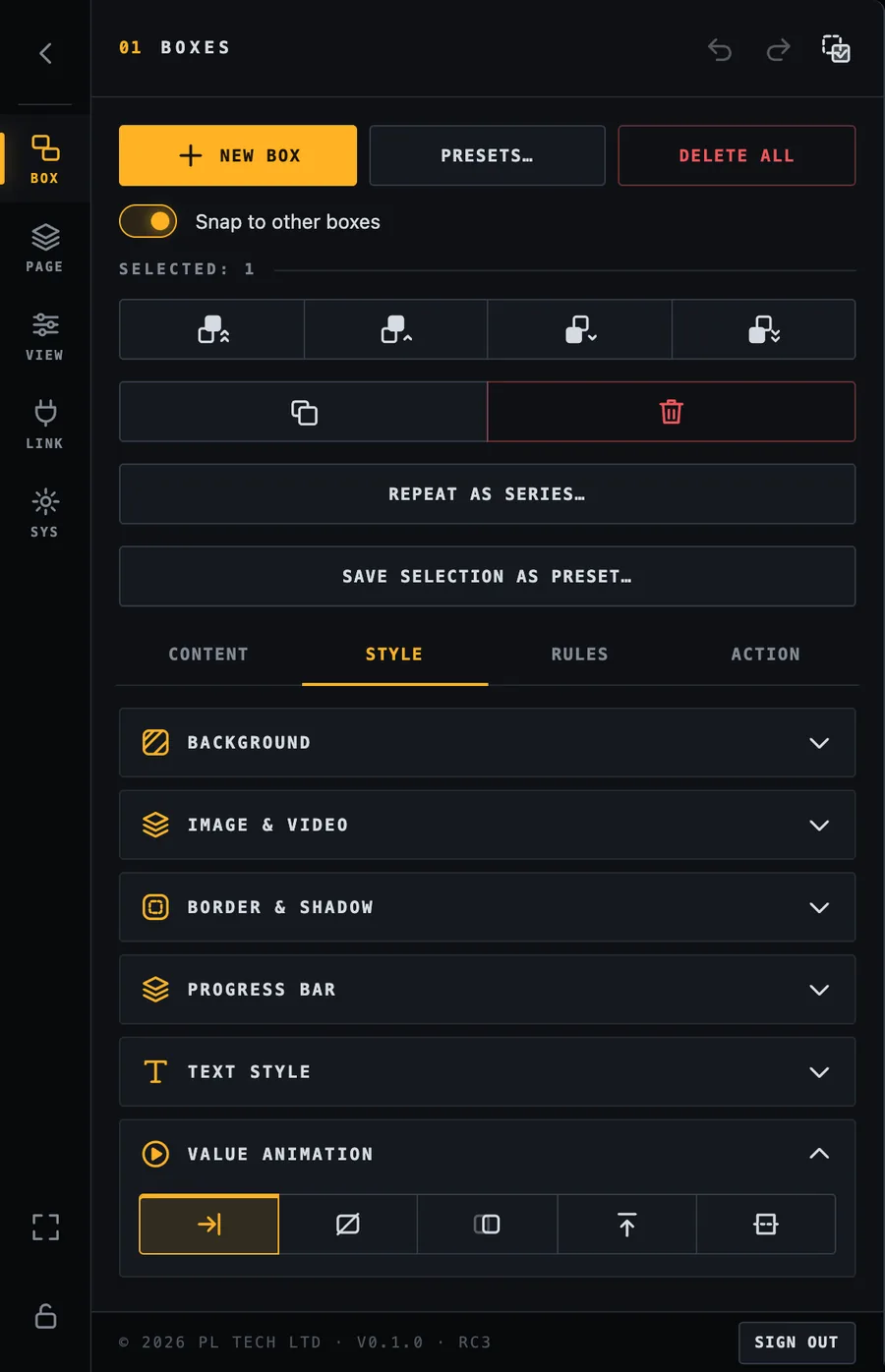
How a changing value appears: nothing, fade, slide or flip. Default follows the global setting in VIEW. Animations are skipped automatically if the computer asks for reduced motion.
Value animation per box.
Looks: restyle a box in one click
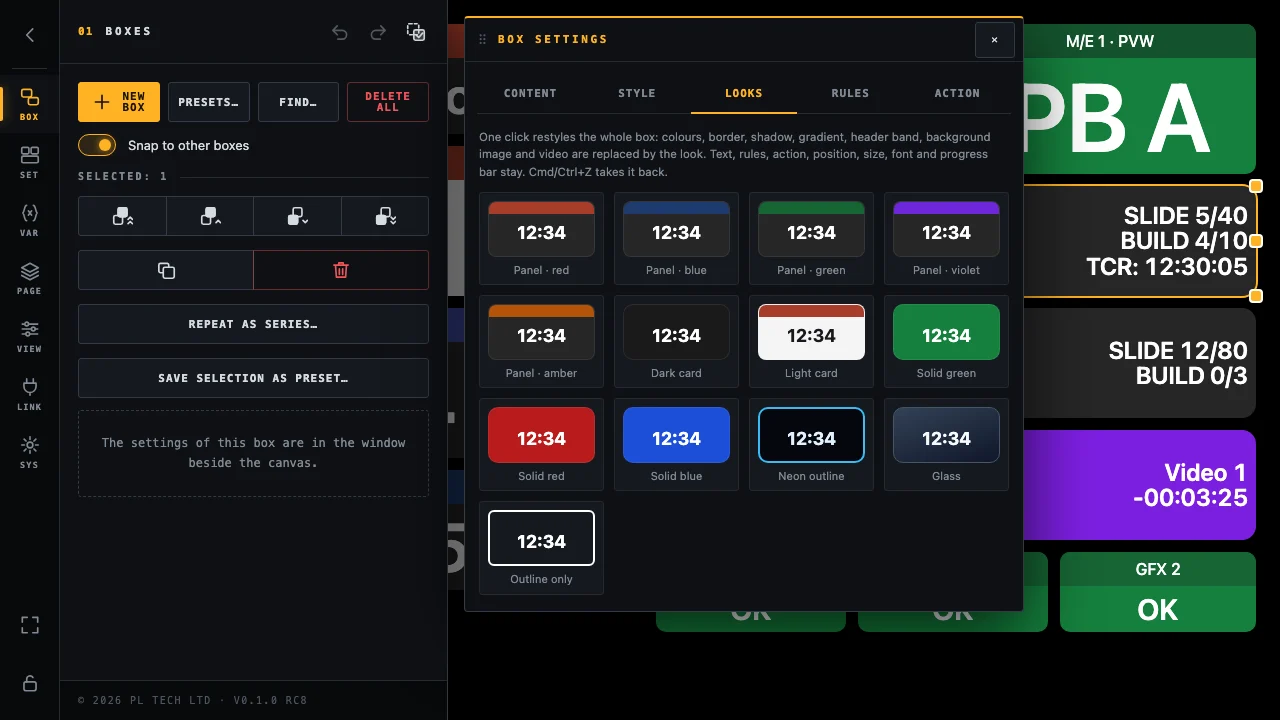
The Looks tab gives the box a complete ready-made look: panels with a coloured header band, cards, solid tiles, neon, glass, outline.
Thirteen looks, one click each. Ctrl/Cmd+Z takes a look back.
A look replaces the whole appearance (also a background image, video and effects you set before) and keeps the text, rules, action, size, font and progress bar. Colours set by a rule still win when the rule matches; the tab offers a button to clear them.
When you scale several selected boxes with the handles of their common frame, the labels, fonts, corners and borders scale with the boxes.
Box settings: Rules (make boxes react)
Rules are what make a dashboard come alive. A rule says: when this variable matches, change how the box looks. The first rule that matches wins, so put the most important one on top.
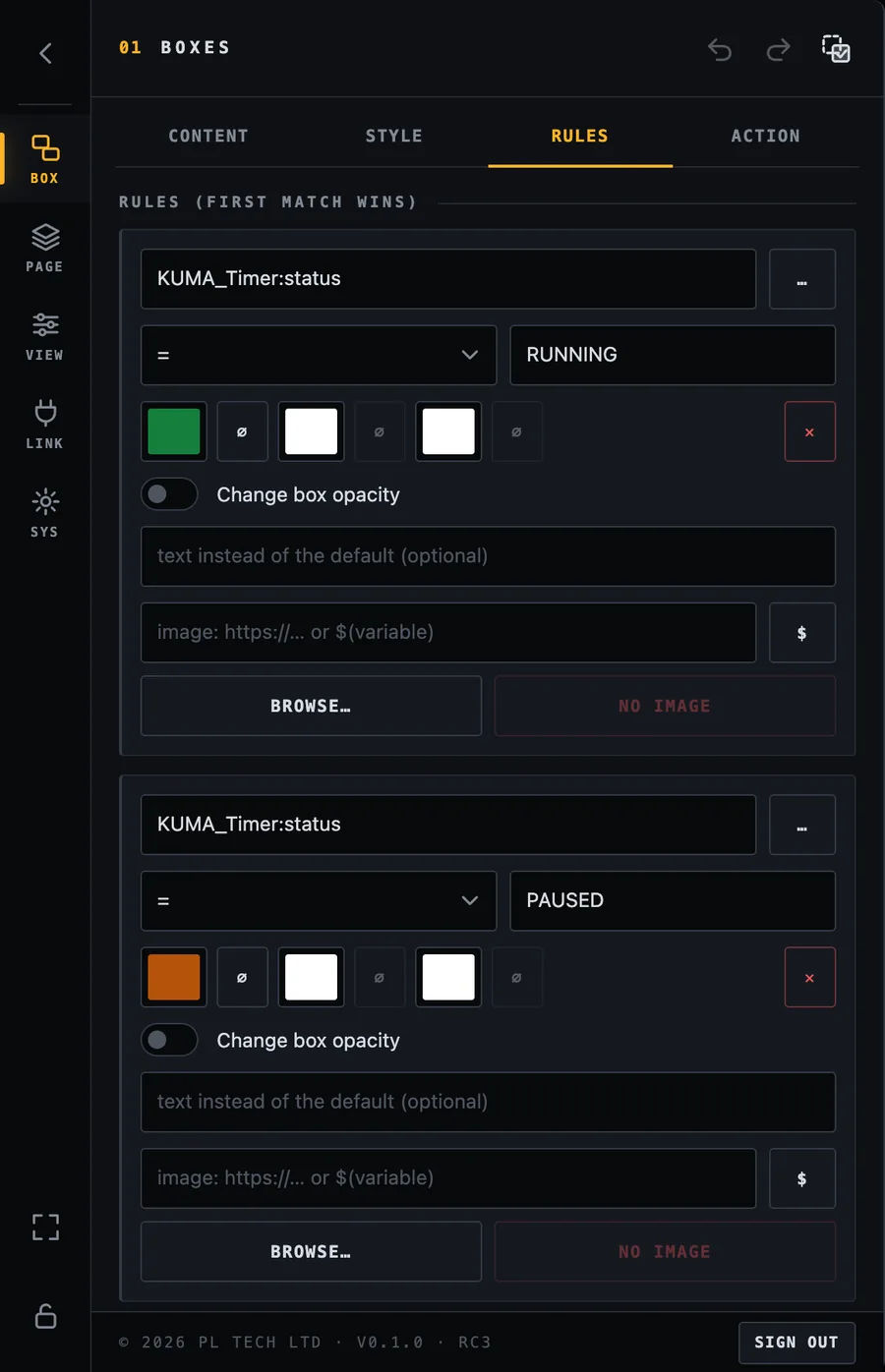
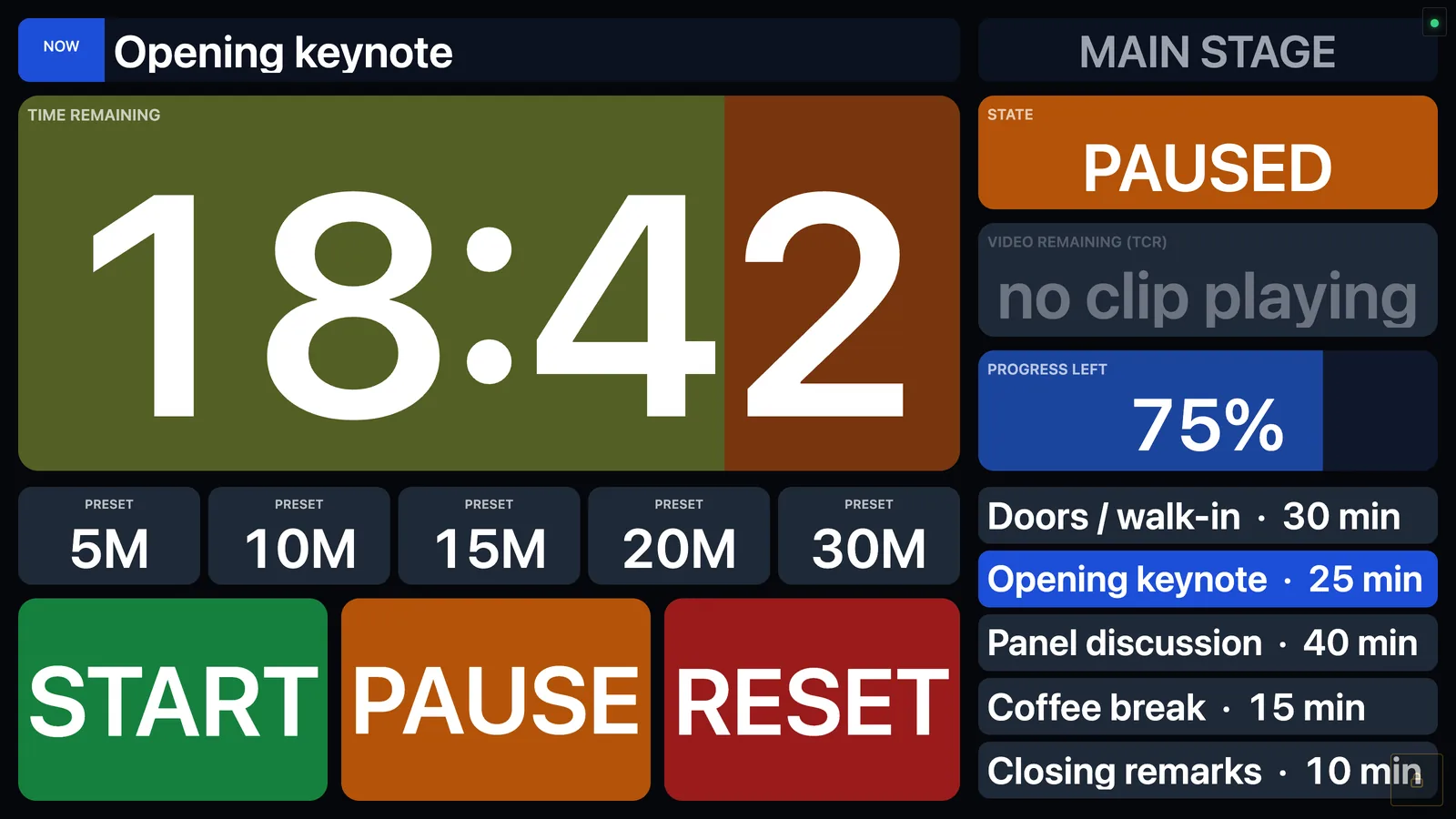
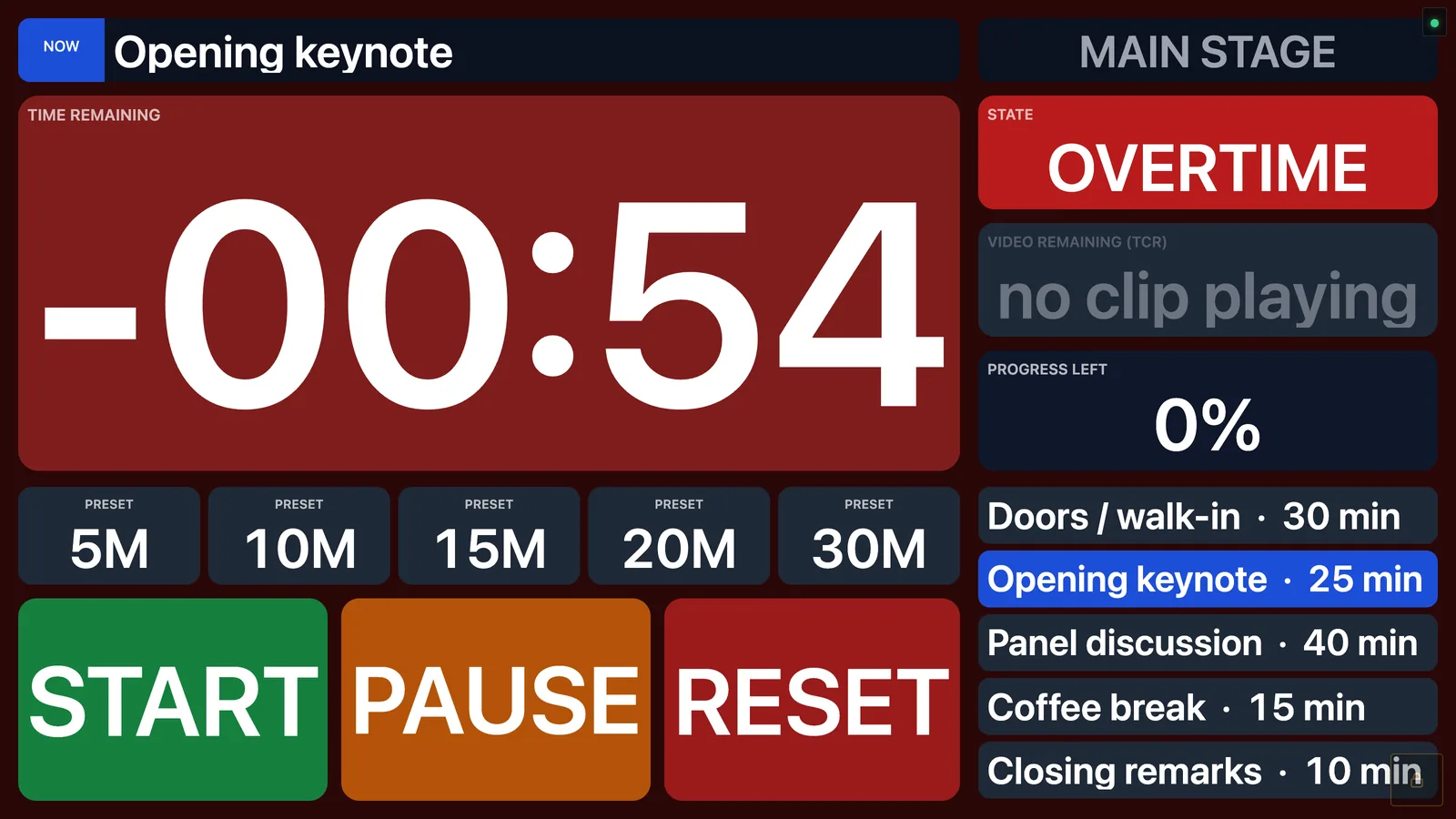
Example from the finished dashboard: the STATE box is grey by default, green while KUMA_Timer:status is RUNNING, orange for PAUSED and red for OVERTIME.
Rules tab: three rules on the STATE box. Each has a variable, a comparison, a value and the colours it applies.
Each rule has:
a variable (type it or tap … to pick it),
a comparison: equals (=), not equal, greater / smaller (numeric), is empty, is not empty, contains, does not contain,
a value to compare with,
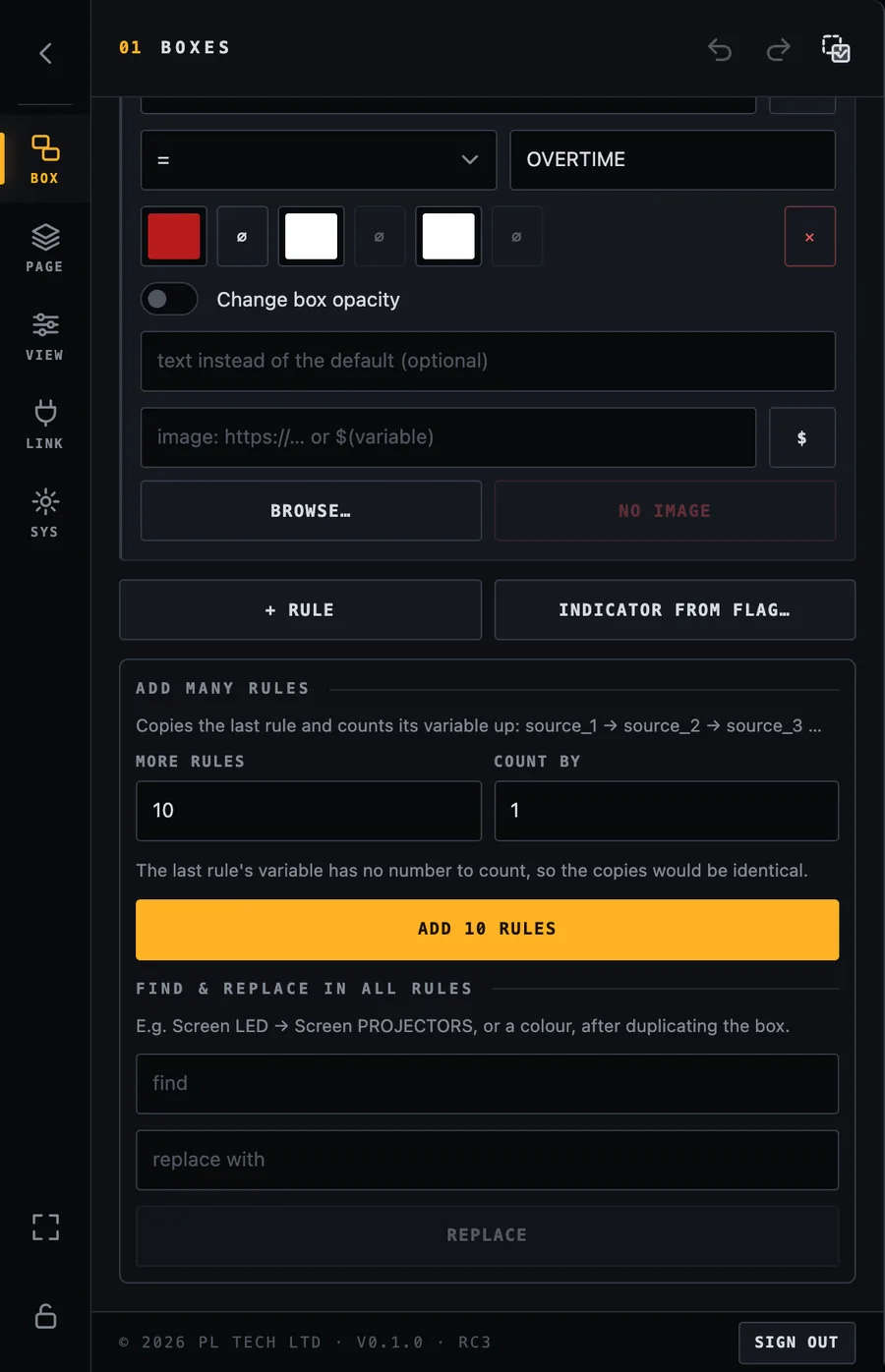
what to change when it matches: background colour, text colour, border colour, box opacity, the text itself (for example show no clip playing when nothing plays) and the image. Anything left empty (∅) stays as the box normally is.
Shortcuts for many rules
Indicator from flag… builds an ON / OFF light in one step: pick a variable that is true or false and the box turns grey OFF and green ON.
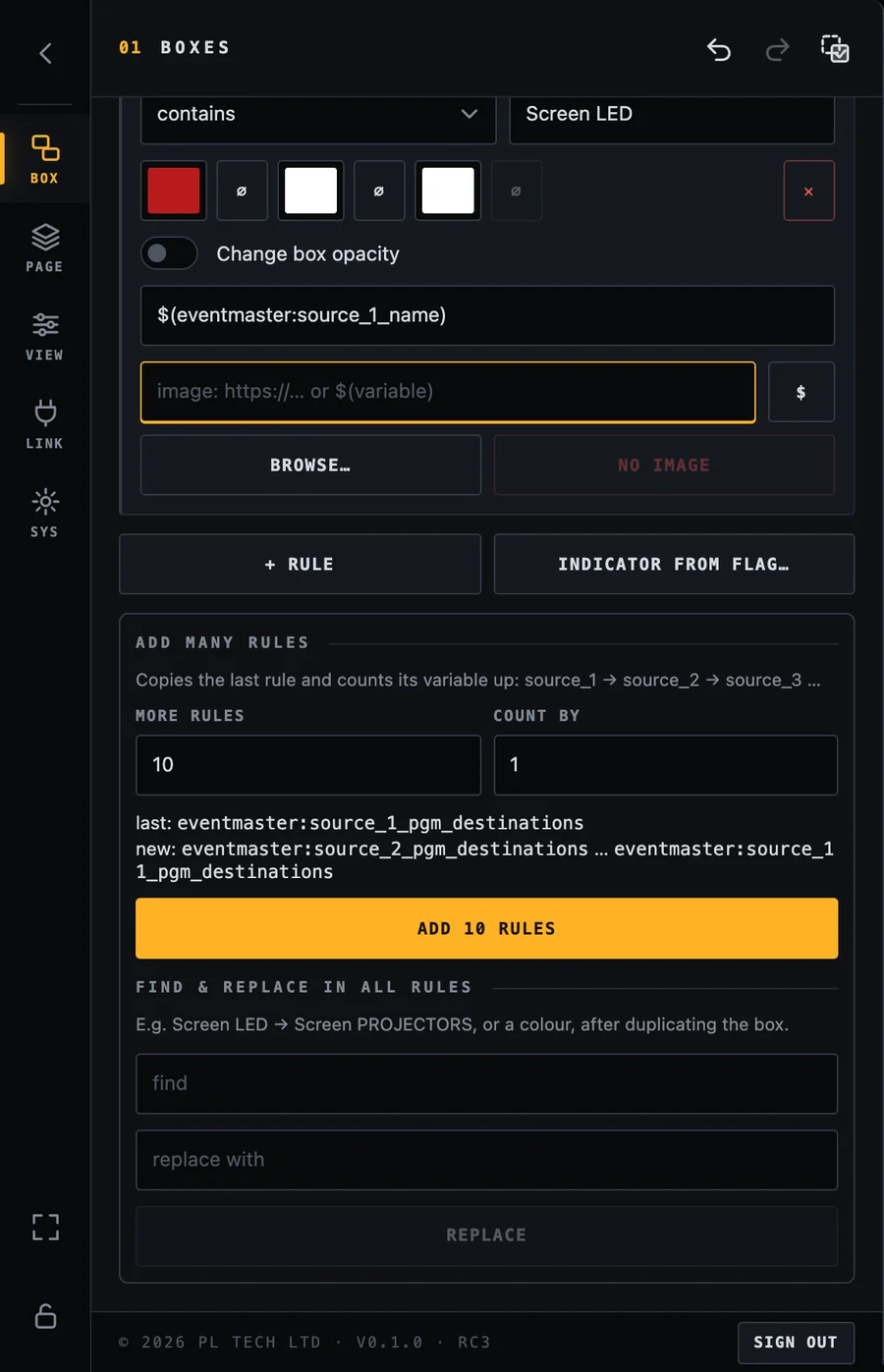
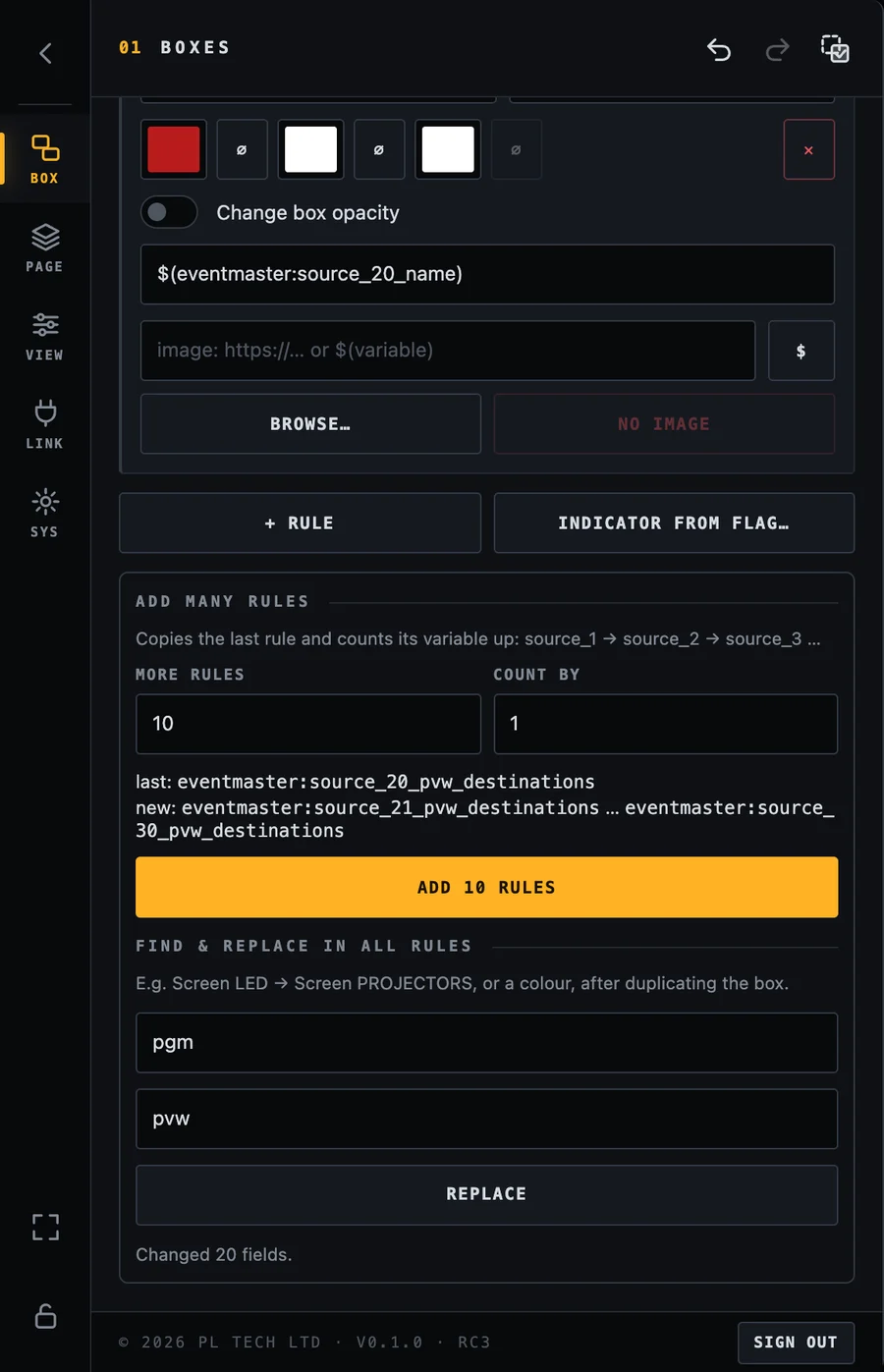
Add many rules copies the last rule and counts its variable up (source_1, source_2, source_3 …). Perfect for a box that must change for each of ten inputs.
Find & replace in all rules changes a word everywhere, for example after you duplicated a box for another screen.
Add many rules and Find & replace.
Rules for the whole screen
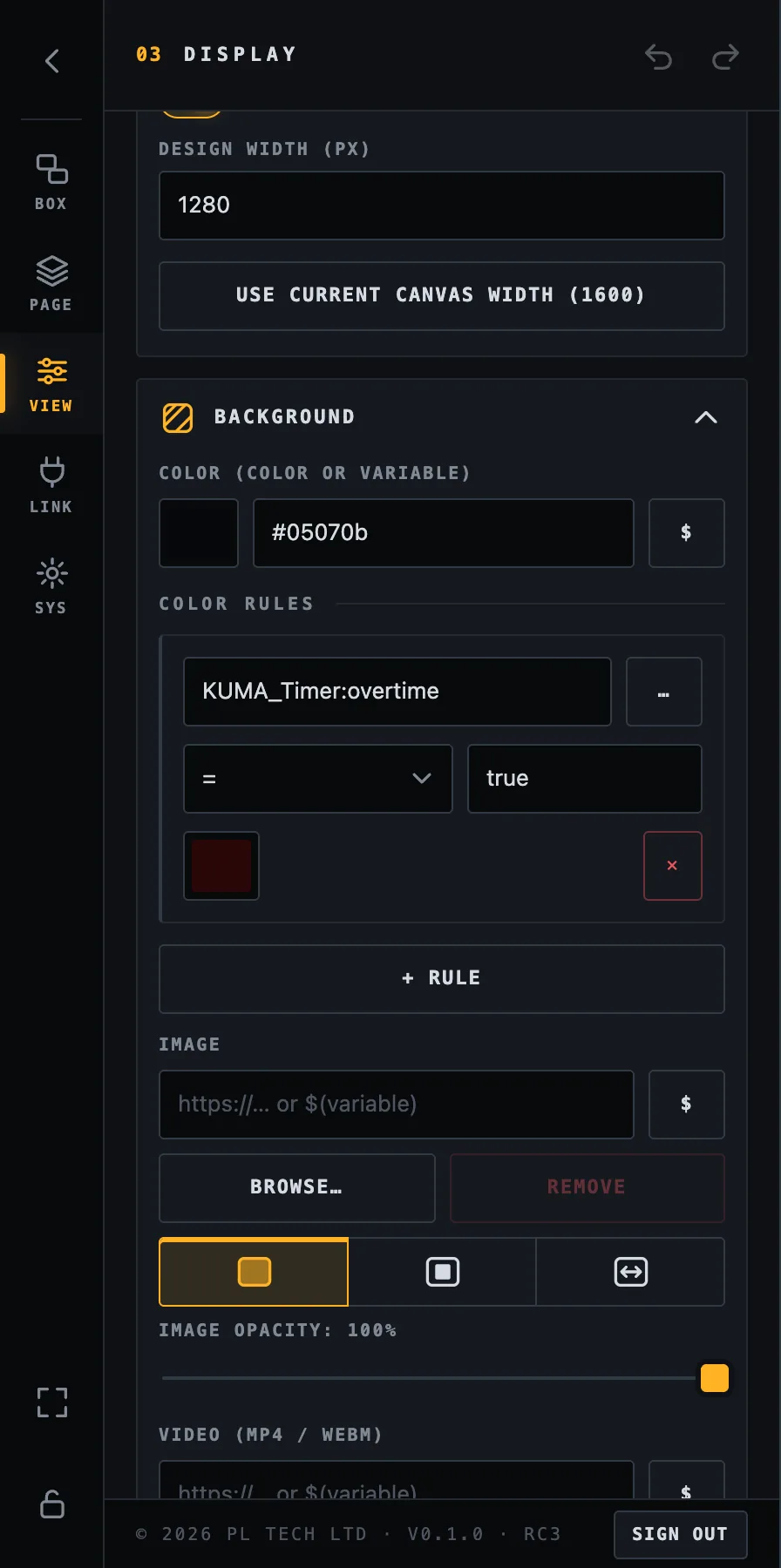
The page background can have rules as well (VIEW → Background). In the example the whole screen turns dark red while the timer is in overtime, which is hard to miss across a control room.
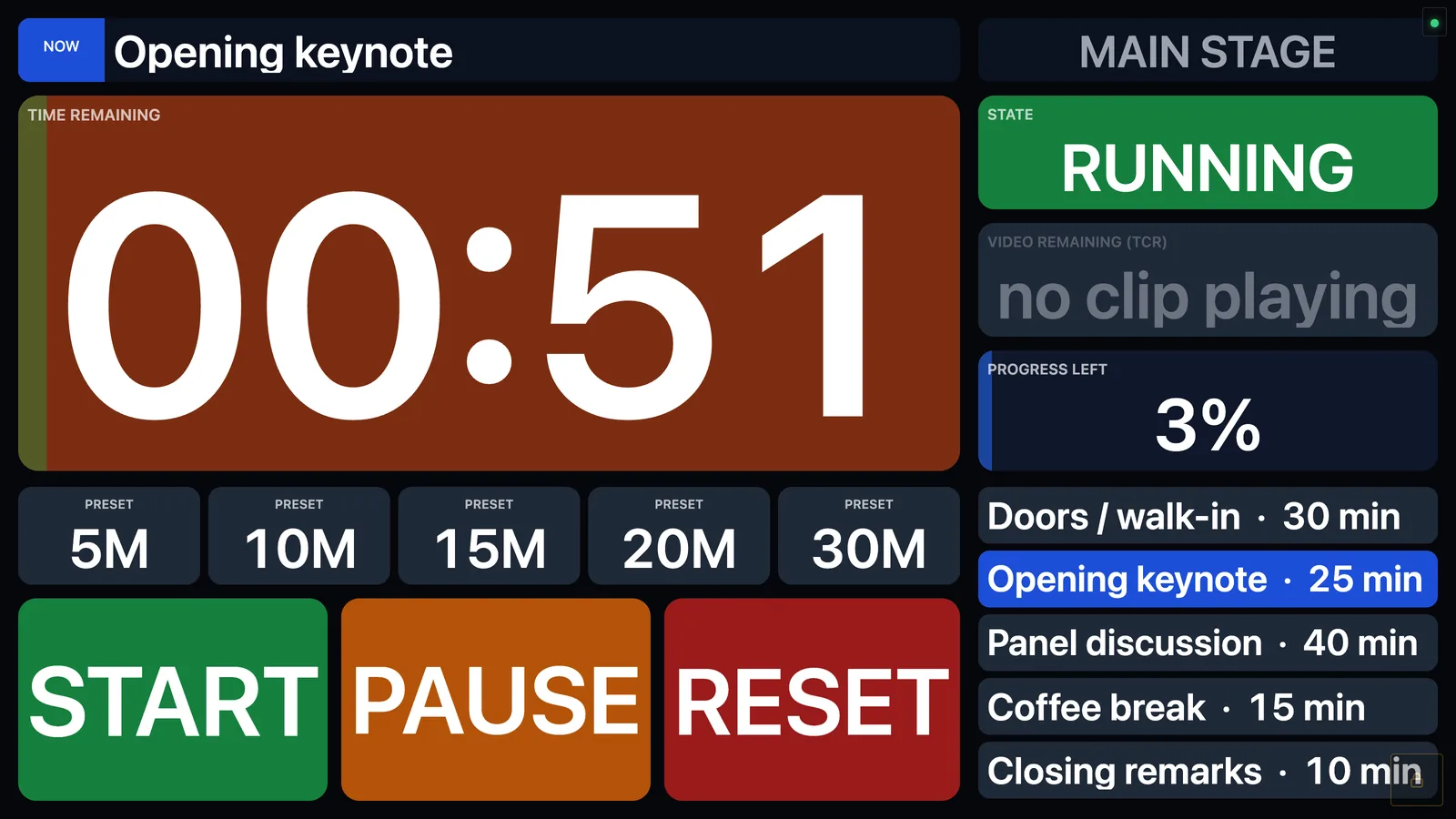
PAUSED: the timer box turns brown and the state turns orange.Last minutes: when progress drops below 12 % the timer box turns orange.
OVERTIME: the timer box, the state tile and the whole canvas turn red.
Box settings: Action (make boxes do something)
The Action tab says what a box does when you tap it while the layout is locked (see Locking).
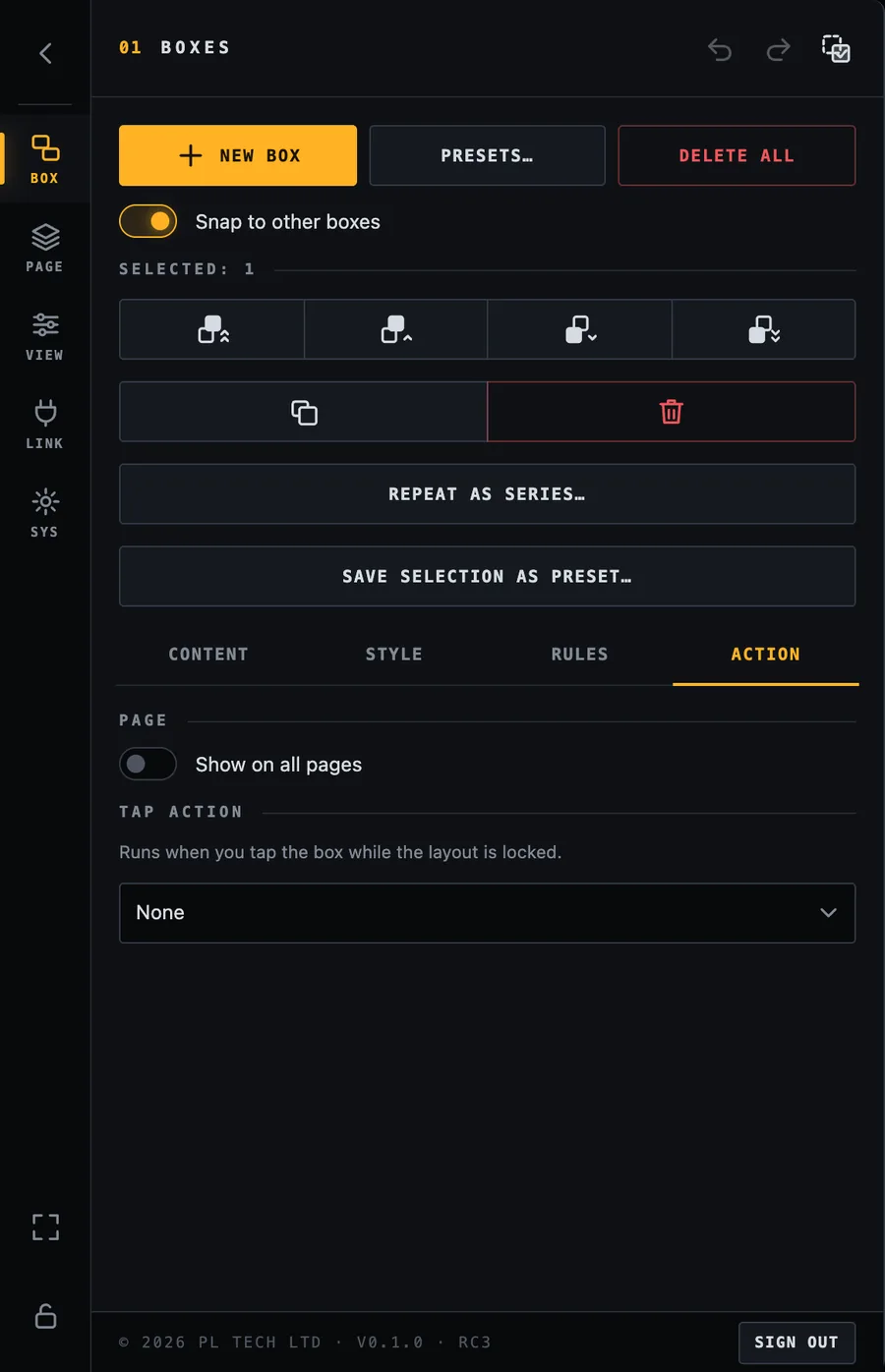
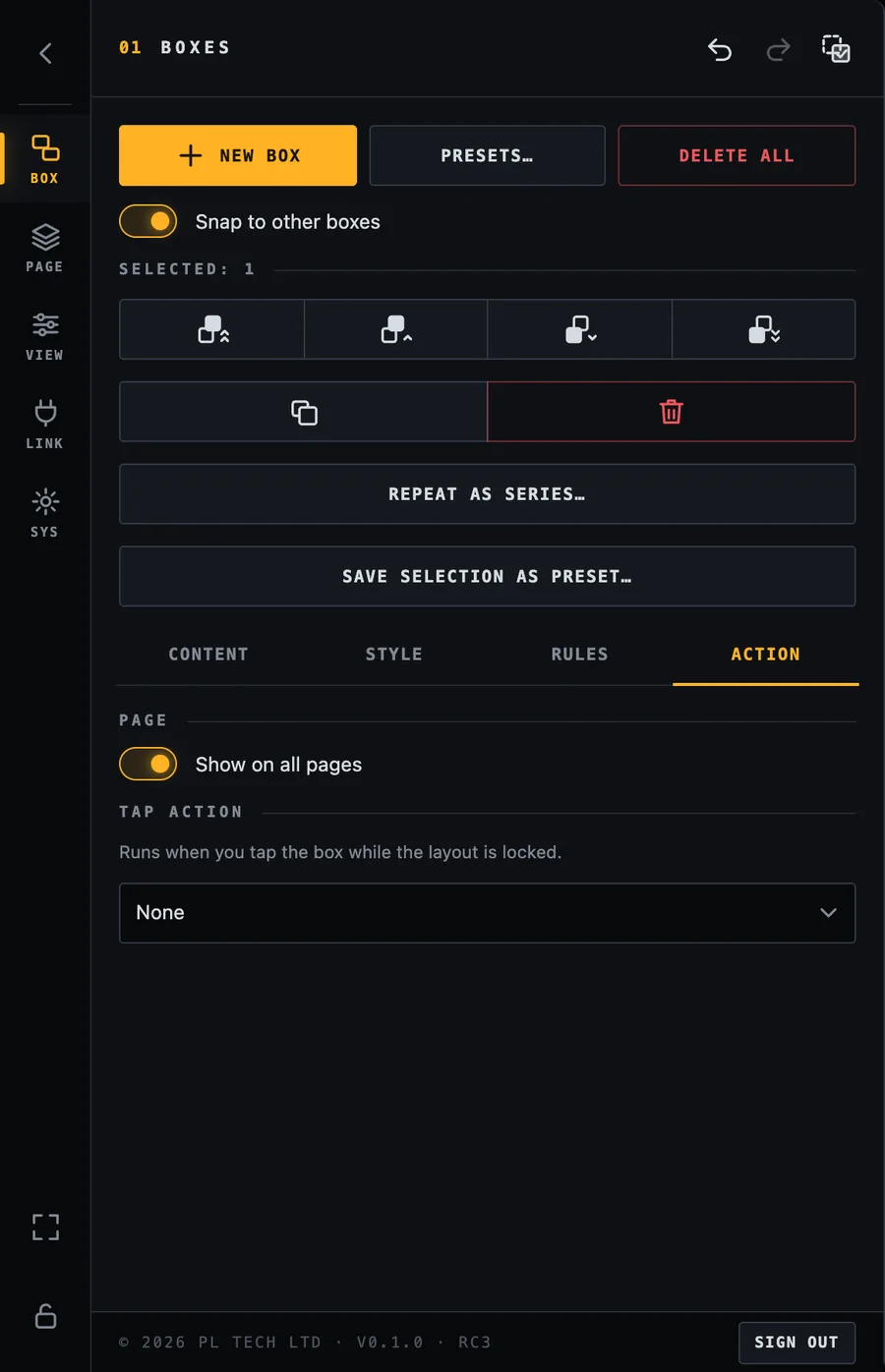
Action tab. Choose what a tap does. “Show on all pages” puts the box on every page.
Press a Companion button
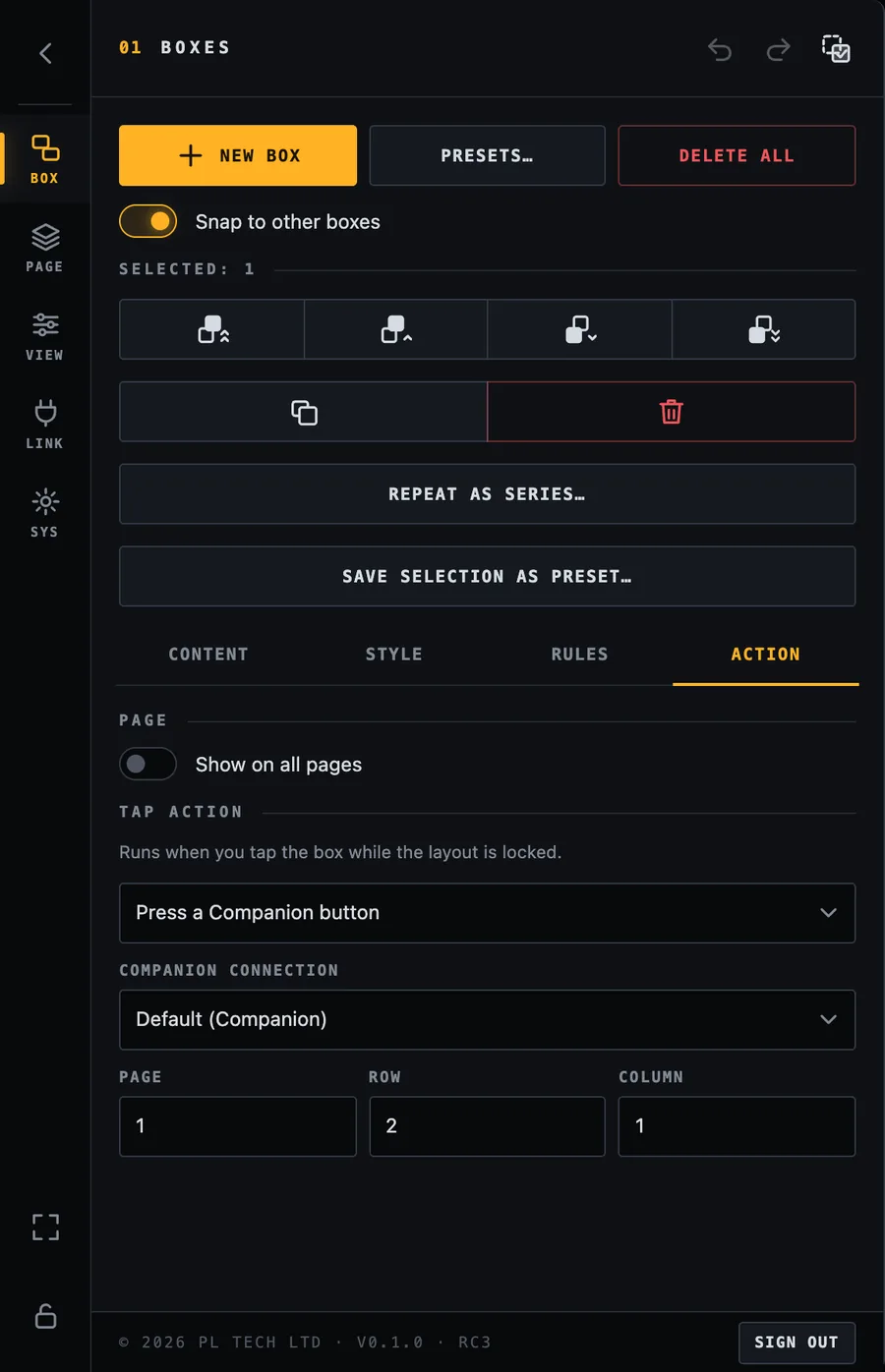
Tell Dashboard which Companion button to press: the page, row and column of the button, exactly as you see them in Companion's Buttons view. If you have several Companion computers, choose which one (the default connection is used otherwise).
Press a Companion button: connection, page, row and column.
Tip. Build your START / PAUSE / RESET and preset buttons once in Companion (the KUMA Timer module has ready-made actions and presets), then give Dashboard boxes that press them. Dashboard shows the look; Companion contains the logic and can combine many actions in one button.
Go to a page
Switch the dashboard to the next, previous or first page, or to a particular page. Use it for a navigation strip.
Show on all pages
A box shown on every page (here a title strip), with no tap action.
Tick Show on all pages for boxes that belong to the whole dashboard, such as a page-switch bar, a clock or a title strip. Otherwise a box lives only on the page where you created it.
Add to watch (Apple Watch)
The Action tab has a section Where it shows with Add to watch for every box. It marks the box for the Apple Watch app that comes with the iPhone app 1.1 (coming). The watch shows the ticked boxes as large equal cells, one grid per page, in the order of their position on the dashboard (top to bottom, then left to right; the size of the box does not matter). A box that presses a Companion button is a button; a box without an action, such as a clock or a status, is a read-only readout. A cell shows the first line of the box text with its colours and colour rules; images, progress bars and fonts are not shown. If no box is ticked, the watch gets every button that presses Companion.
The watch does not talk to Dashboard itself: it works through the paired iPhone, which must be near and connected to this computer's web server on the same network (set a password in the web server settings, or buttons cannot press), or through Relay when control is allowed. If the iPhone is out of range the watch keeps showing its last values.
Arranging many boxes
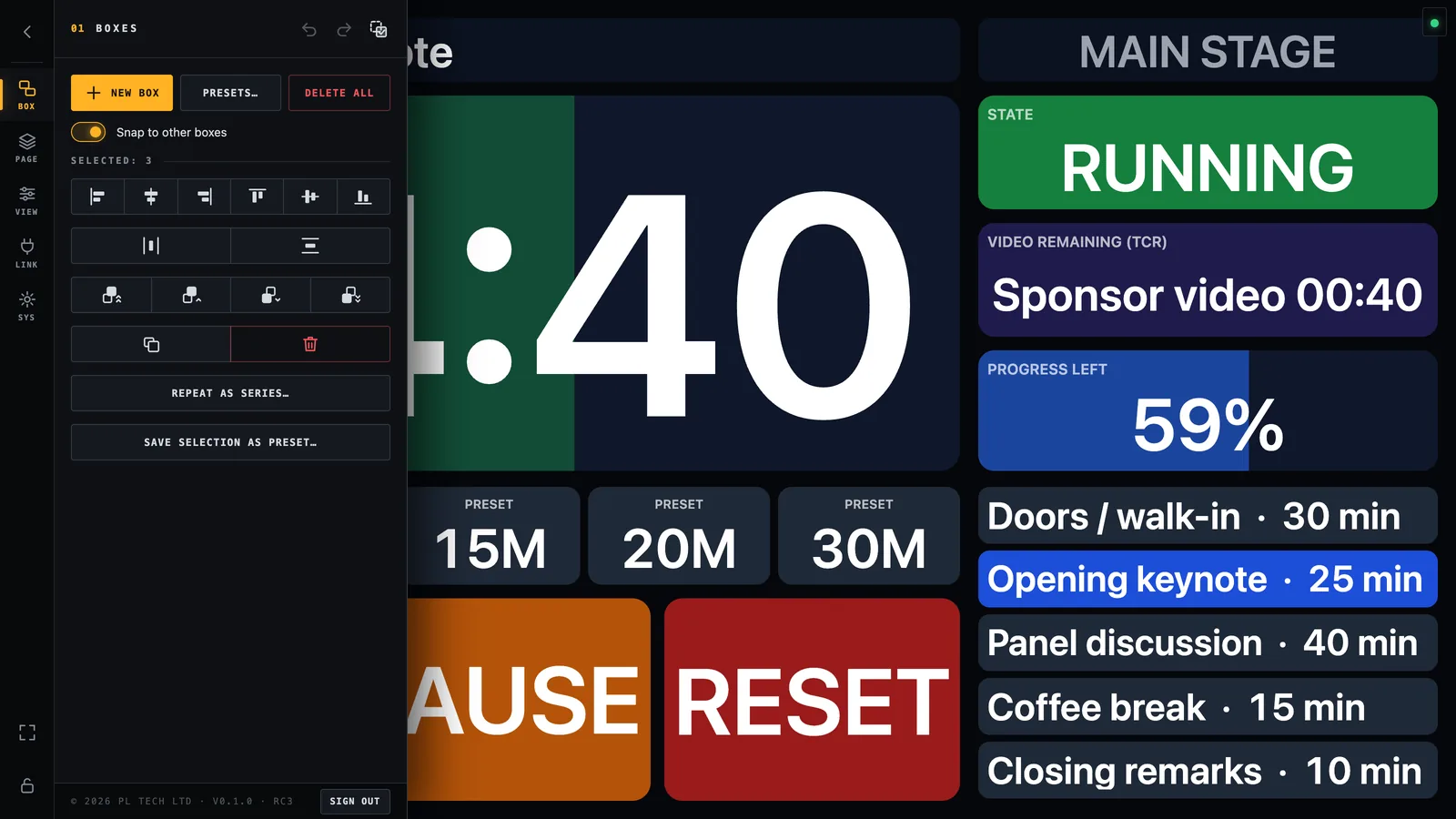
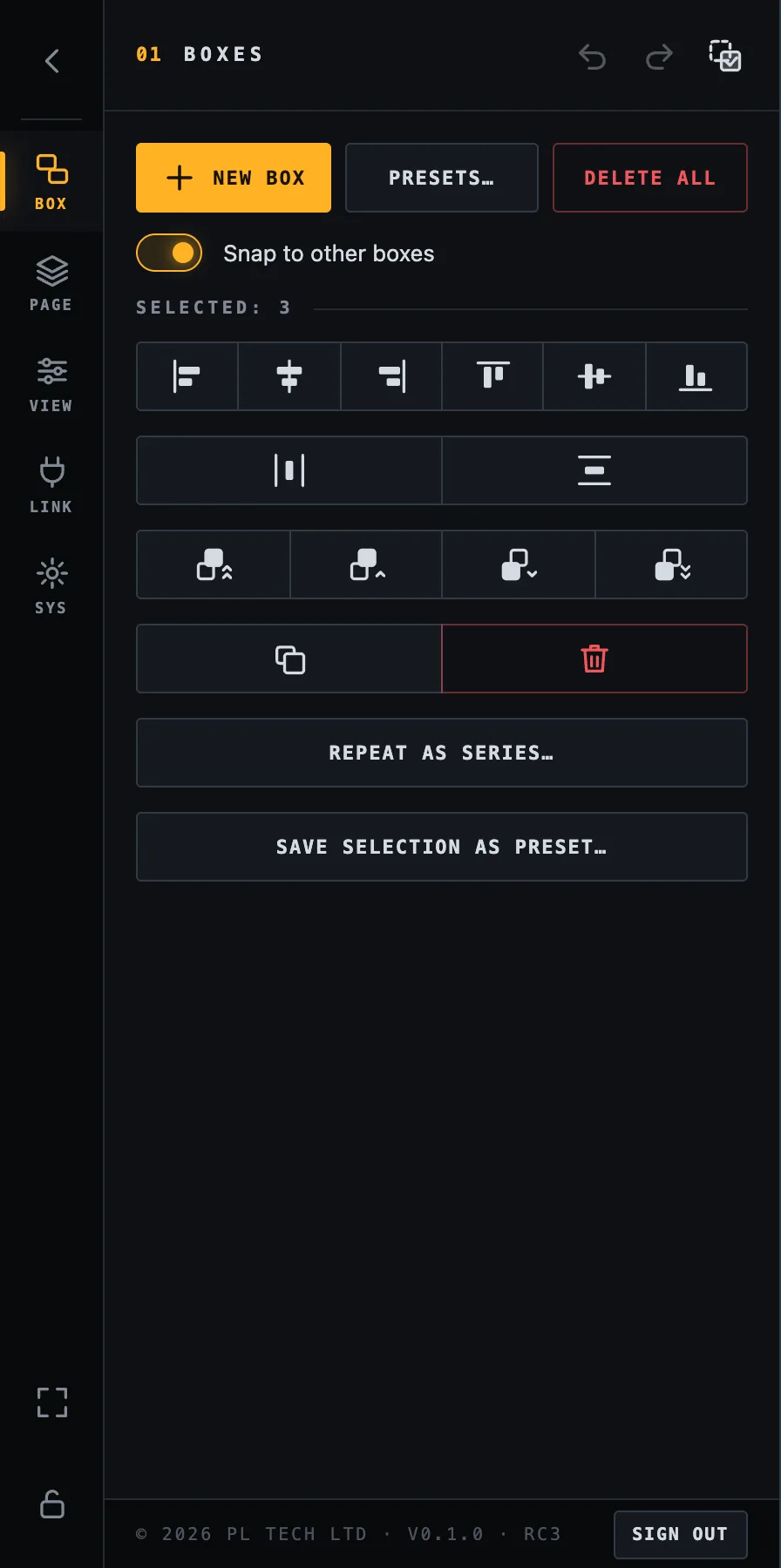
Select more than one box (drag a rectangle, or use Multi-select) and BOX shows alignment tools:
Three boxes selected with the arranging tools open.Selection tools: align left / centre / right / top / middle / bottom, distribute (three or more boxes), bring to front / back, duplicate, delete.
Align left, horizontal centre, right, top, vertical middle, bottom.
Distribute evenly horizontally or vertically (three or more boxes).
Order: bring to front, forward, backward, send to back, for boxes that overlap.
Duplicate and Delete. Delete all empties the page after a second confirmation press (“Sure?”).
Repeat as series
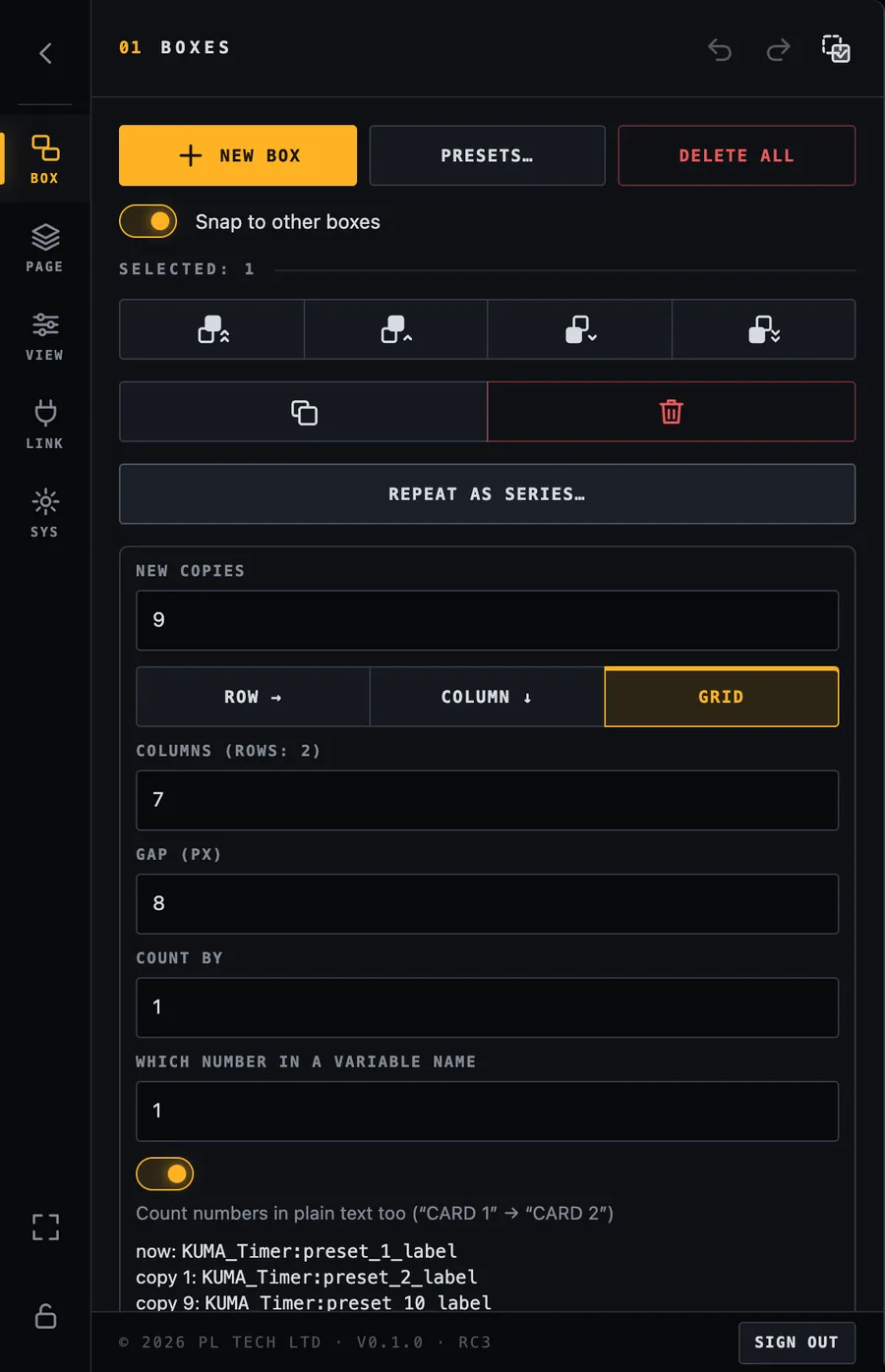
Need ten identical tiles for ten inputs? Build one, select it and press Repeat as series…. Dashboard makes numbered copies and counts the number in each variable up for you (preset_1_label, preset_2_label, …) and lays them out as a row, a column or a grid with the gap you choose. A preview shows the first and last variable before you press Create.
Repeat as series: copies, layout, gap and a preview of the variable counting up.
Save a selection as your own preset
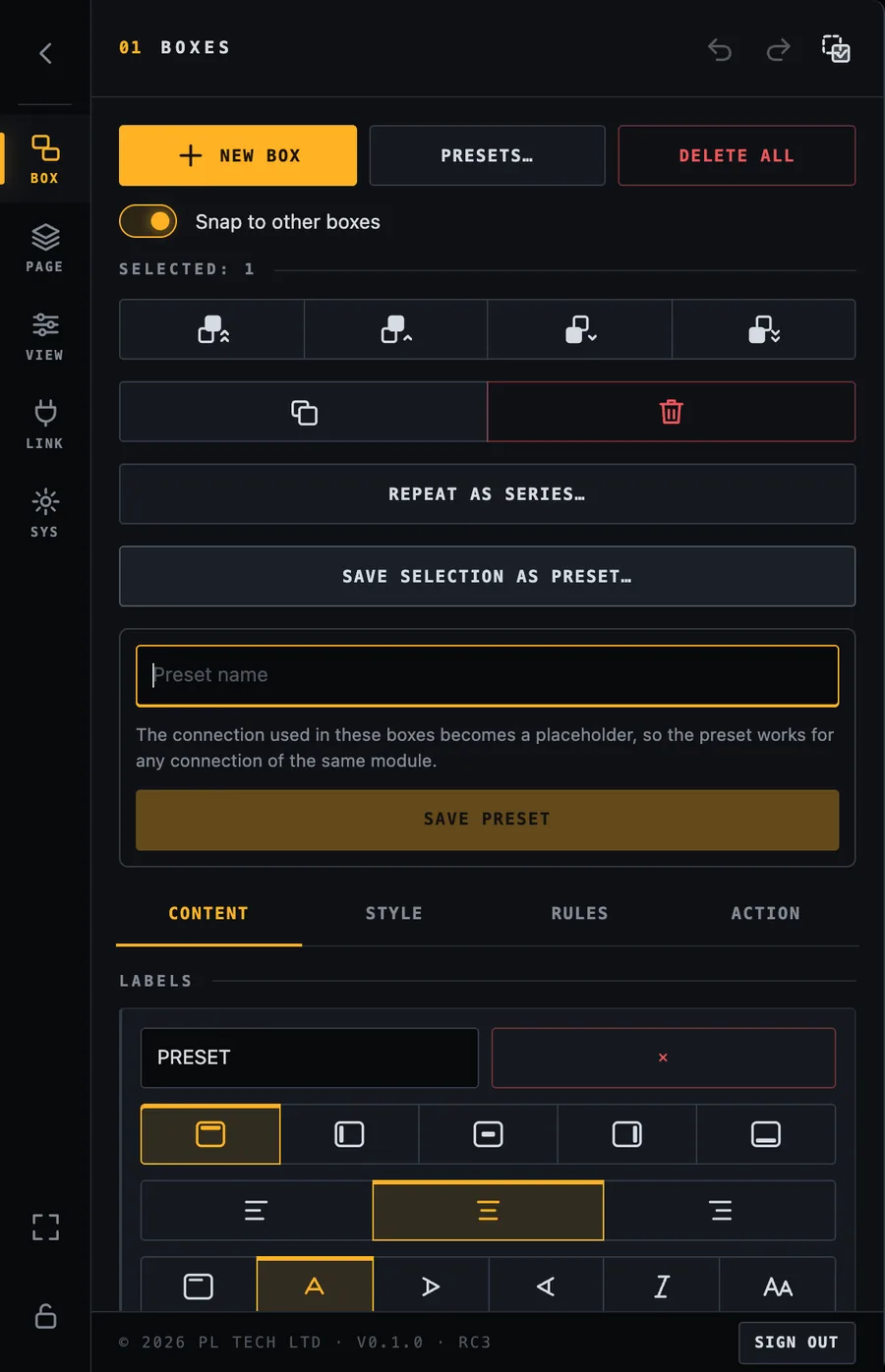
Got a combination you will use again (a timer block, a camera tile)? Select its boxes and press Save selection as preset…. It is stored under My presets (next chapter) and can be added to any dashboard. The connection used becomes a placeholder, so the preset works with any connection of the same module.
Saving the selection as a preset.
Presets: build the screen in minutes
You do not have to build anything from scratch. Dashboard reads which modules your Companion has (a progress bar shows it when it starts) and offers boxes built from the variables your system really has: the number of sources, cards or screens is not typed in by you. Everything is in the SET tab of the menu, next to the canvas, so you can see the screen while you work.
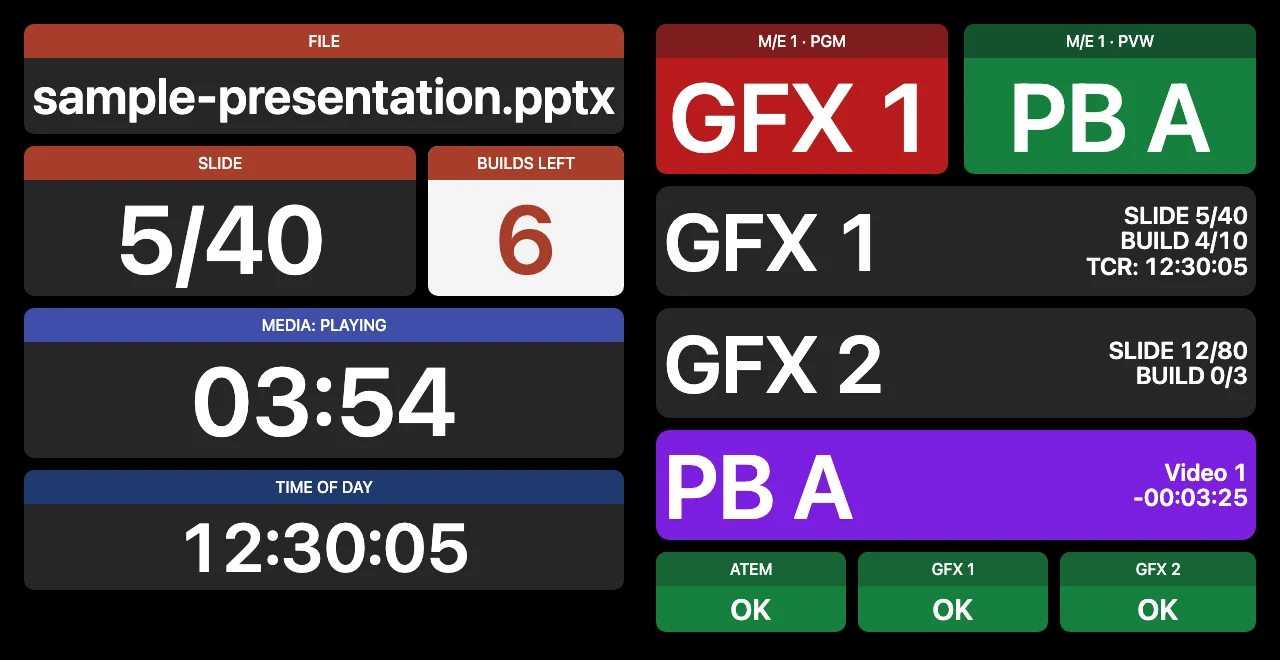
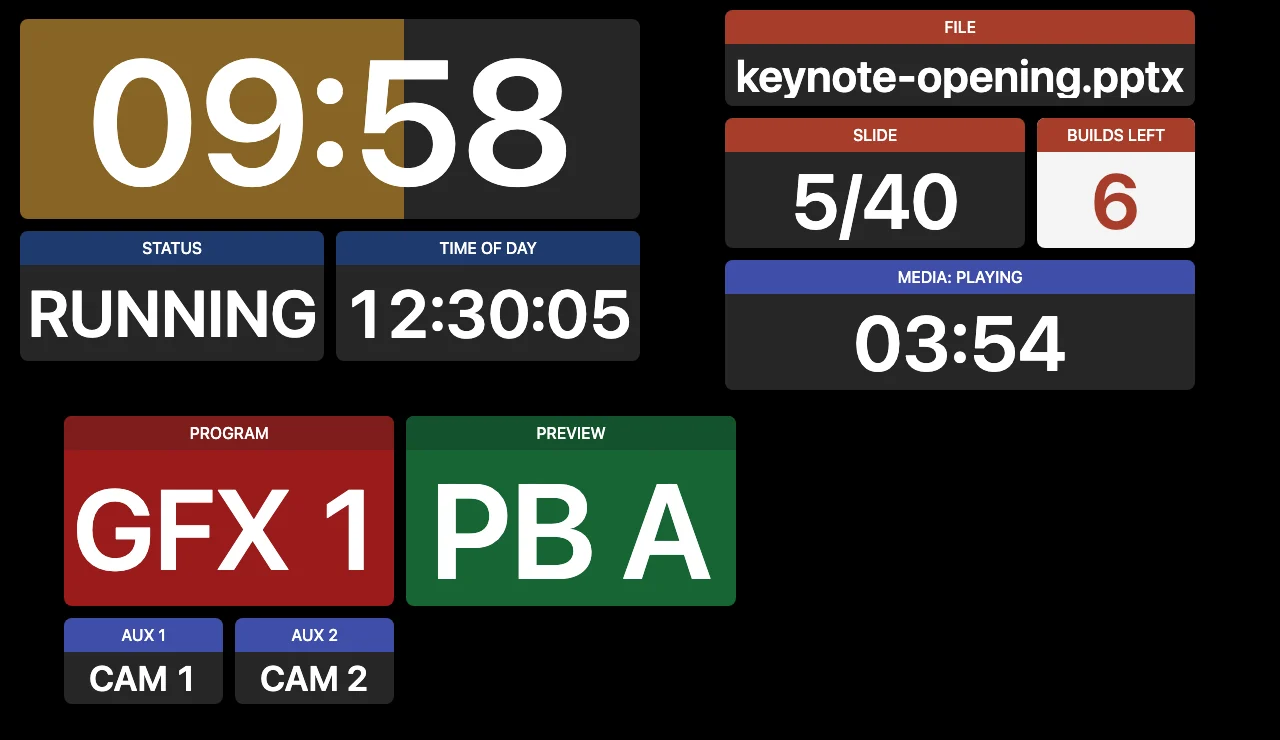
An example screen made from presets and a few minutes of arranging.
Build my dashboard: one button
Press Build my dashboard at the top of SET. Dashboard adds the right boxes for every connection it recognised and lays them out in tidy columns, one group of presets under another. If the current page already has boxes, the result goes onto new pages (Dashboard, Dashboard 2, …), so nothing you made is touched. Ctrl/Cmd+Z takes the whole thing back in one step.
It leaves out the variants that would only repeat another preset (the big layouts, one tile per PowerPoint variable), so you get a clean base to arrange.
Drag a preset onto the canvas
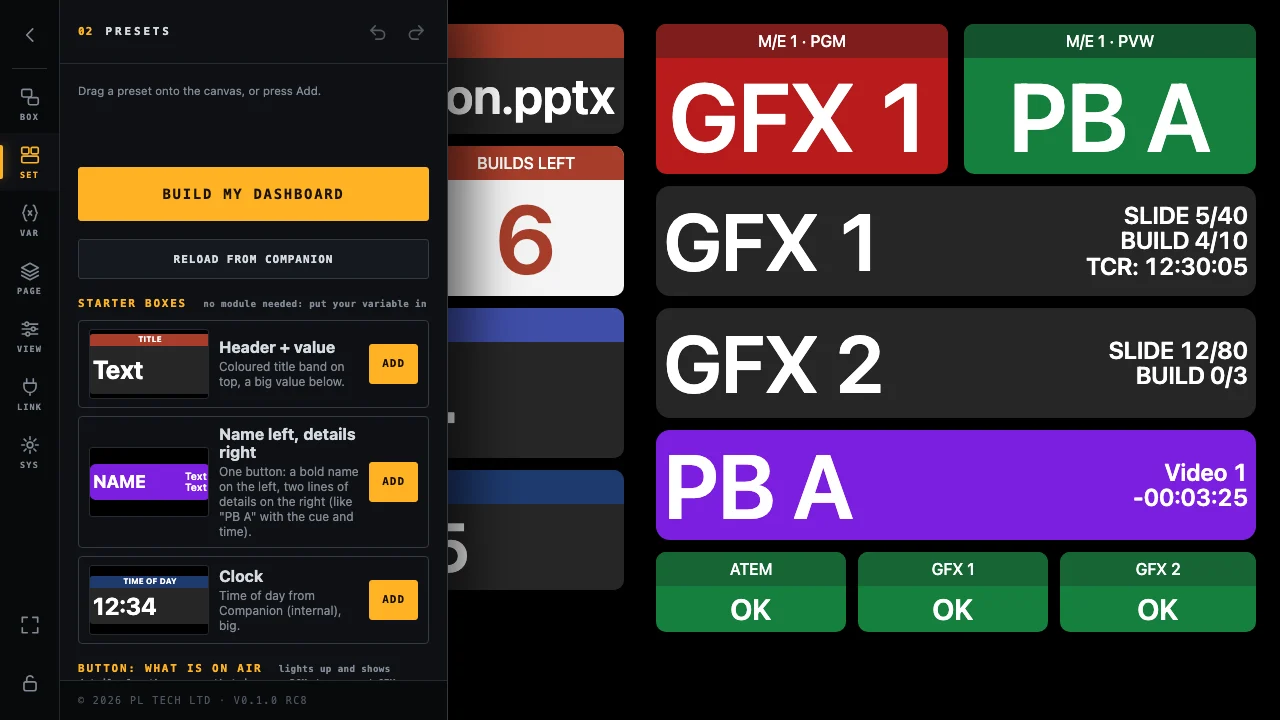
The SET tab. Every preset has a small picture of what it adds, with example values (never your real ones).
Every preset shows a picture of what it will add. Drag it onto the canvas and it lands where you drop it, or press Add (it lands below what you already have, selected). Add all for… adds every preset of one connection. Reload from Companion reads Companion again after you add a module.
What the presets are
Starter boxes (no module needed): Header + value, Name left, details right and Clock. Put your own variable in.
Any module: a green OK / red PROBLEM tile that follows Companion's own connection status.
KUMA Timer:Timer with progress bar, Status and cue, PowerPoint and TCR tiles, the two GFX buttons (below) and the layouts Layout: speaker timer and Layout: presentation.
ATEM: program and preview per mix effect, keyers on air, aux outputs, and Layout: PGM and PVW monitor.
Barco E2 / EventMaster: which input is on each screen, all cards in one OK / PROBLEM box (or one tile per card), power supplies.
Routers: the input on each output, the selected destination in amber.
My presets: select boxes, press Save selection as preset… in the BOX tab, and the next event is one drag away. The connection name in your boxes is replaced when you add the preset.
Three ready layouts: speaker timer, presentation, PGM and PVW monitor.
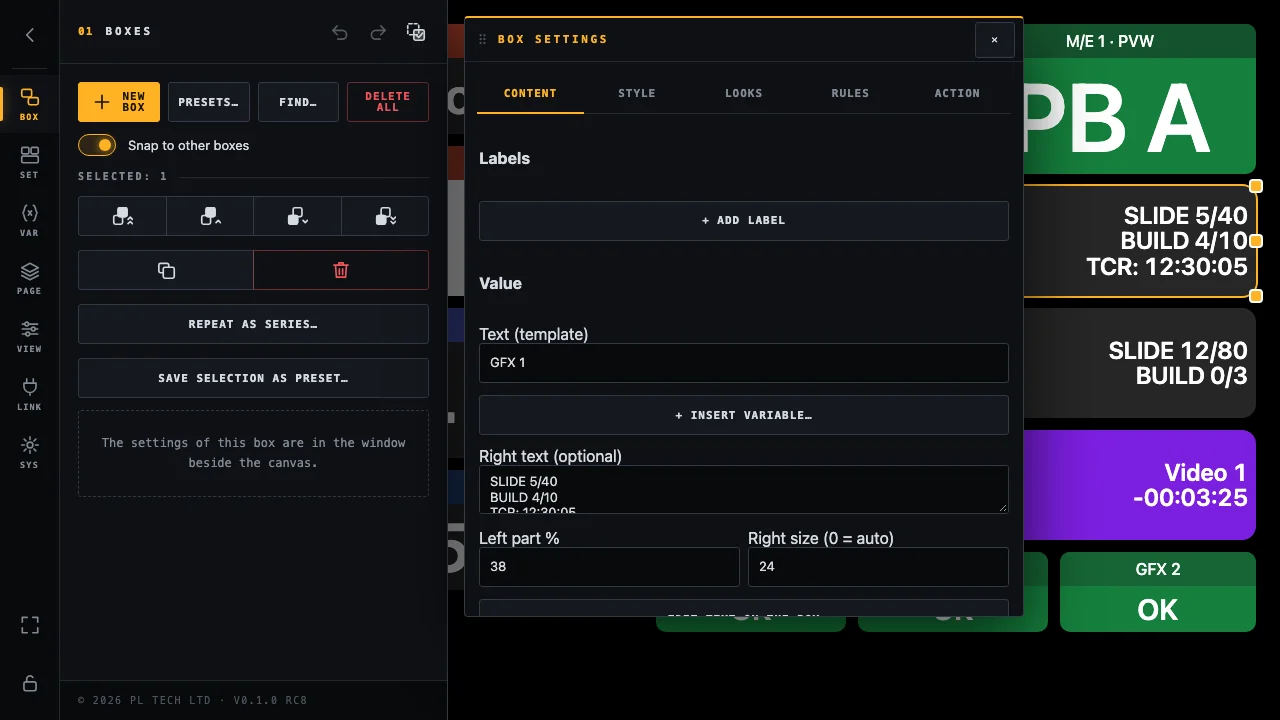
One box, two texts: a name on the left, details on the right
A box can have a second text, the right text (BOX → Content → Right text). It sits next to the main text and may have several lines. Left part % sets how wide the left side is, Right size the size of the right text (0 = fit to the space). A rule can replace the right text as well as the left one.
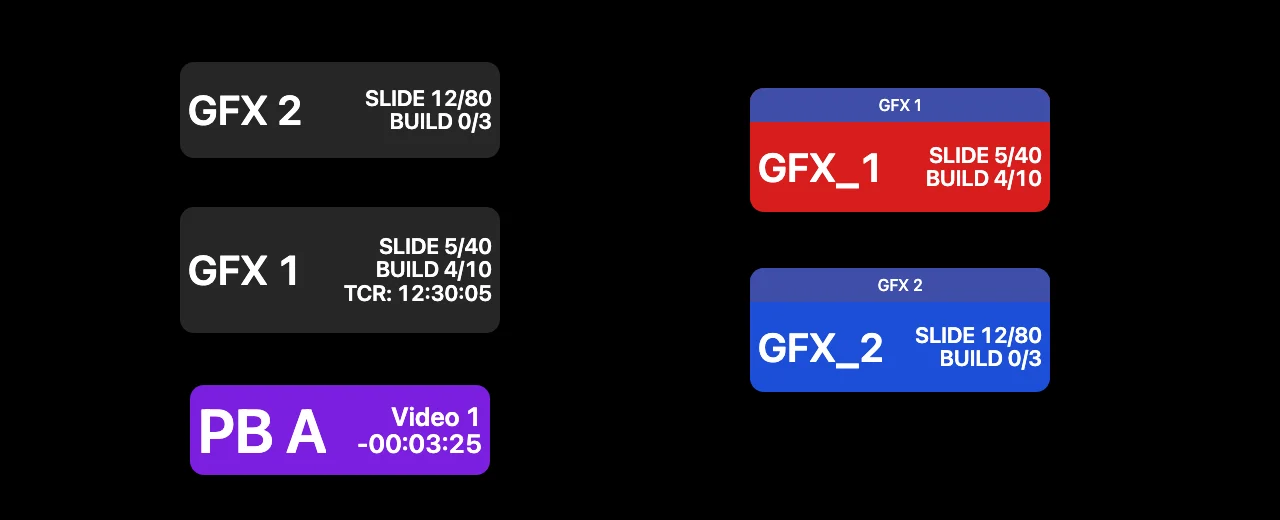
Two GFX presets, a PB A button, and two on-air buttons that are lit.
The two GFX presets (KUMA, for every connection that has PowerPoint variables) use it: the machine name on the left (taken from the connection, GFX_1 becomes GFX 1), on the right SLIDE X/Y and under it BUILD X/Y. The second preset adds a third line, TCR: XX:XX:XX, for connections that have a TCR variable. Name left, details right in the starter boxes is the same box for your own variables, for example PB A with the cue and the time left.
A button that shows what is on air
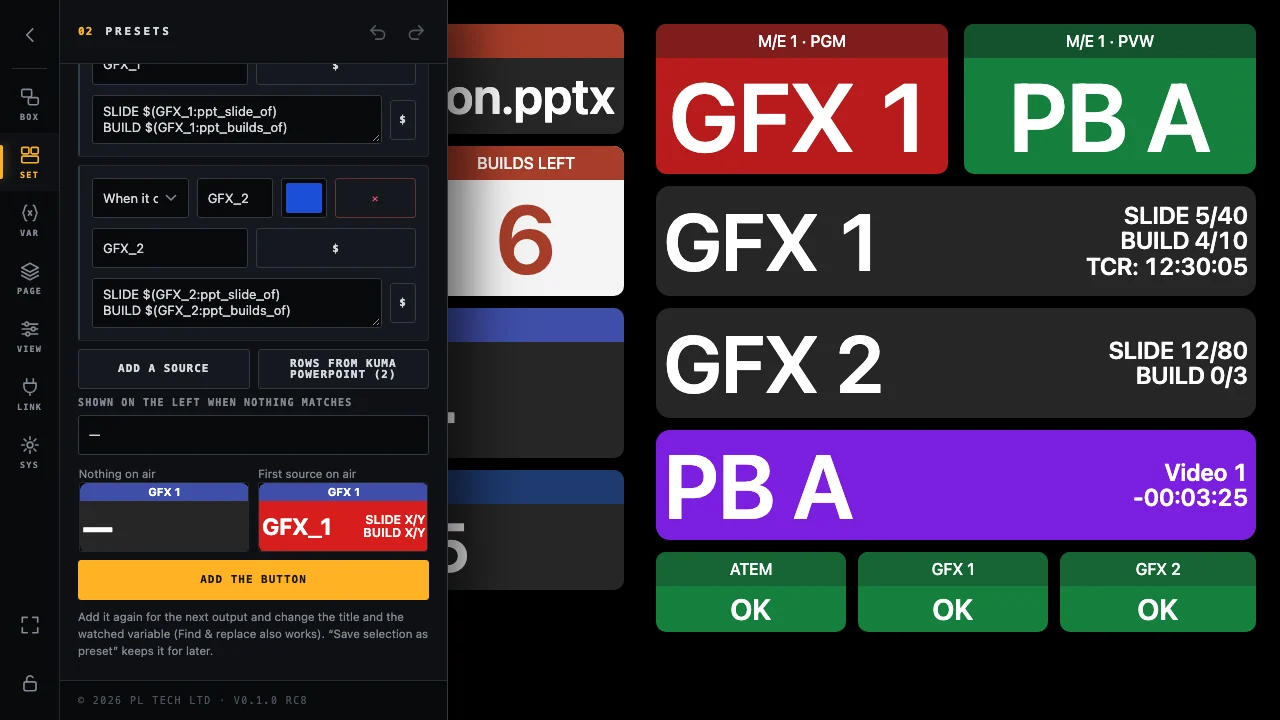
For an output (a PGM, a screen, GFX 1) you often want one button that lights up for the source that is on it and shows details of that source, for example which PowerPoint machine is on air and its slide and build. SET → Button: what is on air builds it:
Pick the variable that says what is on air (for example the ATEM program input) with the $ button.
Press Rows from KUMA PowerPoint: one row for every KUMA connection with PowerPoint variables, with the name on the left and SLIDE and BUILD on the right. Or press Add a source and fill a row in yourself (when it is / contains a name, a colour, the left text, the right text).
Press Add the button. Two small pictures show it with nothing on air and with the first source on air.
The builder: the watched variable, one row per machine, and the two pictures.
Add it again for the next output and change the title and the watched variable (Find & replace, below, helps). The older recipe in One box, many sources does the same by hand with rules.
One box, many sources: what is on PGM and PVW of a screen
A very common question in a production: what is on the LED wall right now, and what is waiting in preview? The answer is not one variable. A video processor such as a Barco E2 or EventMaster tells you, for every input, on which screens it is currently in program or preview. With 20 inputs that is 20 variables, and any one of them can be the answer. Dashboard solves this with one box that has one rule per input, and it has a shortcut so you do not enter the 20 rules one by one.
Quickest way: if your Companion connection is an E2 or EventMaster, open SET and add PGM: which input is on each screen. It builds exactly this, one box per screen. Read on when you want to understand it, change it, or build the same thing for a module that has no preset.
The idea
The E2 module in Companion gives every input two variables that list the screens it is on, for example eventmaster:source_4_pgm_destinations holds Screen LED while input 4 is in program on that screen (and is empty otherwise), plus its name eventmaster:source_4_name. (eventmaster is the connection name; yours may differ, pick the variables with … as usual.) The box looks at all inputs in turn. The first input whose list contains the screen name wins, and the box shows that input's name:
then show the text $(eventmaster:source_N_name) and colour the box red.
When nothing matches, the box keeps its normal look (grey, with a dash). If two inputs are on the same screen at once (a key over a background), the rule that is higher in the list wins, because the first matching rule wins.
Build it
Make the box with New box. Give it a value of — (shown when nothing matches), a big font and a bar label such as LED · PGM ("Content" tab).
Add the first rule (RULES → + Rule): variable eventmaster:source_1_pgm_destinations, comparison contains, value Screen LED (type the screen name exactly as the module reports it), background red, and as the rule's text $(eventmaster:source_1_name).
The first rule, for input 1. The text field uses the name variable of the same input.
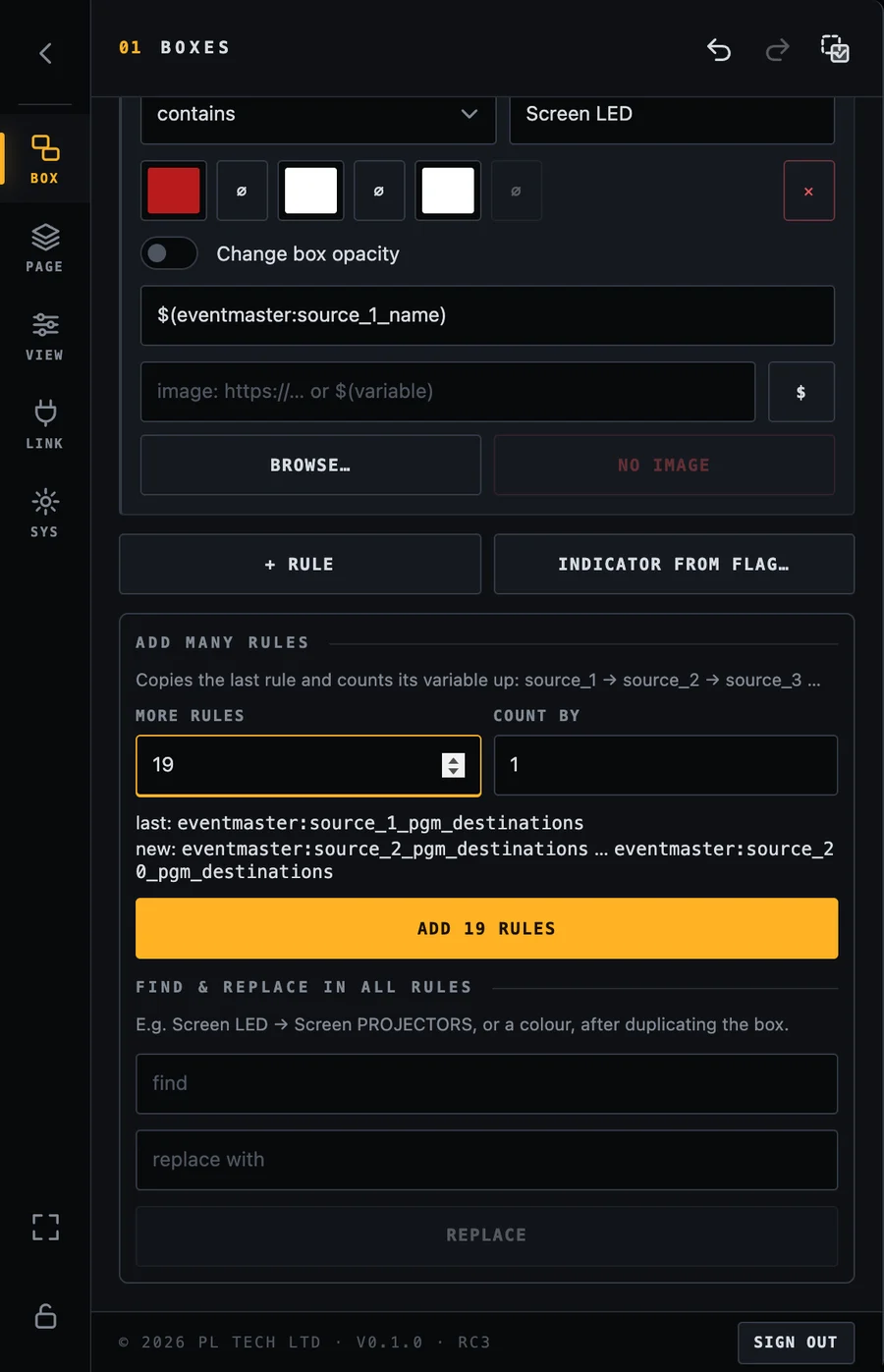
Add the other 19 at once. Scroll down to Add many rules, type 19 in More rules and look at the preview: it shows the last rule and the range that will be created (source_2_pgm_destinations … source_20_pgm_destinations). Press Add 19 rules.
Add many rules copies the last rule and counts the number in its variable up. The number in the rule text (source_1_name → source_2_name) counts along with it.
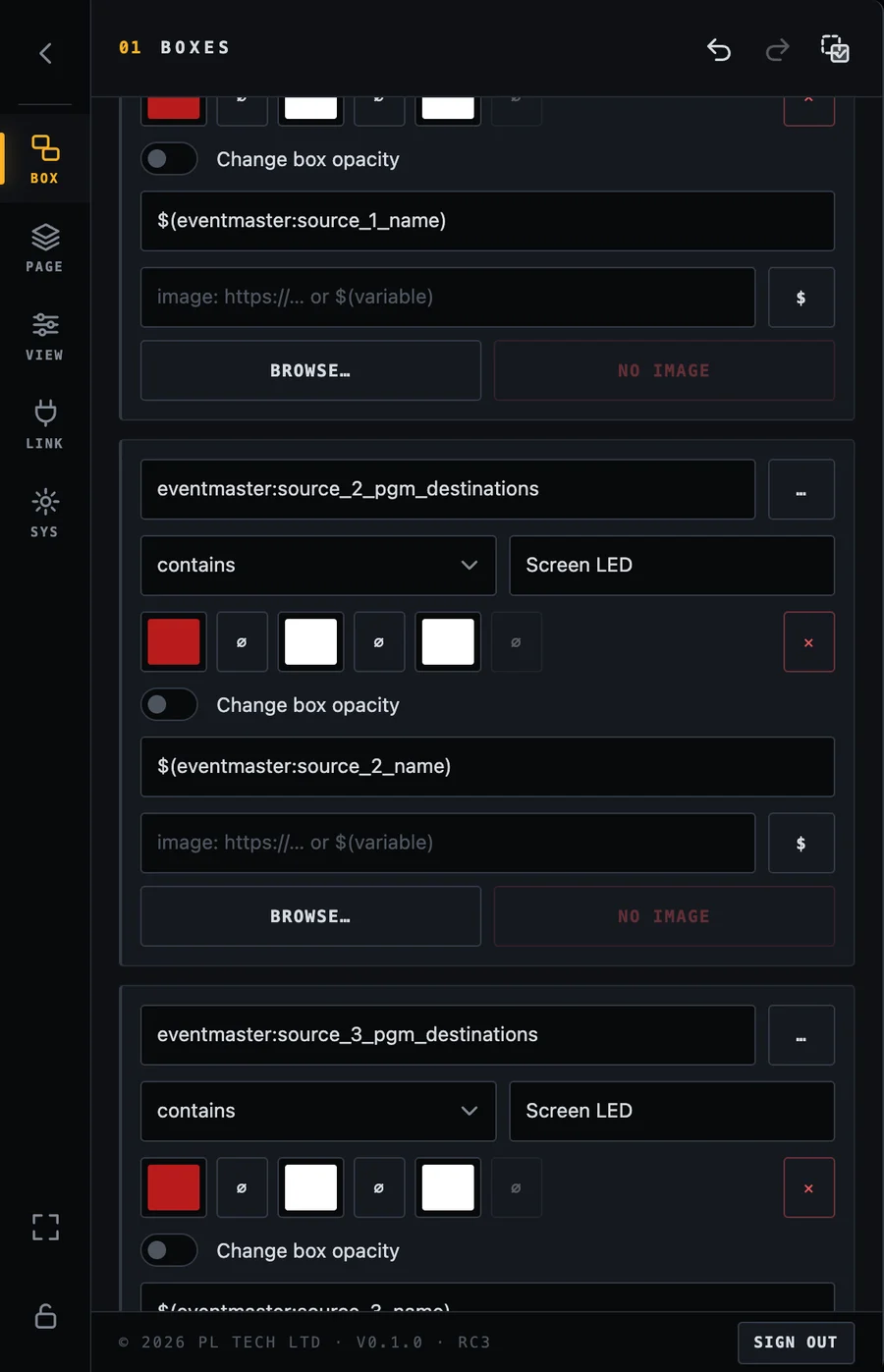
The copies keep the comparison, value and colour, and the number in the rule's text counts up together with the variable, so rule 7 reads source_7_pgm_destinations and shows $(eventmaster:source_7_name). Count by is the step, useful when inputs are numbered 1, 3, 5.
Twenty rules were made in one tap. Scroll the Rules tab to check any of them.
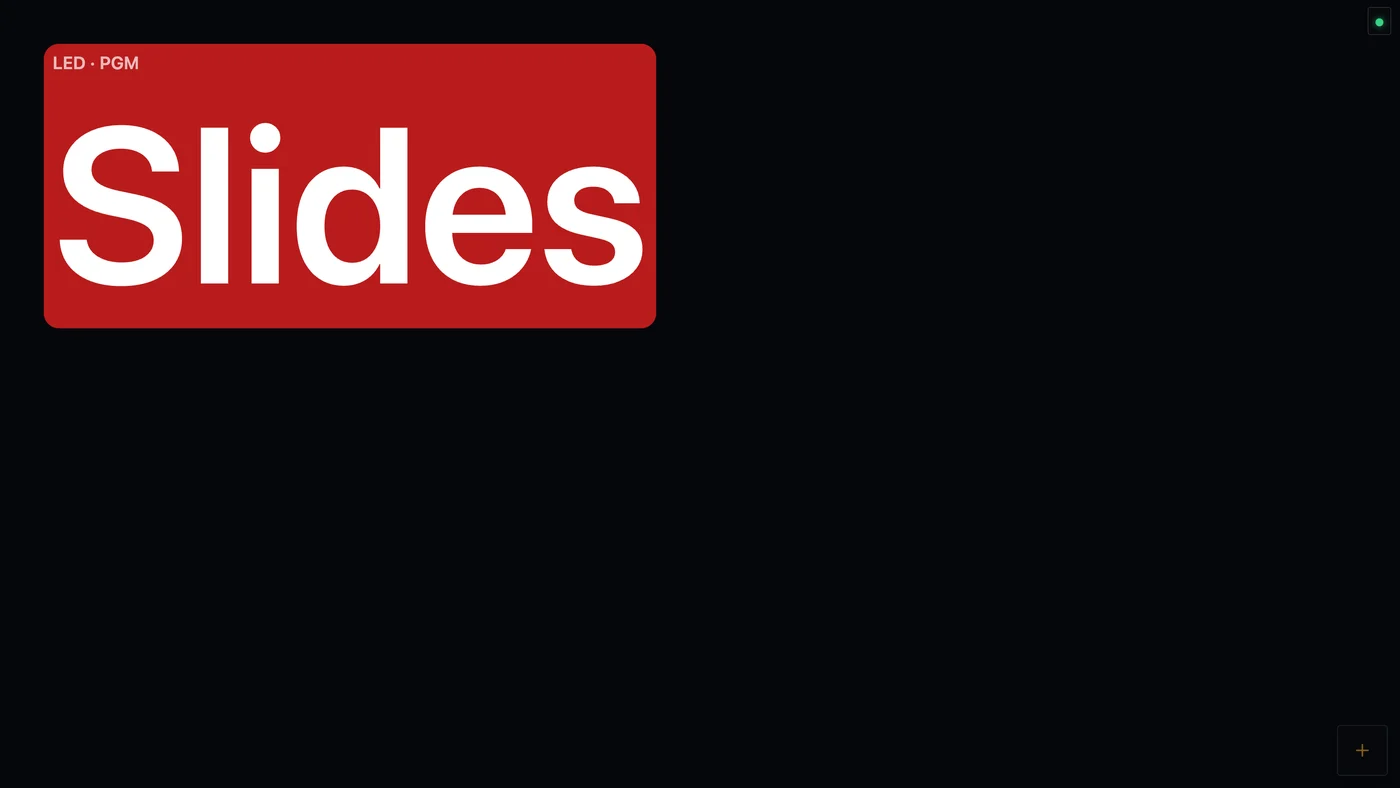
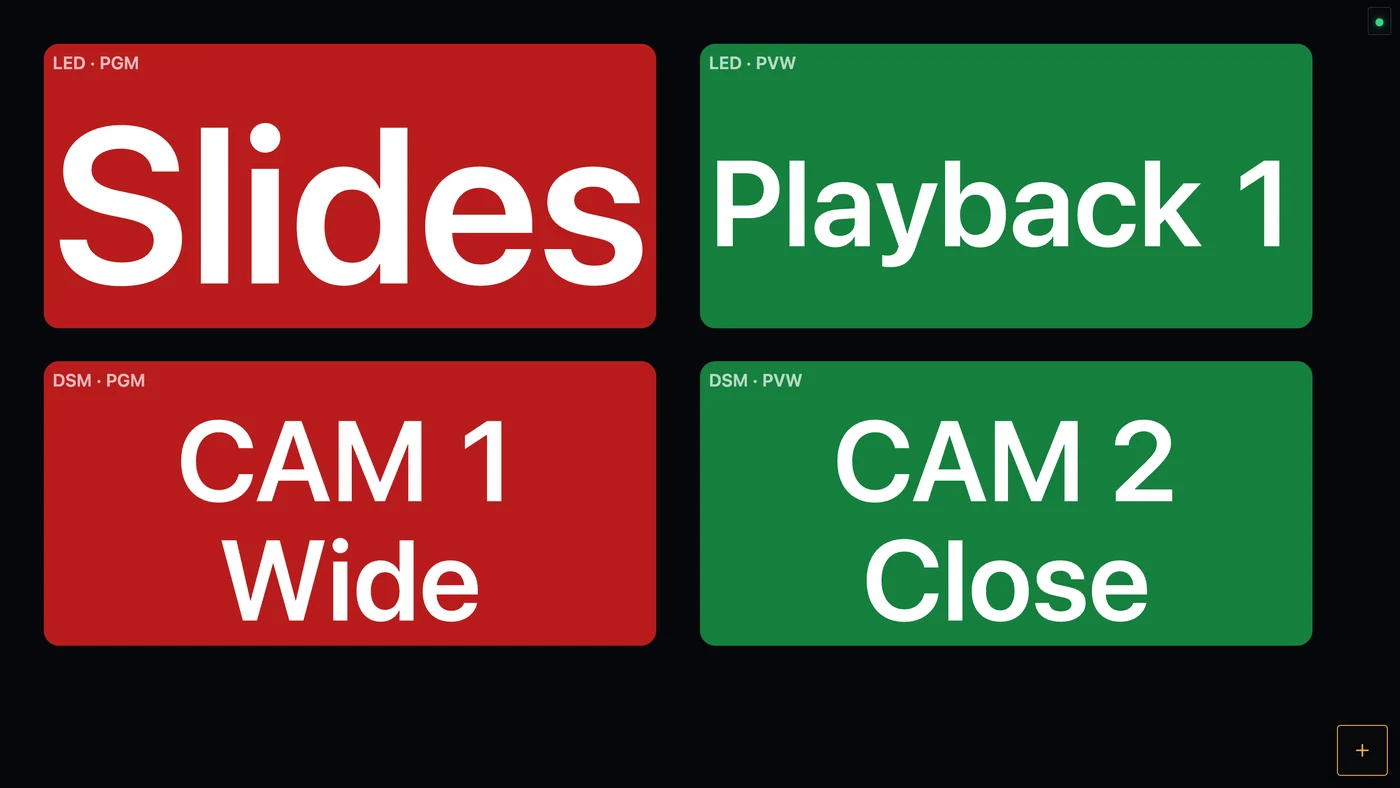
Look at the result. With input 4 in program on the LED wall the box shows its name:
One box, red, showing Slides: input 4 is in program on Screen LED.
Make the PVW box, and the same for a second screen
You do not repeat any of this. Duplicate the box (the duplicate icon in the BOX tab, or Ctrl/Cmd+D) and use Find & replace in all rules at the bottom of the Rules tab on the copy:
Find
Replace with
What it does
pgm
pvw
All 20 rules now read the preview lists. The tool reports Changed 20 fields.
#b91c1c
#15803d
Red becomes green, the usual colour of preview.
LED
DSM
For another screen: the value to look for changes from Screen LED to Screen DSM in all rules.
Find & replace after duplicating: all 20 rules of the copy now look at preview instead of program.
Finally change the bar label of the copy (Content tab) to LED · PVW. Four boxes, two screens, program and preview, and every one of them follows all 20 inputs:
The finished panel for an LED wall and a DSM (confidence monitor) screen. Red is program, green is preview.
Tip: make and test the first box fully before you duplicate it. Everything in a box (font, border, size, colours) is copied, so the copies only need the three replacements above.
Other uses of the same trick
Router or matrix: one box per destination, one rule per source (destination_N_source, text is the source name).
Several things in one box: end the rule list with a rule on a different variable (a warning, a fault flag). Put it at the top so it wins over everything else.
Several sources at the same time: if one box must show two inputs (for example a key and a background), make two boxes, or use Repeat as series to lay out one box per input.
Share the panel:SYS → Configuration → Save writes the whole dashboard into one file. Load it on another computer to get the same panel, then only change the connection in LINK.
Pages
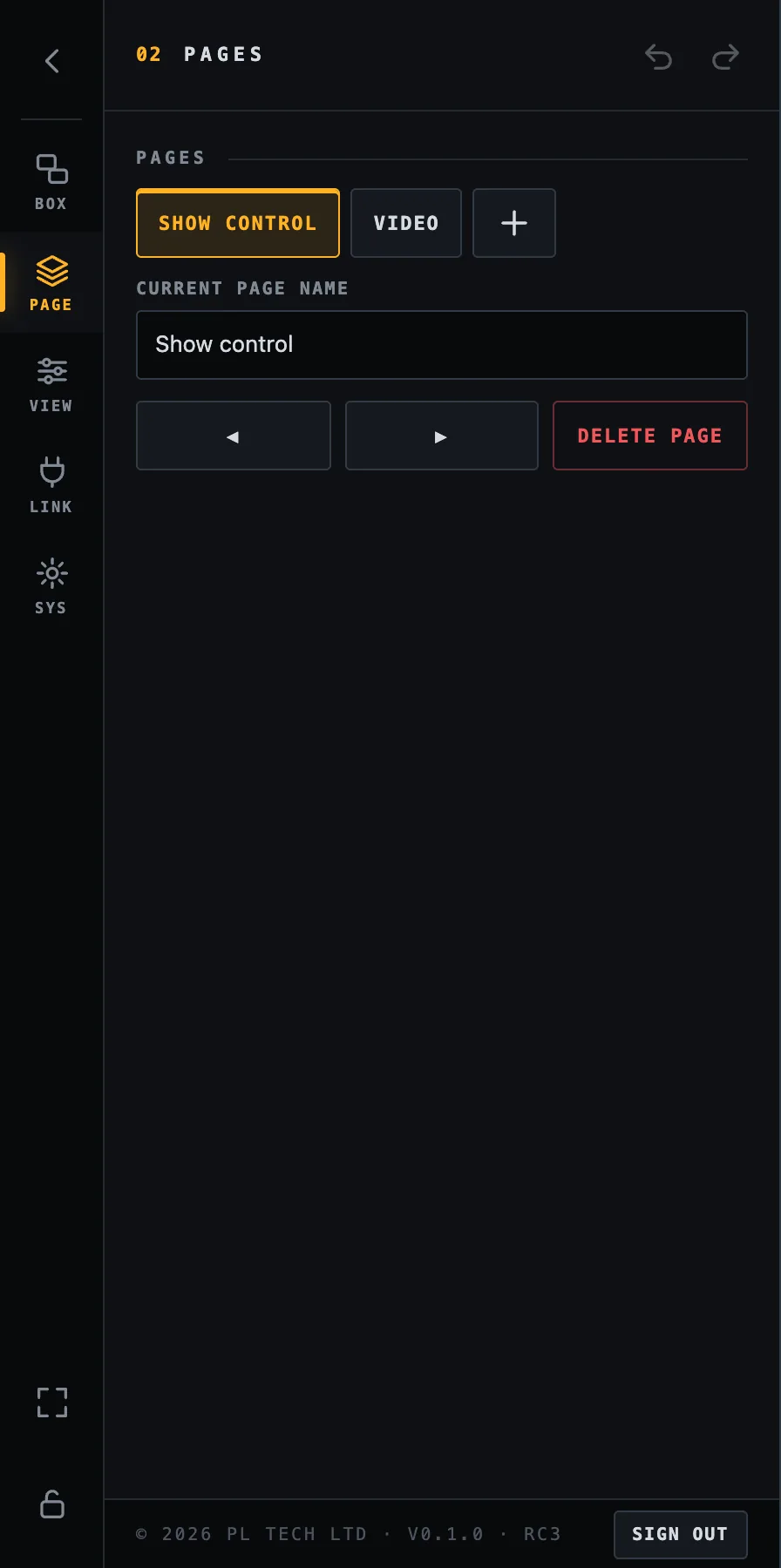
One screen is rarely enough, so a dashboard can have several pages, like tabs. Open PAGE to add (+), rename, reorder (◀ ▶) and delete pages. Deleting a page deletes its boxes, after a confirmation press. Switch pages by tapping the page in this list, or with a box whose action is Go to a page.
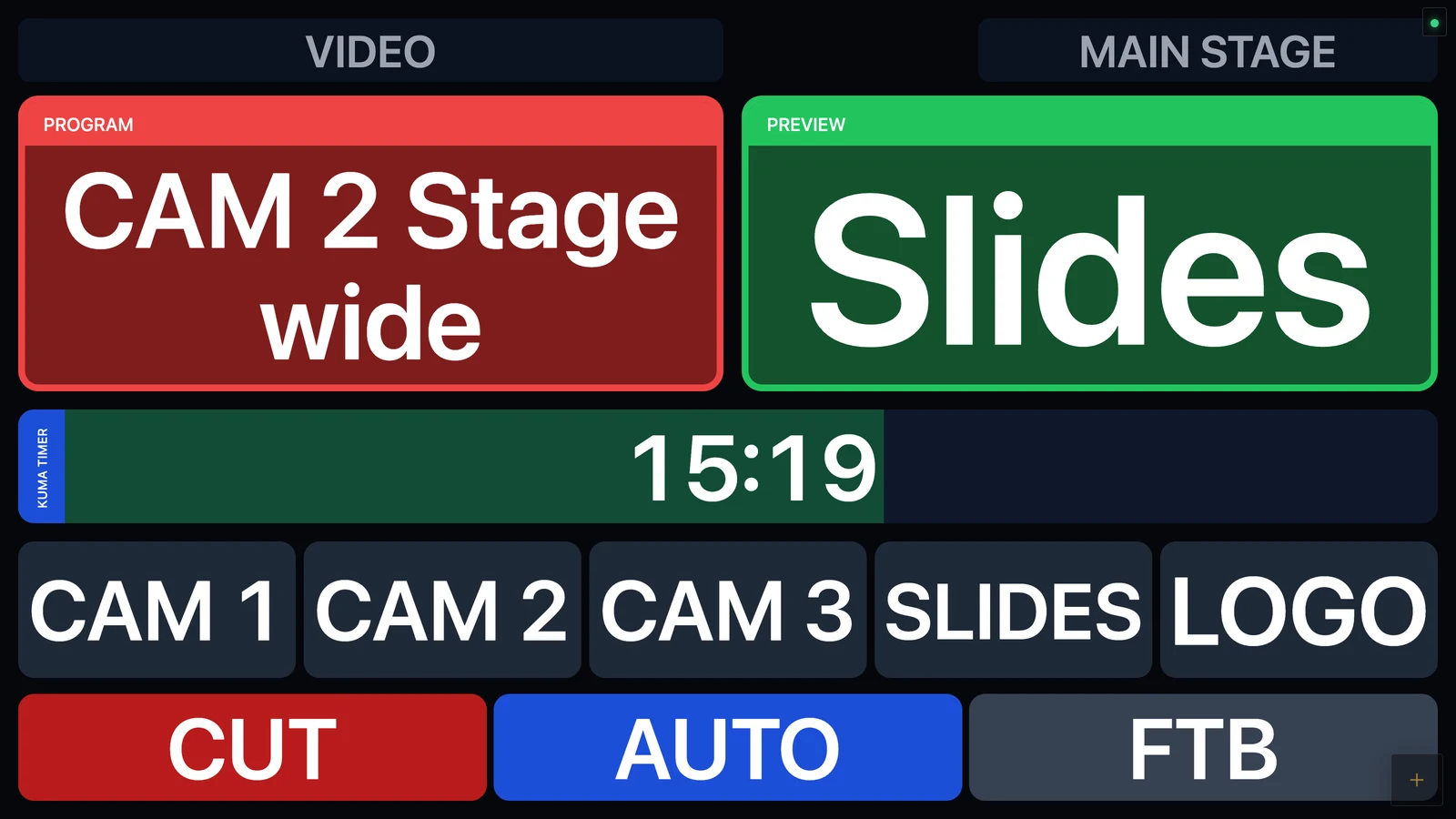
PAGE: your pages, the name of the current one, reorder and delete.A second page for the video operator: program and preview, the KUMA timer as a bar, source buttons and CUT / AUTO / FTB.
Look of the whole screen (VIEW)
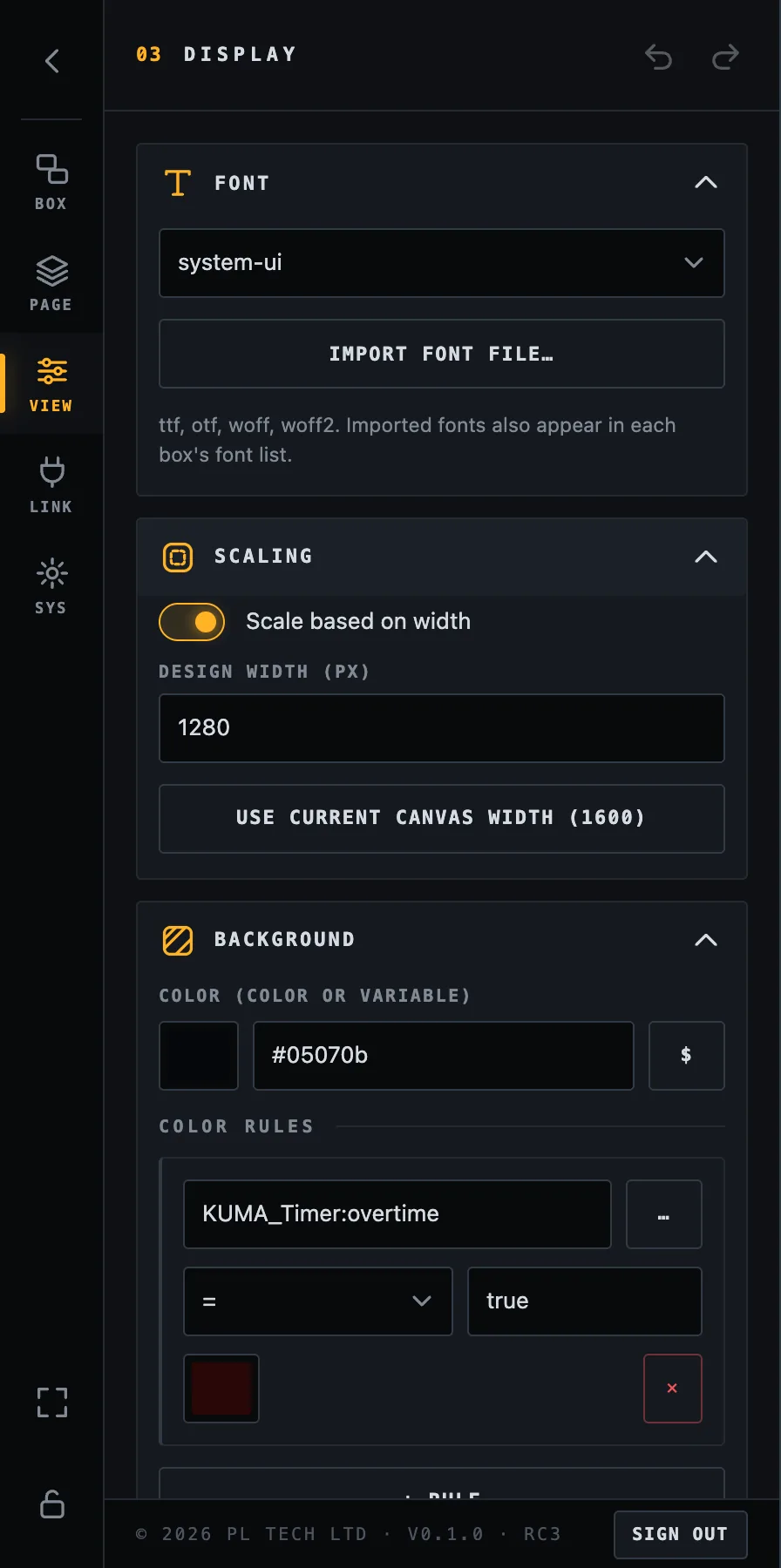
The VIEW section affects the entire dashboard.
VIEW: font and scaling.
Font
Choose the default font or import your own (ttf, otf, woff, woff2), for example your event's brand font. Imported fonts also appear in every box's own font list.
Scaling and design width
Dashboard draws your boxes on a canvas that is scaled to the width of the window, so a layout looks the same on a small laptop and on a large display. The design width (default 1280) is the width of that canvas in pixels. The height follows the shape of the window:
Screen
Shape
Canvas (design width 1280)
Laptop, monitor, TV
16:9
1280 × 720
Right two thirds of a 2560×720 bar screen
2.37:1
1280 × 540
iPad, 4:3 tablet
4:3 – 1.43:1
1280 × about 900–960
So: draw each page for the screen it will be shown on (a page for the bar, a page for the tablet). Use Use current canvas width to match the design width to the window you are working in.
Background
The colour of the page (or a variable that holds a colour), colour rules (change the whole screen when something happens, such as red in overtime), and an optional background image or video.
Background colour, a colour rule (red screen when the KUMA overtime flag is true) and images.
Animations
The default animation for changing values (none, fade, slide, flip), smooth colour changes, smooth image changes and the duration. A single box can override the value animation.
Animations.
Locking: from editor to control panel
While unlocked, tapping a box selects it. While locked, tapping a box does its action (presses the Companion button or switches the page), the menu is gone and nothing can be moved by accident. Lock the layout before the show.
Lock: press the padlock at the bottom of the menu rail.
Unlock:press and hold the padlock button at the bottom right for one second. A ring fills up and the padlock pops open. The hold is deliberate: nobody unlocks it by an accidental tap in the dark.
A locked dashboard: only a faint padlock remains at the bottom right.
Make a screen that always looks right
Keep the big read-outs (timer, status) big and the touch buttons at least about 80 pixels on the canvas.
Use colour with rules rather than text alone, so state is visible from across the room.
Switch off Show connection status on screen only when you trust the link. The dots are a free early warning.
Web server: tablets, phones and TVs
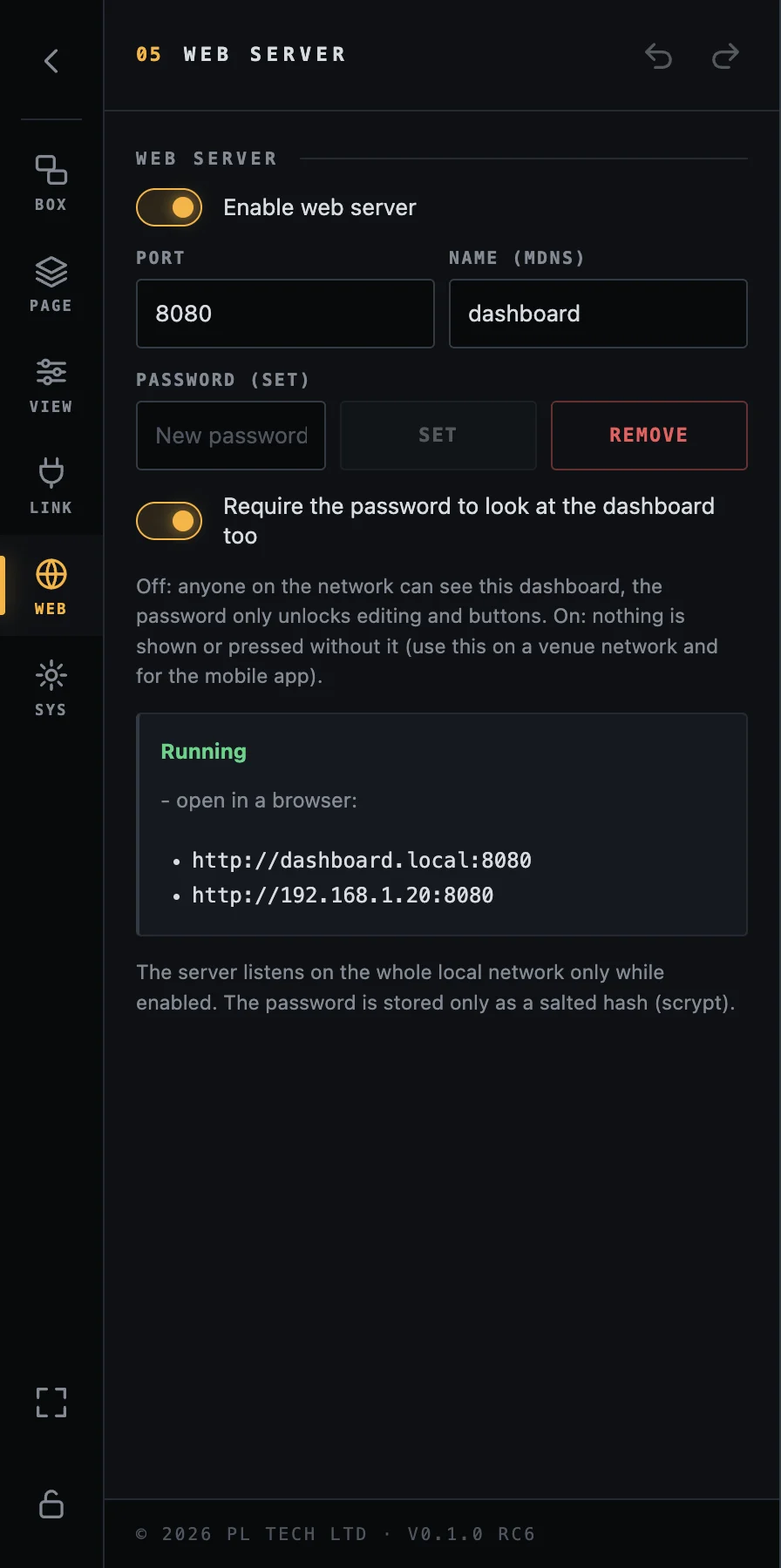
Open WEB (desktop app) and switch on Enable web server. Dashboard now serves your screen to every browser on the same network. The addresses to open are listed right there, for example http://dashboard.local:8080 or the computer's IP address. Type one into the browser of an iPad, a phone or a smart TV.
WEB: the server switch, port, name, password and the addresses to open.
Port (default 8080) and Name (the .local name, default dashboard).
Password: without one, every browser is view-only (it can look at the dashboard but not change it or press buttons). Set a password and browsers can sign in with the small key button to edit and press.
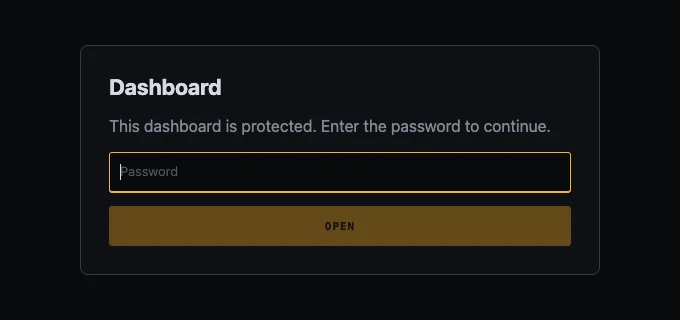
Require the password to look at the dashboard too: off by default. When it is on, nothing is shown or pressed without the password: a browser (and the Dashboard app for phones and tablets) first shows a sign-in screen and only then loads the dashboard, its pictures and its live updates. Use it on a venue network, on a network shared with the audience, and for the mobile app. It needs a password to be set.
The password is stored only as a salted hash; failed sign-ins are slowed down automatically.
The server listens on your local network only while it is enabled.
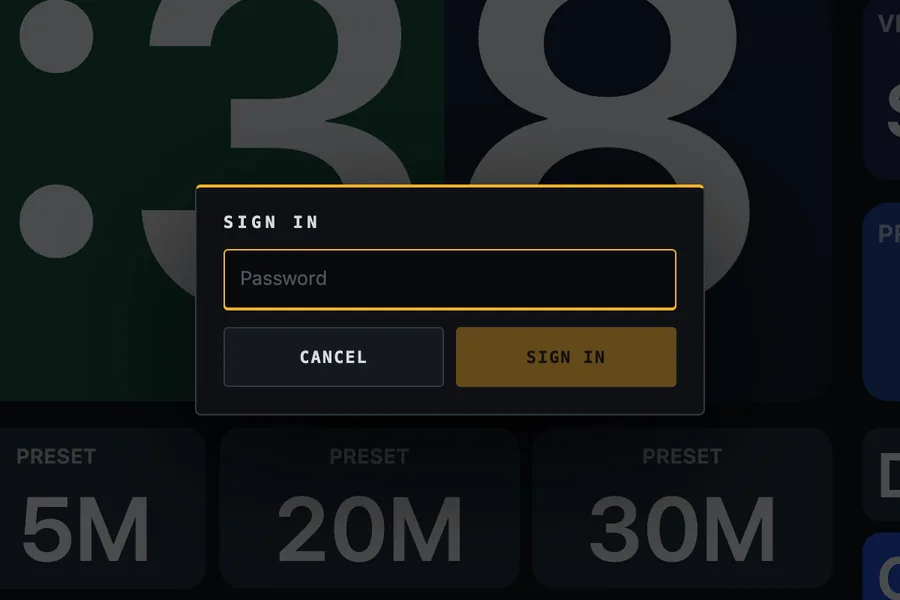
A browser without a password: view-only, with the key button at the bottom right.Signing in from the browser to edit and press buttons.
With “Require the password to look at the dashboard too” the browser shows this first. Nothing of the dashboard is sent before the password is right.
Changes made on one device show up on the others a moment later, so you can edit on the laptop and watch the tablet update. A browser works like the app, with two differences: the WEB section and the window options (wide-screen, auto-fit) exist only in the desktop app.
Security. View-only mode (no password) and a password that only protects editing are for trusted networks (a production LAN): anyone on the network can still look. On a venue or shared network set a password and switch on Require the password to look at the dashboard too. Even then the traffic is not encrypted (plain http inside your network), so it is not meant for the internet. If the venue Wi-Fi blocks devices from talking to each other, use your own router for the production network.
One page on a screen: add ?page=2 to the address to show one page (a page number, name or id). The address follows the page you open, so a reload or a copied link stays on it. On a touch screen, swipe left on an empty part of the canvas to open the menu.
Using the iPhone, iPad, Apple Watch or Android app instead of a browser? The mobile guide shows how to connect, use the panel and set up alerts.
Relay: watch the dashboard from outside the network
New in Dashboard 0.1.0-rc.9.
The mobile apps (iPhone, iPad, Apple Watch, Android) connect through Relay as well; the mobile guide walks through the app side step by step.
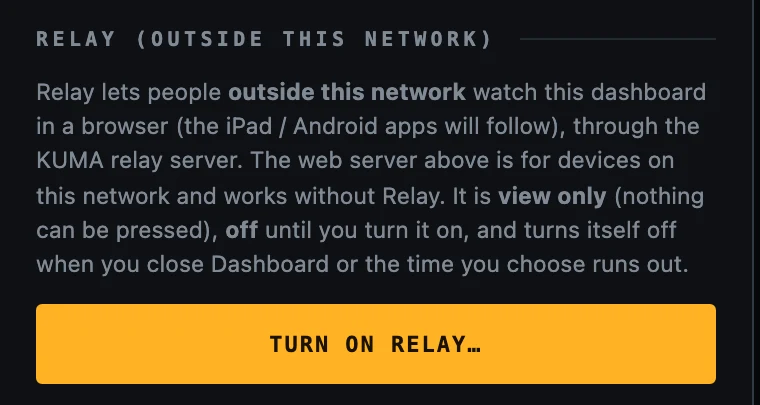
The web server above is for screens on the same network as the computer. Relay is for everyone else: a client in another city, a producer in the hotel, a second screen on mobile data. They open a web page, type a code and a password, and see your dashboard live. It is view only unless you also allow control, and it is off until you turn it on.
Turn it on
Open the menu, go to WEB and scroll to Relay (outside this network).
Press Turn on Relay…
The Relay section, switched off.
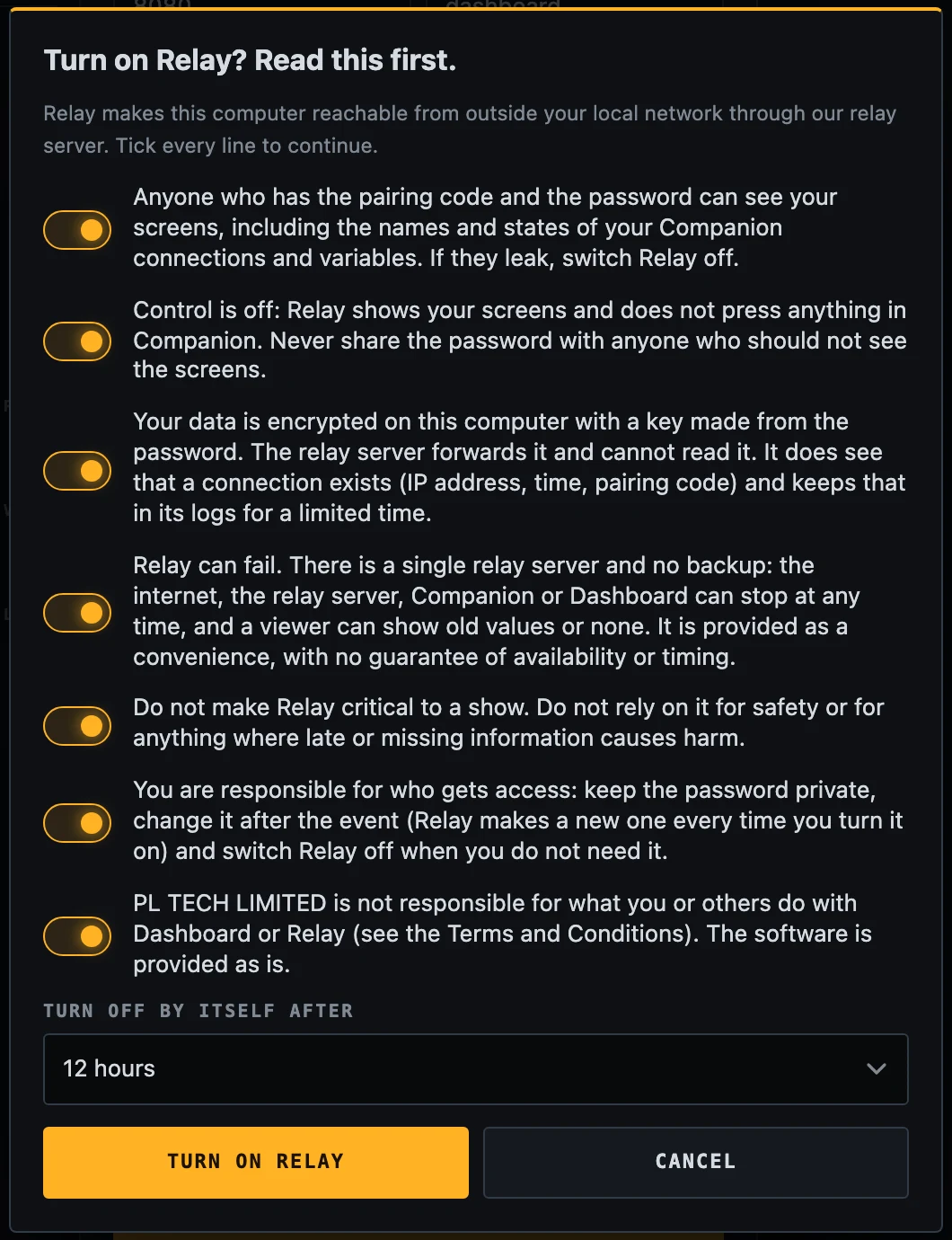
Read the seven lines and tick every one. The Turn on Relay button stays grey until all are ticked. This is on purpose: Relay makes your computer reachable from outside, and the lines say what that means.
Choose when it should turn itself off (4, 12 or 24 hours) and press Turn on Relay.
The seven lines you accept every time you turn Relay on.
Share it
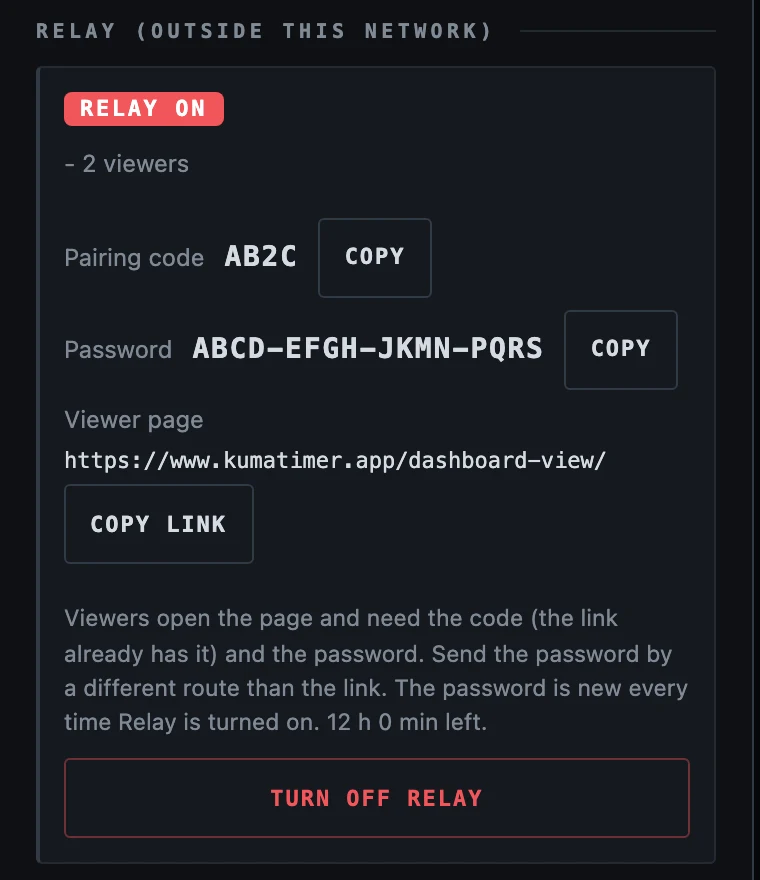
While Relay is on, a red RELAY ON flag shows in the corner of the screen with the number of viewers, and the menu shows three things:
Pairing code: four letters and digits, for example AB2C.
Password: sixteen letters and digits, new every time you turn Relay on. It is generated for you; it is not a password you choose.
Viewer page: https://www.kumatimer.app/dashboard-view/. Copy link copies it with the code already in it.
Relay is on. The code and password here are examples.
Send the link and the password by different routes (for example the link by email and the password by a message). Anyone who has both can see your screens.
Turn it off with Turn off Relay. It also turns itself off when the time you chose runs out and when you close Dashboard.
What the viewer sees
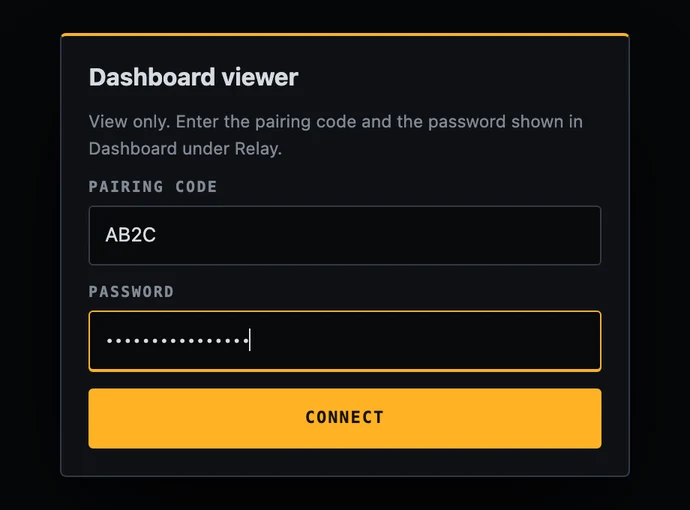
The viewer opens the page, types the code (the link already has it) and the password, and presses Connect.
The viewer page. The password is typed, never put in the link.
Then the dashboard appears, with the same layout and live values. If the dashboard has several pages, tabs at the bottom switch between them. On a phone the page scales to fit.
The viewer in a browser (example data).The same dashboard on a phone.
If the host goes quiet, the page shows No update from the host and keeps the last values until it hears again.
Allow control: let viewers press buttons
In the Relay dialog, below the seven lines, there is a separate checkbox, Allow control. It is off unless you tick it. With control on, the people who have the pairing code and the password can press the buttons of your dashboard (the boxes whose action is Press a Companion button) from anywhere. That can switch video, audio, lights or anything else Companion controls, so give the password only to people you trust with that.
A viewer presses a box, and Dashboard looks the button up in your own dashboard. Only buttons you placed can be reached; other Companion buttons cannot.
The flag on the screen says RELAY ON · CONTROL ON, and the Relay section keeps a viewer log of the last presses (who, which box, whether it worked).
You can switch control on or off while Relay stays on (the checkbox in the Relay section). Switching it on asks you to accept the warning again.
Limits: at most five presses per second from one viewer and twenty in total. Hidden boxes and boxes without a press action cannot be pressed.
On the viewer page the buttons are clickable only when control is on. A small note shows Pressing… and then Pressed, or the reason it did not work (for example Companion not answering).
Good to know
View only unless you allow control. Without it buttons do nothing on the viewer page, and the tap actions of your boxes are not even sent. With control on, a viewer can press the buttons you placed (see above).
Private. The dashboard is encrypted on your computer with a key made from the password. The relay server only forwards it and cannot read it. It does see that a connection exists (the address it came from, the time and the pairing code); that is kept in its logs for a limited time.
Not sent: the addresses of your Companion connections, imported fonts, and images or videos in boxes and in the background (the viewer shows the boxes without them).
One server, no backup. Relay is a convenience. Do not rely on it for anything where late or missing information causes harm, and keep a local way to operate your show.
A few viewers at once (up to five for one code).
Wrong codes. If someone tries many wrong pairing codes from one network, that network is blocked for an hour. A venue Wi-Fi shares one address, so do not let people guess codes.
While Relay is on, Dashboard reads the variables of all pages from Companion, not only the visible one, so viewers can open any page.
If something does not work
This pairing code is not online yet. Relay is not on, or Dashboard is closed or asleep. Turn it on; the viewer connects by itself when it appears.
Wrong password. Type the password again (letters in any case, dashes optional). A new password is made every time Relay is turned on, so an old one will not work.
Too many wrong pairing codes. Wait an hour, or use another network (for example mobile data).
No update from the host. The computer lost its internet connection or went to sleep. Keep it awake; it reconnects by itself.
Wide-screen mode: Dashboard beside KUMA
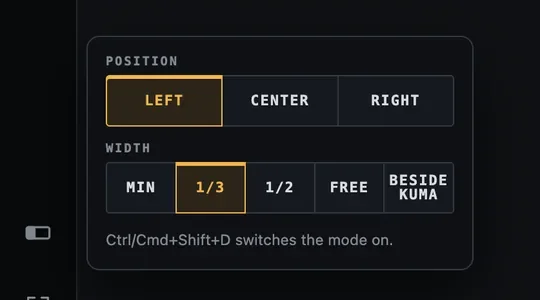
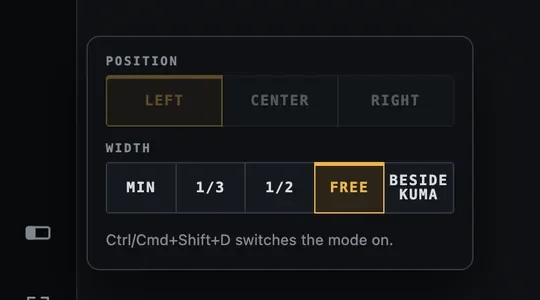
On a screen that is much wider than it is tall (2.3 : 1 or wider, such as a 2560×720 bar display) Dashboard shows a wide-screen button at the bottom of the menu rail. Tap it (or press Ctrl/Cmd + Shift + D anywhere) to turn the mode on: the window loses its title bar, takes the full usable height of the screen and snaps to a slot, so it can stand next to KUMA's own wide-screen strip.
Right-click the button, or press and hold it, to choose the options:
Wide-screen options: position and width.With Free, thin handles appear on both sides of the window.
Option
Meaning
Position Left / Center / Right
Where the strip sits on the screen.
Width Min
The narrowest the layout allows (480 pixels).
1/3 and 1/2
One third or half of the usable screen width.
Free
You pull the edges yourself (the first time it is 700 pixels wide). Drag the thin strip at the top to slide the window sideways.
Beside KUMA
Dashboard takes whatever KUMA leaves free. KUMA tells Dashboard where its strip is (checked every two seconds), so if you move or resize KUMA, Dashboard follows. If KUMA is not running, Dashboard stays where it is.
Beside KUMA needs KUMA on the same computer and uses KUMA's address from SYS → KUMA address (it works out the port by itself). In KUMA, switch on its own Wide-screen kiosk and choose where its strip sits; Dashboard fills the rest.
The mode is remembered and restored at start only while a wide screen is connected, so a laptop that is sometimes undocked is not left with a strange window. SYS → Window → Auto-fit window height to the screen additionally keeps a normal window from running off a short screen.
Dashboard's wide-bar page at the size of the slot next to KUMA.
The wide-screen button is visible on wide screens (and whenever the mode is on, so you can always switch it off). Its options are Dashboard's desktop app only, not the browser.
System: licence, files and updates
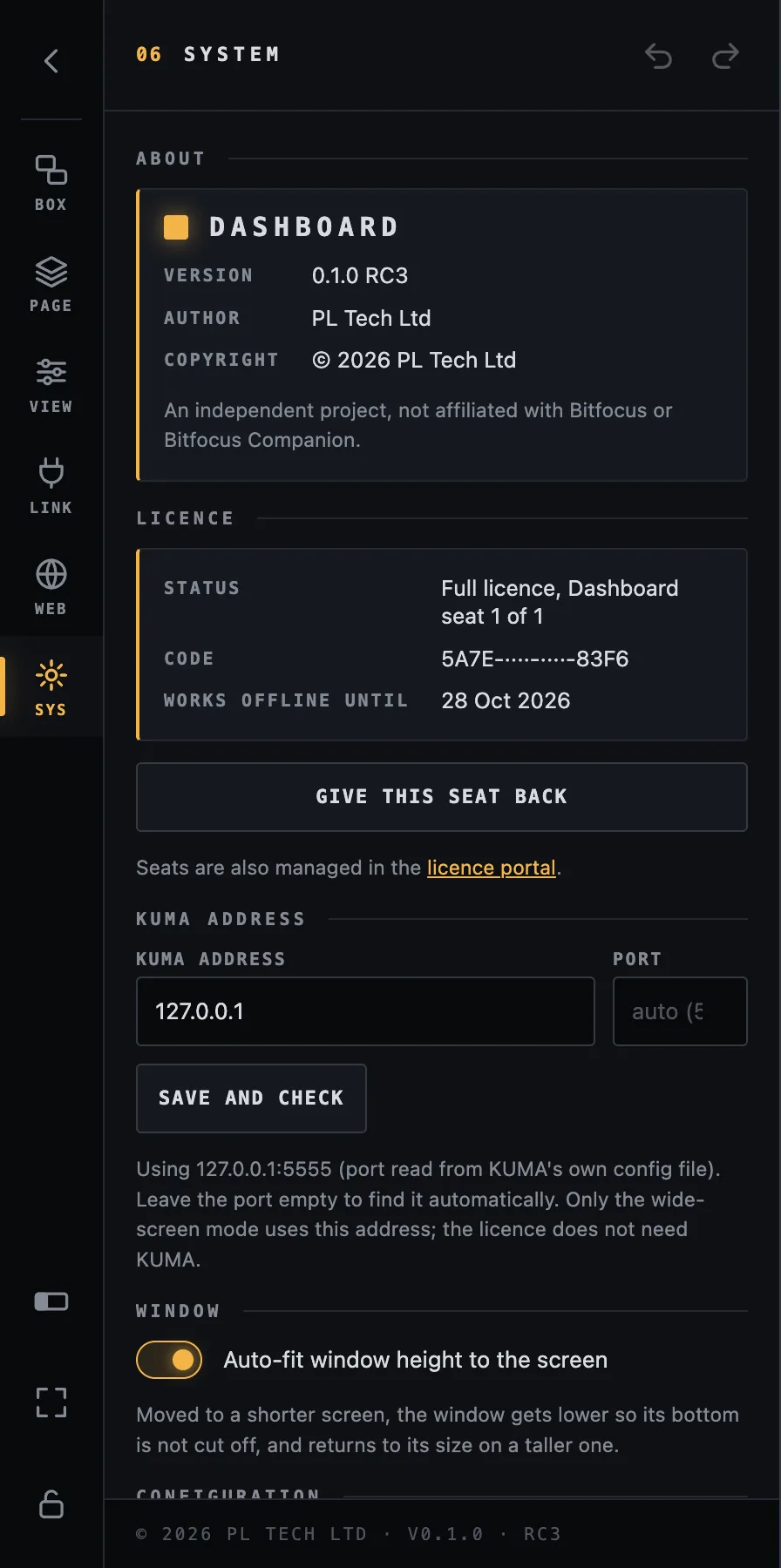
SYS: about, licence status, give the seat back, KUMA address.
Licence: your licence type, the seat Dashboard holds (for example seat 1 of 1), the code (partly hidden) and how long Dashboard keeps working offline. Give this seat back frees it to use on another computer.
KUMA address: only for the Beside KUMA wide-screen mode (host and, optionally, port). Leave the port empty to find it automatically.
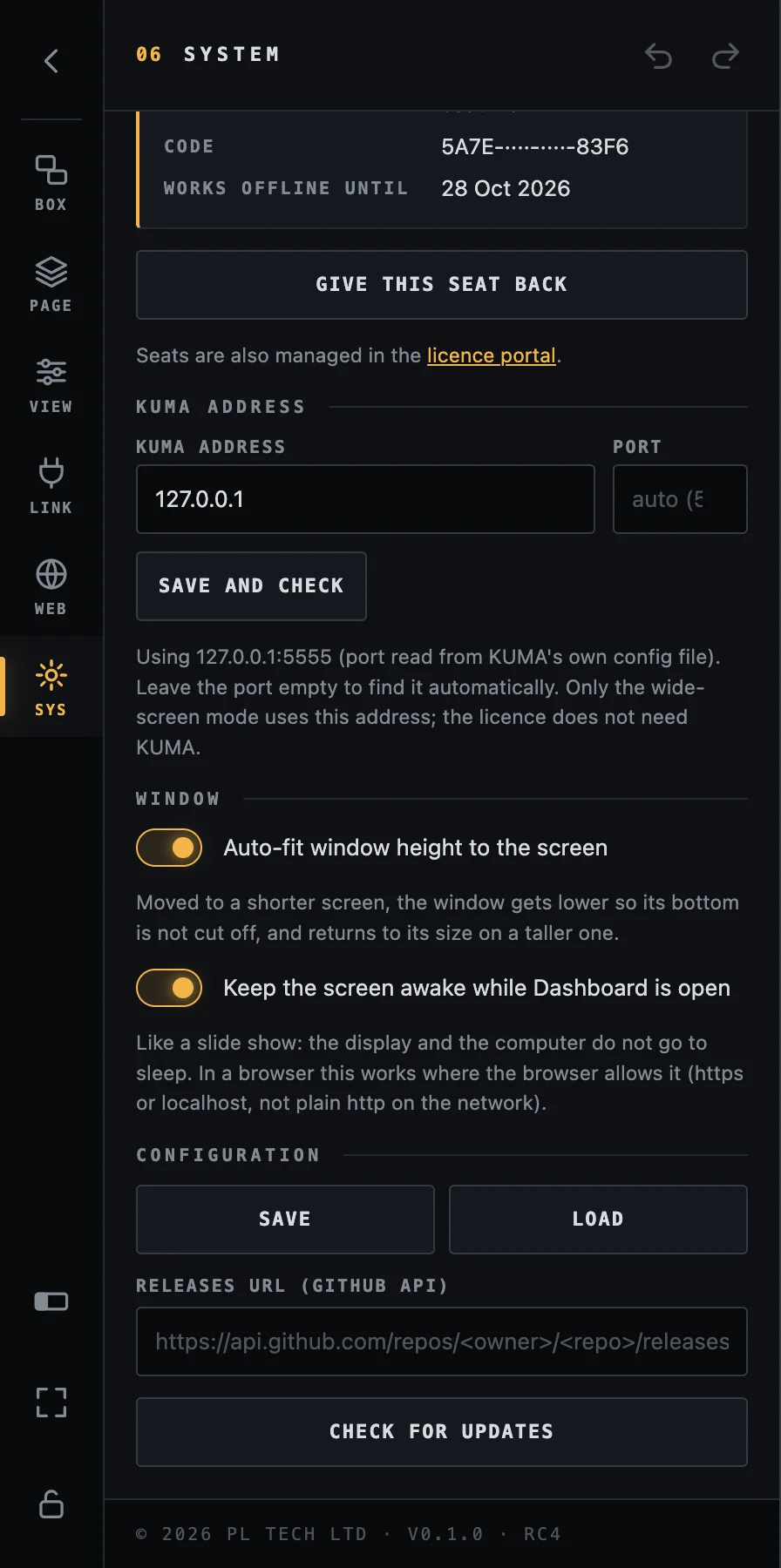
Window → Auto-fit: keeps the window within a short screen.
Window → Keep the screen awake: on by default. Like a slide show, Dashboard keeps the display and the computer from going to sleep while it is open, so a panel on the production desk does not go dark in the middle of an event. Switch it off if you want the normal power settings. In a browser tab (tablet, phone) Dashboard asks the browser for the same; browsers only allow that on a secure address (https or localhost), so on a plain http:// address on your network set the tablet's own auto-lock to Never for the event.
Configuration → Save / Load: saves everything (pages, boxes, connections, imported images, videos and fonts) into one file and loads it back. Use it as a backup and to move your dashboards to another computer.
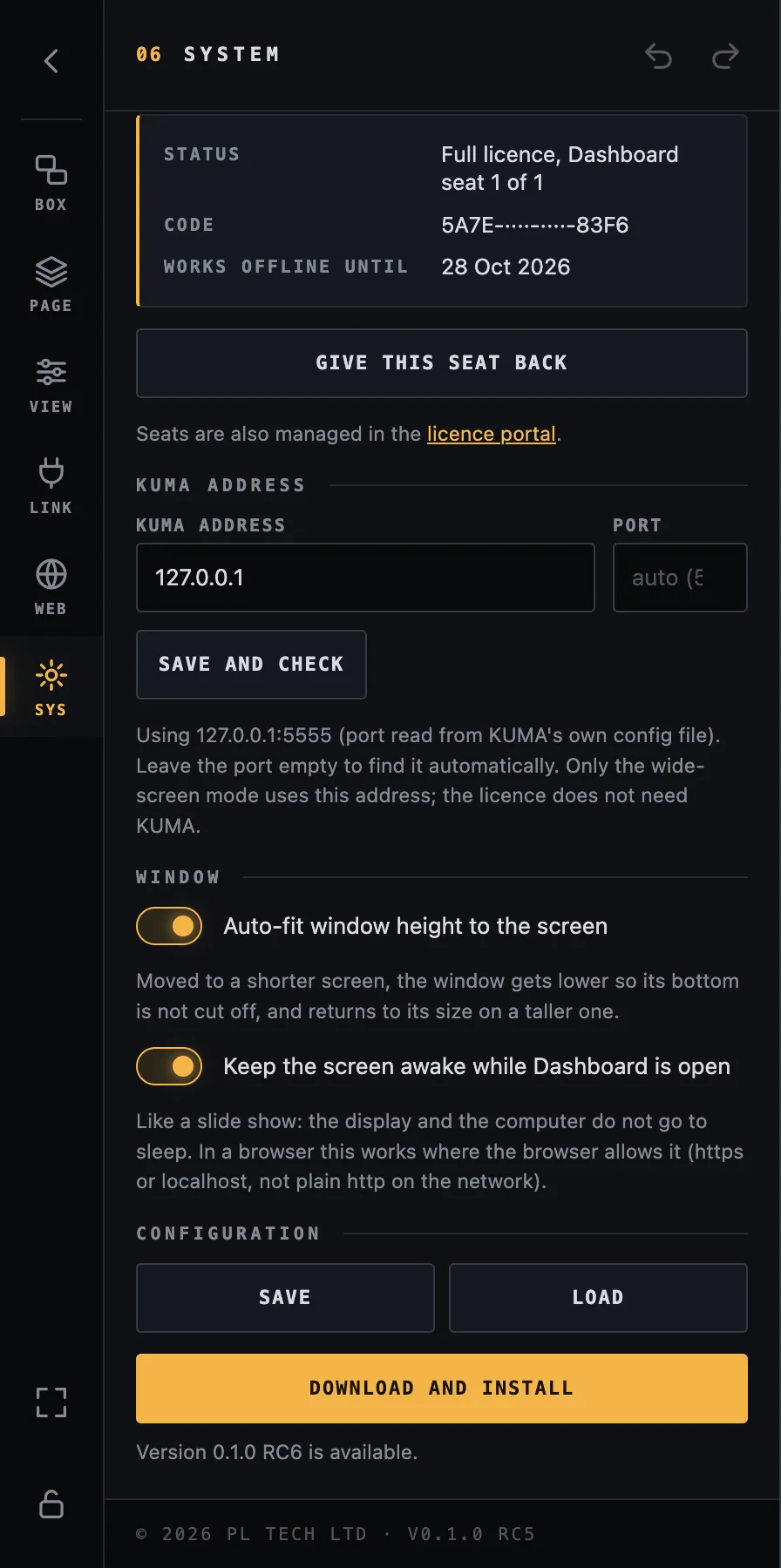
Updates: Dashboard checks for a newer version by itself a little after it starts and every few hours. When there is one, Download and install fetches it (the version is shown), and Restart and install finishes the job. Nothing is installed without you pressing it, so a show is never interrupted by an update. Updates are installed on the computer that runs Dashboard; a tablet or phone just follows. Dashboard 0.1.0 RC4 and older cannot update themselves: install RC5 or newer once by hand.
SYS → Window: both switches are on by default. Switch off Keep the screen awake if you want the normal power settings.SYS: the rest of the section, with configuration save and load. Under it Updates: here a newer version is offered.
Back up before a big show. After the layout is finished, press Configuration → Save and keep the file with your show files. Loading it on a spare computer gives you an identical dashboard in seconds.
Load & add (next to Load) adds the boxes of a saved file to the current page and keeps what you have; Load replaces everything. Keep this window above other applications (desktop app) keeps Dashboard on top.
The licence never stops you from working. KUMA Dashboard comes with your KUMA Timer licence (one Dashboard seat for every KUMA Timer seat) and may be used at commercial events, in client work and in paid productions.
Recipes for event production
Practical set-ups, from the simplest to a full multi-screen show. The finished example dashboard in this guide is built from these pieces.
1. Stage manager's panel
Goal: one screen that tells you the time, the state and the next cue, and lets you run the show with your thumb.
Add Timer with progress bar and Status and cue from the KUMA presets and make the timer the largest box.
Add rules to the timer: red when KUMA_Timer:overtime is true, orange when KUMA_Timer:progress is below 12.
Add START, PAUSE and RESET boxes with Press a Companion button pointing at the KUMA buttons in Companion; add boxes for your presets (5, 10, 15 minutes) with the same action.
Add a cue list: five boxes with $(KUMA_Timer:cue_1_name)…cue_5_name (or build one and Repeat as series). Give each a rule that highlights it when KUMA_Timer:cue_index equals its number.
Lock the layout. Put the screen where the stage manager can reach it.
2. Video operator's page
Add program and preview tiles from the switcher's presets (or two boxes with $(atem:pgm1_input) and $(atem:pvw1_input)), with a red and a green border and a bar label PROGRAM / PREVIEW.
Add the KUMA timer as a thin box with a progress bar, so the operator sees the clock without leaving the page.
Add source buttons and CUT / AUTO / FTB with button-press actions.
Give the page its place in the navigation, with a Go to a page box that is shown on all pages.
3. Status wall for technicians
Open SET and press Build my dashboard (or Add all for… for each connected module). Every module gets an OK / PROBLEM tile and modules with more detail (power supplies, cards) get their own tiles. Arrange them in a grid with the alignment tools. A single glance tells you which device dropped out.
4. Producer's tablet
Enable the web server, add a page drawn for the tablet's shape and open the address in the tablet's browser. Leave the password empty for a view-only status screen, or set one so the producer can also press buttons.
5. Confidence screen in the green room
Show the timer large, the running cue name and the clock on a TV or monitor through a browser in full screen. No password, no buttons, just information.
6. Several rooms, one screen
Add a connection for each Companion computer (LINK → Add connection, give each a clear name). Use the picker to pick variables from each: Dashboard writes the right alias for you. One screen can now show the main stage, the breakout room and the registration desk.
Troubleshooting
What you see
What to check
Red dot (top right) / values show ⚠
Dashboard cannot reach Companion. Check the address in LINK (host and port), that Companion is running, and that both computers are on the same network and not blocked by a firewall.
A box shows …
The variable has no value (yet): wrong name, the Companion connection is disabled, or it is still reading. Open the variable picker and insert it again.
Tapping a box does nothing
The layout is not locked (tap = select), or the box has no action. Check Action, and that the page / row / column match the Companion button.
The bottom of my layout is cut off
The page was drawn for a different screen shape. See Design width: make a page for this screen's shape.
A box is missing on another page
Boxes belong to the page they were created on. Tick Show on all pages to show it everywhere.
I cannot edit in the browser
The browser is view-only. Set an Edit password in WEB (desktop app) and sign in with the key button.
“All Dashboard seats on this licence are in use”
Free a seat: Give this seat back on the other computer, or release it in the licence portal.
“Could not reach the licence server”
Only needed when activating. Once activated, Dashboard keeps running for at least two weeks offline.
The wide-screen button is missing
It only appears on a screen that is at least 2.3 times wider than it is tall (or while the mode is on).
Beside KUMA does not move the window
KUMA must run on the same computer with its own wide-screen kiosk switched on. Check SYS → KUMA address.
Still stuck? Write to support@kumatimer.app with a screenshot and a copy of your saved configuration file.
Tips
Build once, then duplicate and change. Duplicating a box and using Find & replace in all rules is faster than starting over.
Use Undo freely; use Save (SYS) before big changes.
Name your Companion connections clearly; the names appear in the picker and in aliases.
For readable timers: Auto-fit, bold, a high-contrast colour, and a rule for overtime.
A progress bar behind the numbers shows how much time is left at a glance, even when you cannot read the digits.
Keep one page per screen shape; scale the same layout up only if the screens have the same shape.
Glossary
Word
Meaning
Box
A tile on the dashboard: text, colour, image, a bar, a tap action.
Page
One screen of boxes. A dashboard has one or more pages.
Companion
Bitfocus Companion, the program that talks to your show equipment and holds the buttons.
Connection
One Companion computer (address and port) that Dashboard reads from.
Variable
A live value from Companion, written $(connection:name).
Template
The text of a box, which may contain variables.
Rule
“When this variable matches, change the look.”
Label
A caption on an edge of a box, optionally as a coloured bar.
Preset
Ready-made boxes for a Companion module, or your own saved selection.
Design width
The width of the canvas your boxes are drawn on, scaled to the window.
TCR
Time Code Remaining: the time left of a clip that is playing in QLab, Mitti, Millumin or PowerPoint (via KUMA).
Seat
One computer's right to use Dashboard on your licence.
 KUMA Dashboard — User Guide